Rules and Rulebooks Example
This rules and rulebooks example contains a country-specific rule, a customer-specific rule, and an exception rule. The purpose of the country-specific rule is to attach an invoice and packing list to all shipments to India. The purpose of the customer-specific rule is to attach a certificate of origin to all shipments to a specific customer in India. The rule exception specifies that all shipments to India except shipments to one particular customer will have an invoice and packing list attached to them.
For a detailed description of each screen mentioned in this example, see
Rules and Rulebooks Screen.
Creating a Country-Specific Rule
To set up a country-specific rule attaching an invoice and packing list to every shipment to Bulgaria:
1 On the RULES screen, on the Rules tab, select the preloaded country-specific rule for India, QCTRY-IN, in the Rules grid.
2 Click the Documents link at the bottom of the Rules grid; the Documents pop-up window appears.
Adding Multiple Documents to a Rule
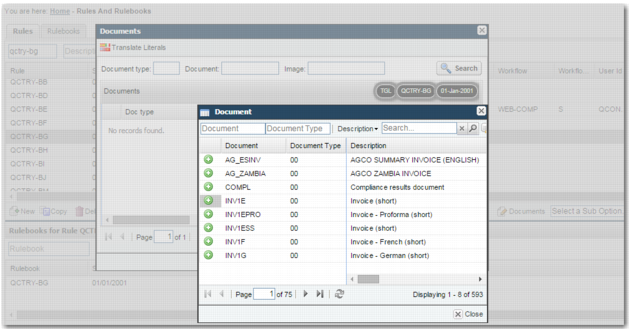
3 Click the Add multiple rule documents icon

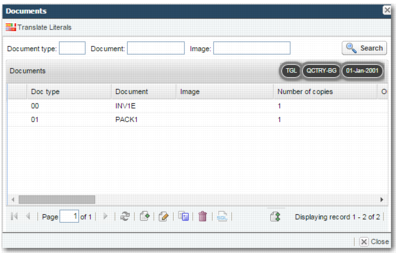
and, in the new pop-up window, search for and add the INV1E and PACK1 documents to the rule. Click Close. The added documents now appear in the Documents pop-up window.
List of Documents Attached to the QCTRY-BG Rule
4 Click Close.
As preloaded country rules are already attached to preloaded country rulebooks in PRECISION, you do not need to attach this country rule to a rulebook.
Creating a Company-Specific Rule
Setting up a company-specific rule that attaches a certificate of origin to every shipment to Ramar Chemicals in Bulgaria involves a number of steps. Firstly, create a company-specific rule and rulebook to attach a certificate of origin to shipments to a particular company. Then, link the company-specific rule to the country rulebook for Bulgaria, QCTRY-BG.
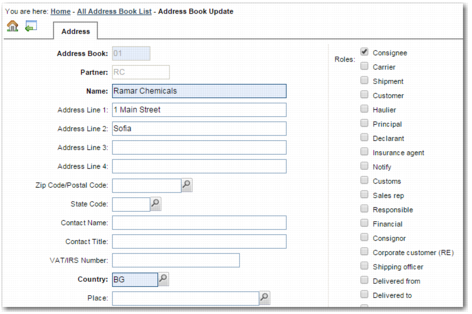
1 Ensure that the partner record for the company described has the consignee role.
Partner Record for Ramar Chemicals, with Bulgarian Address and Consignee Role
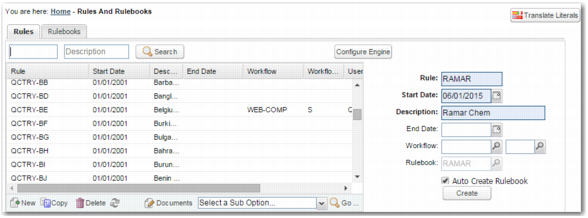
2 On the RULES screen, on the Rules tab, create a rule called RAMAR. Set the start date to the day before the current date, and select the Auto Create Rulebook field.
Adding RAMAR Rule
Note: If you set the rule start date to the current date, it is not effective until the following day. This is a safeguard to protect current transactions in the event that a rule is created accidentally. For this example, choose a date prior to the current date.
3 Select the rule and click the Documents link.
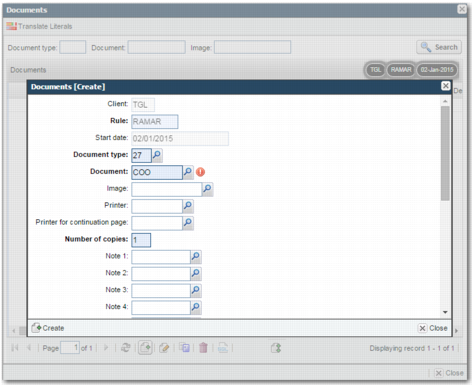
4 In the Documents pop-up window, click the Add icon to open the Documents [Create] pop-up window. Select COO from the lookup in the Document field, specify the number of copies, complete any other relevant fields, and click Create.
Adding a Certificate of Origin Document to the RAMAR Rule
5 The message: “The record has been successfully created.” appears at the top of the window. To close the Documents [Create] pop-up window, click Close.
6 The added document now appears in the Documents pop-up window; click Close.
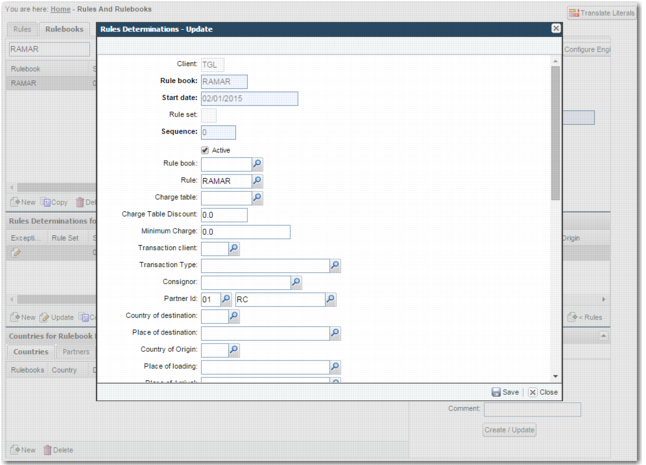
7 On the Rulebooks tab, select RAMAR in the rulebooks grid and select the RAMAR row in the Rule Determinations for Rulebook RAMAR grid. Click Update to open the Rule Determinations - Update pop-up window. Select the Active field, and specify the partner code and partner type for Ramar Chemicals in the Partner Id fields.
Updating the Rule Determination for the RAMAR Rule to the RAMAR Rulebook
8 Click Save and click Close.
Linking the Country-Specific Rule to the Company-Specific Rule
The next step is to link the RAMAR rulebook with the QCTRY-BG rulebook:
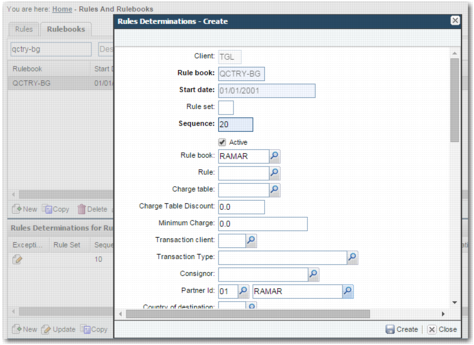
1 On the Rulebooks tab, select the QCTRY-BG rulebook in the Rulebooks grid. In the Rules Determinations for Rulebook QCTRY-BG grid, click New to open the Rules Determinations - Create pop-up window. Set the Sequence field to 20 so that this rule runs after the QCTRY-BG rule. Specify the RAMAR rulebook in the Rule book field, and specify the partner code and partner type for Ramar Chemicals in the Partner Id fields.
Adding a Rule Determination for the RAMAR Rulebook to the QCTRY-BG Rulebook
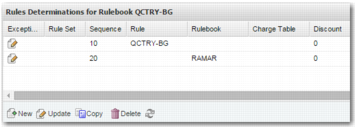
2 Click Create and click Close. The Rule Determinations for Rulebook QCTRY-BG grid now shows determinations for the preloaded QCTRY-BG country rule and the RAMAR rulebook.
QCTRY_BG Rule Determinations
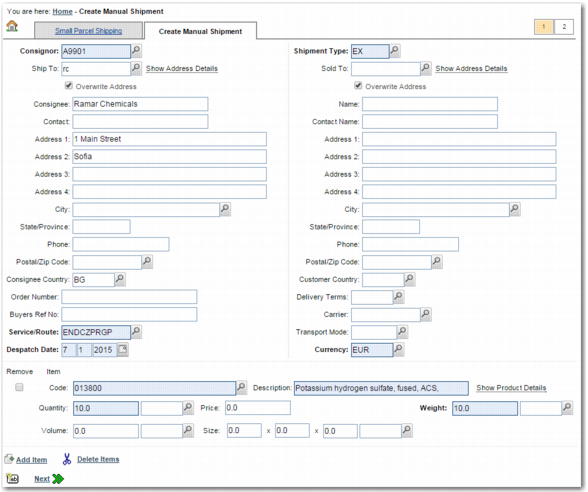
To see the country-specific and company-specific rules implemented, create a manual shipment to Ramar Chemicals in the Manual Shipment option, MANSH.
Creating a Manual Shipment to Ramar Chemicals in Bulgaria
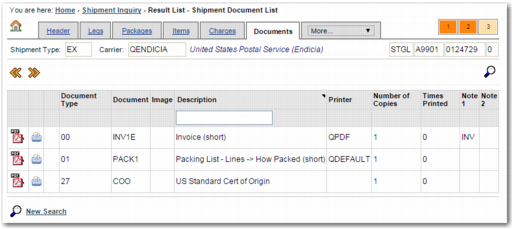
View the shipment documents using the Inquiry option, NQ.
Documents Attached to a Shipment to Ramar Chemicals in Bulgaria
Creating a Rule Exception
The final part of the example involves attaching the invoice and the certificate of origin to all shipments to Bulgaria, except for shipments to Ramar Chemicals.
To do this, add a rule exception to the rule that you do not want to fire when shipping to Ramar Chemicals—the QCTRY-BG rule:
1 On the Rulebooks tab, select the QCTRY-BG rulebook. On the Rules Determinations for Rulebook QCTRY-BG grid, click the edit icon in the Exceptions column of the QCTRY-BG row.
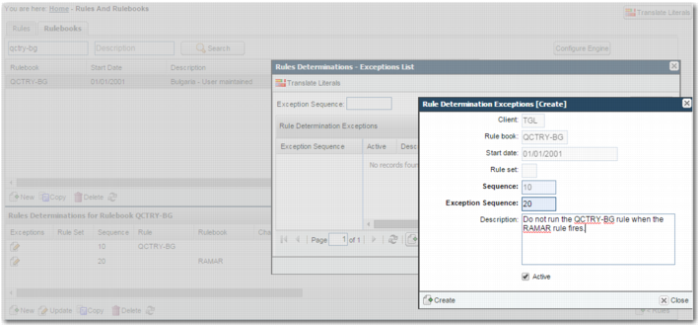
2 In the Rules Determinations - Exceptions List pop-up window, click the Create a new record icon. Specify 20 in the Exception Sequence field to signify that the QCTRY-BG rule is ignored when the rule related to the rule determination with the sequence number 20—RAMAR—fires.
Adding an Exception to the Rule
3 Click Create. Click Close. The exception displays in the Rules Determinations - Exception List pop-up window.
4 Click Close.
To see the country-specific rule, the company-specific rule, and the country rule exception implemented, create a manual shipment to Ramar Chemicals in the Manual Shipment option, MANSH.
View the shipment documents using the Inquiry option, NQ. The certificate of origin appears in the Documents tab of the shipment inquiry. In contrast to
Documents Attached to a Shipment to Ramar Chemicals in Bulgaria, the invoice and packing list do not appear.