Inquiry
>
Search Page System Values
Search Page System Values
You can configure a number of the fields on the Your Search Fields, All Reference Fields, and All Search Fields search tabs. The Shipment Inquiry Search page system values are available in the More list under Shipment Inquiry on the System Value screen. If you are setting the values in the Windows UI, the category is ITRAX.
INQ COLUMN 1, INQ COLUMN 2, INQ COLUMN 3, INQ COLUMN 4
The Your Search fields tab is split into four columns. These system values specify the fields that appear in each column. Typically, only the first two columns are used. The possible values are listed in the Inquiry tab of Appendix A on the QAD Document Library. Do not include a field on the page more than once.
INQ COLUMN
This system value controls the default tab selected when the Inquiry page is opened. The default value is “1”, which means the Your Search Fields tab is selected. The possible values are 1, 2, or 3. This system value is set in the Windows UI.
INQ CREATED BY FIELD DISABLED
This system value is used in conjunction with INQ DEFAULT CREATED BY VALUE, and determines if you can enter a value in the Created By field.
Created By Field Disabled shows the Created By field with a default user ID. The gray border around the field indicates that it is disabled.
Created By Field Disabled
By default, this value is set to no, which means that you can edit the Created By field. If you want this field to default to a particular user ID, set INQ CREATED BY FIELD DISABLED to yes and set the default user ID using INQ DEFAULT CREATED BY VALUE. You can edit this value using the Web UI.
Note: If you disable this field by setting it to yes, you should enter a value in the INQ DEFAULT CREATED BY VALUE field. Otherwise, the user can still edit the field.
INQ DEFAULT CREATED BY VALUE
Use this system value to specify the default user ID in the Created By field. Set this value to *CURRENT to specify the current user ID. The Created By field can be made read-only by setting INQ DEFAULT CREATED BY FIELD DISABLED to yes. You can edit this value using the Web UI.
INQ DEFAULT INCLUDE DISPATCHES
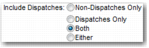
Use this system value to specify the default selection in the Include Dispatches field. Possible values for this system value are DISPATCH, NON, BOTH, or EITHER. The default value is BOTH. You can edit this value using the Web UI.
Include Dispatches Field
INQ SEARCH TYPES
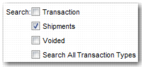
Use this system value to list the type of shipments that can be searched, as shown in
Search Transaction Types Field. Possible values for this system value can be any transaction type you have set up in option ZS. The format is type,name. The name is the description shown on the page itself. By default, this value is set to S,Regular Shipments. You can edit this value using the Web UI.
Search Transaction Types Field
INQ SHOW ORDER CHECKBOX
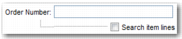
Set this system value to yes if you want the Search item lines option to appear below the Order Number field as in
Show Order Checkbox. If the user enables this option, the inquiry searches for the order number of the line item rather than the order number of the shipment. By default, this value is set to yes. You can edit this value using the Web UI.
Show Order Checkbox
INQ SHOW PO CHECKBOX
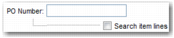
Set this system value to yes if you want the Search item lines option to appear below the PO Number field as in
Show PO Checkbox. If the user enables this option, the inquiry searches for the PO number of the line item rather than the PO number of the shipment. By default, this value is set to yes. You can edit this value using the Web UI.
Show PO Checkbox
INQ SHOW USER DEFINED FIELD 5
Use this system value to determine if the User Defined Field5 field is displayed. Possible values are yes and no. By default, this value is set to yes. You can edit this value using the Web UI.
INQ USERDEF FIELD 5 VALUES
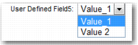
Use this system value to supply a list of values to appear in the drop-down list of this field. The values can be any comma-separated list of strings. Alternatively, you can set the value to textField, which is the default. This displays the field as a text input field instead of a list. This system value replaces the precision property precision.inquiry.userdeffield5values.
User Defined Field 5 Values displays an example of a configured list for this menu.
User Defined Field 5 Values
INQ:YOUR GROUPS ONLY MANDATORY
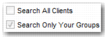
Set this system value to yes if you want to restrict users to searches within their own group. In this case, the search option appears as in
Your Groups Only Mandatory. Search All Clients is not selected and Only Your Groups is selected. It is not possible to change these fields. By default, this value is set to no. You can edit this value using the Web UI.
Your Groups Only Mandatory
INQ MAX HITS
This system value determines the contents of the Max Results Per Page field. It determines the maximum number of results returned in each page of search results. Reduce this number if you want to improve performance by loading fewer shipments on each page. By default, this value is set to 40. You can edit this value using the Web UI.
HIDE CLEAR FORM BUTTONS
Set this system value to yes if you want to hide the Clear Form button shown in
Clear Form Button. Clicking the Clear Form button allows you to clear the changes that you have made to the Inquiry search page with one click. Setting HIDE CLEAR FORM BUTTONS to yes removes this functionality. By default, this value is set to no. You can edit this value using the Windows UI or you can find it under the System Values page Look and Feel tab in the Web UI.
Clear Form Button
Note: The Clear Form button appears on many screens in the Web UI. HIDE CLEAR FORM BUTTONS only affects the visibility of this button on the Inquiry search page.