Inquiry
>
View Results Page System Values
View Results Page System Values
When you run an inquiry, the View Results page appears. You can configure the appearance of this page. The Shipment Inquiry Results page system values are available in the More list under Shipment Inquiry on the System Value screen. If you are setting the values in the Windows UI, the category is ITRAX.
INQ COLUMNS
This system value determines the shipment header columns displayed to the user when the Results screen opens. The possible values are listed in the Inquiry tab of Appendix A on the QAD Document Library. Do not include a field on the page more than once. You can edit this value using the Web UI.
INQ RECALL AND TRACK ENABLED
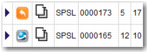
Set this system value to yes if you want the Recall a Shipment and View or Track Shipment Packages icons to appear in the second column of an inquiry’s Results page. By default, this value is set to no. Use this system value in conjunction with DTS - RECALL ALLOWED STATUSES. You can edit this value using the Web UI.
Recall and Track Enabled
DTS - RECALL ALLOWED STATUSES
This system value is used to flag what status a shipment (XMSHDR0.SHSTSF) must be at before it can be recalled. Recalling a shipment allows the shipment details to be loaded into the desktop shipping page so the shipment can be updated. Recalling should only be performed on shipments that have not been processed. If the packages on the shipment have a tracking number assigned, the shipment cannot be recalled. Use this system value in conjunction with INQ RECALL AND TRACK ENABLED. You can edit this value using the Web UI.
INQ COPY ENABLED
Set this system value to yes if you want the Copy button to appear in the third column of the View Results page, as in
Recall and Track Enabled. By default, this value is set to no. Use this system value in conjunction with DTS - COPY ALLOWED STATUSES. You can edit this value using the Web UI.
DTS - COPY ALLOWED STATUSES
This system value is used to flag what status a shipment (XMSHDR0.SHSTSF) must be at before it can be copied. If the status of the shipment matches a value listed in the system value, a Copy button is shown on the results page. When a user clicks the Copy button, the shipment information is used to populate the fields on the desktop shipping page to create a new shipment.
By default, no statuses are assumed. When no statuses are defined the application allows a copy action for any status unless the status is considered to be a draft status. Draft statuses are defined using the system value DTS - DRAFT STATUS. Use this system value in conjunction with INQ COPY ENABLED. You can edit this value using the Web UI.
INQ CANCEL ENABLED
Set this system value to yes if you want the Cancel button to appear in the View Results page. Canceling a shipment sets the shipment status to CA. A shipment cannot be canceled if it has been rated. By default, this value is set to false. You can only edit this value using the Windows UI.
Cancel Enabled
INQ ALLOW CREATE RETURN
A return shipment can be created from the inquiry. The shipment details are used to create a new shipment. However, the ship from and consignee are reversed when loaded into the desktop shipping page. Possible values are yes, no, or temporary. Temporary means only shipments marked as temporary have the return button next to them. By default, this value is set to no. You can only edit this value using the Windows UI.