Stand-alone Manual Shipment Screen System Values
Default Create Manual Shipment Screen shows the default layout of this screen. Although some of the fields on this screen are mandatory, you can add or remove a number of fields from the Create Manual Shipment page. This enables you to tailor the screen to suit the needs of specific users or clients and specify default values for a field. For example, if a user always creates EX type shipments, the Shipment Type field could default to EX for convenience.
You can change the appearance of a field by accessing the associated system value in the Windows UI or Web UI.
System Values for Stand-alone Manual Shipment Screen lists the system values that you can edit to change the appearance of the stand-alone manual shipment screen.
System Values for Stand-alone Manual Shipment Screen
|
Key
|
Category
|
UI Availability
|
|
DEFAULT SHIPMENT TYPE
|
SHIPMENT
|
Windows
|
|
DEFAULT CURRENCY
|
SHIPMENT
|
Windows
|
|
DEFAULT CONSIGNOR
|
SHIPMENT
|
Windows
|
|
SHOW MANU SHIP SPS TAB
|
ITRAX
|
Windows
|
|
MANUAL SHIPMENT HEADER 1
|
Manual Shipment Settings or ITRAX
|
Web or Windows
|
|
MANUAL SHIPMENT HEADER 2
|
Manual Shipment Settings or ITRAX
|
Web or Windows
|
|
MANUAL SHIPMENT DETAILS 1
|
Manual Shipment Settings or ITRAX
|
Web or Windows
|
|
MANUAL SHIPMENT DETAILS 2
|
Manual Shipment Settings or ITRAX
|
Web or Windows
|
|
MANUAL SHIPMENT FOOTER 1
|
Manual Shipment Settings or ITRAX
|
Web or Windows
|
|
MANUAL SHIPMENT FOOTER 2
|
Manual Shipment Settings or ITRAX
|
Web or Windows
|
|
MANUAL SHIPMENT SHOW DETAILS 1
|
Manual Shipment Settings or ITRAX
|
Web or Windows
|
|
MANUAL SHIPMENT SHOW DETAILS 2
|
Manual Shipment Settings or ITRAX
|
Web or Windows
|
|
MANUAL URL
|
ITRAX
|
Windows
|
See
System Values for more information on how to edit system values.
DEFAULT SHIPMENT TYPE
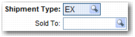
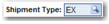
This value determines the contents of the Shipment Type field in the second column of the Create Manual Shipment screen. By default, this field is left blank. If you want it to default to a particular shipment type, enable the In Use option and enter a shipment type in the text box.
Shipment Type Field
DEFAULT CURRENCY
This value determines the contents of the Currency field in the second column of the Create Manual Shipment screen. You can set this value to any valid currency.
Currency Field
DEFAULT CONSIGNOR
This value determines the contents of the Consignor field in the first column of the Create Manual Shipment screen. By default, this field is left blank. If you want it to default to a particular consignor, enable the In Use option and enter the code for the consignor in the text box.
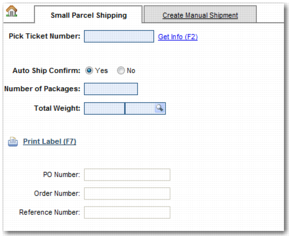
SHOW MANU SHIP SPS TAB
This value determines if the Small Parcel Shipping tab is displayed next to the Create Manual Shipment tab. By default, this field is set to yes. If you do not want the Small Parcel Shipping tab to be displayed, change this value to no.
Small Parcel Shipping Tab
MANUAL SHIPMENT HEADER 1
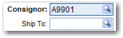
This value determines if the Consignor and Ship To fields appear in the first column of the Create Manual Shipment screen. By default, both fields are displayed and the Value field contains the values CONSIGNOR,SHIPTO. To remove a field from the Create Manual Shipment screen, remove the value from this list. To remove both fields from the screen, set the value to *NONE.
Manual Shipment Header 1 Fields
MANUAL SHIPMENT HEADER 2
This value determines if the Shipment Type and Sold To fields appear in the first column of the Create Manual Shipment screen. By default, both fields are displayed and the Value field contains the values SHIPMENT_TYPE,SOLDTO. To remove a field from the Create Manual Shipment screen, remove the value from this list. To remove both fields from the screen, set the value to *NONE.
Manual Shipment Header 2 Fields
MANUAL SHIPMENT DETAILS 1
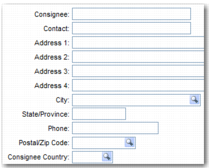
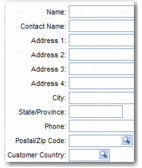
This value determines the ship to address fields that appear in the first column of the Create Manual Shipment page. By default, all fields are displayed and the Value field contains the values CONSIGNEE,CONTACT,ADDRESS_1,ADDRESS_2,ADDRESS_3,ADDRESS_4,CITY,STATE-PROVINCE,PHONE,POSTAL-ZIP-CODE,CONSIGNEE_COUNTRY. To remove a field from the Create Manual Shipment screen, remove the value from this list. To remove all fields from the screen, set the value to *NONE.
Manual Shipment Details 1 Fields
MANUAL SHIPMENT DETAILS 2
This value determines the sold to address fields that appear in the second column of the Create Manual Shipment page. By default, all fields are displayed and the Value field contains the values NAME,CONTACT_NAME,CUST_,ADDRESS_1,CUST_ADDRESS_2,CUST_ADDRESS_3,CUST_ADDRESS_4,CUST_CITY,CUST_STATE-PROVINCE,CUST_PHONE,CUST_POSTAL-ZIP-CODE,CUSTOMER_COUNTRY. To remove a field from the Create Manual Shipment screen, remove the value from this list. To remove all fields from the screen, set the value to *NONE.
Manual Shipment Details 2 Fields
MANUAL SHIPMENT FOOTER 1
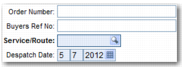
This value determines the fields that appear below the ship to address in the second column of the Create Manual Shipment page. By default, all fields are displayed and the Value field contains the values ORDER_NUMBER,BUYERS_REFNO,SERVICE-ROUTE,DESPATCH_DATE. To remove a field from the Create Manual Shipment screen, remove the value from this list. To remove all fields from the screen, set the value to *NONE.
Manual Shipment Footer 1 Fields
MANUAL SHIPMENT FOOTER 2
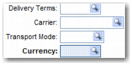
This value determines the fields that appear below the sold to address in the second column of the Create Manual Shipment page. By default, all fields are displayed and the Value field contains the values DELIVERY_TERMS,CARRIER,TRANSPORT_MODE,CURRENCY. To remove a field from the Create Manual Shipment screen, remove the value from this list. To remove all fields from the screen, set the value to *NONE.
Manual Shipment Footer 2 Fields
MANUAL SHIPMENT SHOW DETAILS 1
This value determines if the Overwrite Address field in the first column of the Manual Shipment page is selected. By default, this field is selected. To clear the field, select no from the Value list on the System Value Setup page in the Web UI.
MANUAL SHIPMENT SHOW DETAILS 2
This value determines if the Overwrite Address field in the second column of the Manual Shipment page is selected. By default, this field is selected. To clear the field, select no from the Value list on the System Value Setup page in the Web UI.
MANUAL URL
When a shipment is created, the results page shows the generated shipment reference number. This number is associated with a hyperlink. The hyperlink can be configured using this system value. The value allows a number of substitution tokens that are replaced with the shipment details.
<client> (e.g. "TGL")
<transactionclient> (e.g. "STGL")
<reference>
<consignor>
To link to the Inquiry screen, the hyperlink value needed is:
/precision/servlet/controller?update=Update&method=get&style=inquiry-header&uid=tx-<transactionclient>;<consignor>;<reference>;0&request=Shipment

 Consignor