Creating a Language Based on English
1 Access the DL QuickPath option in the left menu.
DL QuickPath Option
2 The Language page displays, with the list of languages available in PRECISION. Select English as the language that you want to copy.
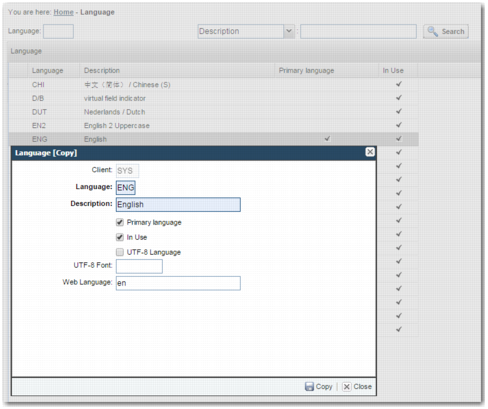
3 Click the copy button on the menu below the table. The Language [Copy] pop-up window displays, as shown
Language [Copy].
Language [Copy]
4 Complete the fields in the Language [Copy] pop-up window:
Client
This field is read only.
Language
Specify a language code for the new language.
Important: The convention for customized languages is to end the language code with the letter X. This approach avoids conflicts with base languages during an upgrade; none of the base released languages end with X.
Description field
Enter a description of the new language.
Web Language
Specify a web language code. The naming convention is to add _xx to the language abbreviation. For example, en_xx is a language built on English. This code is used as the name of the resource file containing the translations for this new language, as shown in
Location of Resource Files.
Primary Language
This option allows you to set your new language as the primary language. Before you select this option for your new language, clear the Primary Language field on the original language.
In Use
If you want this language to be available in the UI, then select this option.
Now that the language has been created, you can select it from the Language drop-down menu on the PRECISION login page. When you log in using the new language, you can click the translation icon to edit the translations in the new language.
Note: Languages are cached by the Web UI. If you use the Windows UI to create the language record, then clear the Web UI cache before viewing the language in the Web UI. To clear the Web UI cache, in the ADMIN option, click Clear Translation Literals File.