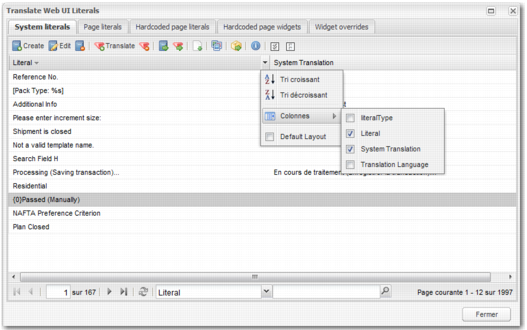
Button | Function |
 | Create system literal. If you see some text on the page that does not have a corresponding system literal, you can add it to the list of system literals by clicking this button. |
 | Edit system literal. This option allows you to update an existing literal. |
 | Delete system literal. You can delete system literals that are no longer needed. |
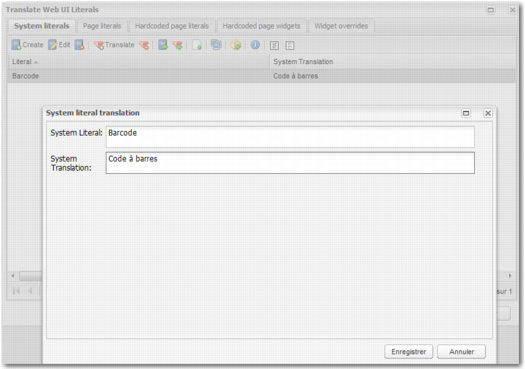
 | Create/Edit system literal translation. Select a literal from the system literals table and click this button to enter a new translation in the System Translation field. The new translation appears on the screen immediately, with no need to explicitly update the screen. |
 | Delete system literal translation. You can delete system translations that are no longer necessary. |
 | Upload Java system literals from file. This option allows you to upload system literals from a file rather than creating them one by one using the Translations Web UI interface. The format of this file is as follows: • Each literal has its own line. • There can be no leading or trailing spaces. • The # character is used for commenting. • The substitution token format {0} is used. |
 | Upload system translation literals from CSV file. (During the upload ‘&comma ;’ is replaced with ‘,’). You can upload system translations from a CSV file rather than adding them one by one using the Translations Web UI interface. Each line in this CSV file has the following format: SYSTEM LITERAL, translated literal. |
 | Export untranslated literals to file. This option allows you to export all untranslated literals to an Excel file. You can then add translations to the Excel file and upload them to the system. |
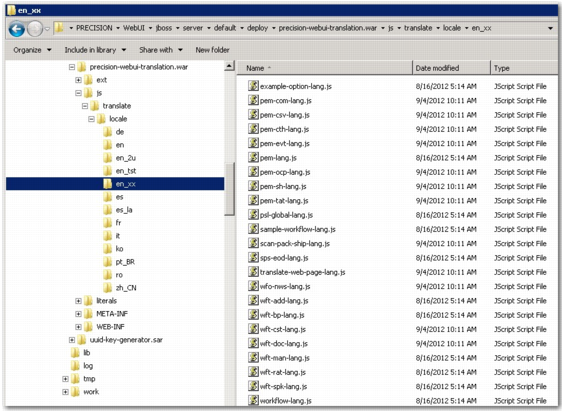
 | Generate All JavaScript Translation Files. This updates the JavaScript files for the UI, so that all users can see the latest translations. |
 | Upload JavaScript page literals from all files. PRECISION keeps track of the literals that need to be translated for a specific web page. This button uploads this information into the system and displays the data as page literals. Where a corresponding system literal doesn't exist for a page literal, it will be created as part of the upload. The system values in the category TRANSLATION that have a key that starts with JSFILE_ identify the file that is to be uploaded for the various Web UI pages or options. |
 | Show translation system information. This option identifies the primary language that the user language is based on. It also provides useful information for debugging purposes. |
 | Select system literals. This option allows you to select all the literals in the list. You may want to select the literals before performing some action, such as saving a list of literals to a file for future translation. You can select a group of literals using the Shift or Control keys. |
 | Deselect system literals. This option allows you to clear any selections that you have made in the list. |
 .
.