Implementing a Translation on the Current Page Only
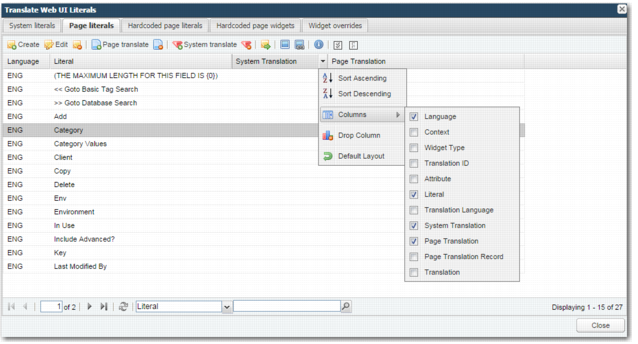
Page-level translations can be made using the Page literals tab. This tab displays a list of the system literals that appear in the current page, along with corresponding system translations and page translations.
By default, the Language, Literal, System Translation, and Page Translation columns appear in the header row at the top of the list. You can configure the columns that appear. To do this, click the arrow in any field in the header row, click Columns, and select the fields you want to display. The Context column specifies the scope of the translation. The Widget Type column specifies the level of literal.
Page Literals
You can scroll through the list by clicking the left and right arrows at the bottom of the window. You can search on different criteria using the drop-down menu below the list. This capability allows you to search through all literals, system translations, or page translations. You can also view a list of the literals that have no system translations by choosing No System Translation from the search drop-down menu. There are a number of buttons above the list of page literals, which allow you to carry out different functions.
Page Literal Buttons
Button | Function |
| Create page literal. This option allows you to create a page literal for hardcoded text that appears on the screen. |
| Edit page literal. Select the relevant literal from the list before choosing this option. This option allows you to update the English version of the literal and leave the translation unchanged. If a page literal for the current system literal does not exist, a new one is created. |
| Delete page literal. Select the relevant literal from the list before choosing this option. |
| Create/Edit page literal translation. Select the relevant literal from the list before choosing this option. When users view this page, they see the page translation of the literal rather than the system translation. |
| Delete page literal translation. Select the relevant literal from the list before choosing this option. If a system translation exists, it is presented to the user in the absence of a page translation. |
| Create/Edit system literal translation. This option allows you to create a system-level translation for the selected literal. In the case of editing a literal, select the relevant literal from the list before choosing this option. This translation will appear on all pages in the UI that do not have specific page-level translations. |
| Delete system literal translation. Select the relevant literal from the list before choosing this option. |
| Upload JavaScript page literals from file. This option allows you to upload a list of page literals for the current web page from a file rather than adding them one by one using the Create page literal button. |
| Generate JavaScript Translation File. This option allows you to generate the translation Javascript file for the current web page, so that non-translation administrator users see the most up-to-date translations for the current Web page. |
| Generate JavaScript Dynamic config file. |
| Show translation page information. This identifies the primary language that the user language is based on. It also provides useful information for debugging purposes. |
| Select page literals. This option allows you to select all the literals in the list. To select the literals before performing some action, such as deleting a list of page literals. |
| Deselect page literals. This option allows you to clear any selections that you have made in the list. You may have selected all literals, or selected a group of literals using the Shift or Control keys. |
Applying a Literal Translation to the Current Web UI Page Only
To create a translation for display in the current page only:
1 In the Page literals tab, select the literal that you want to translate; for example, barcode.
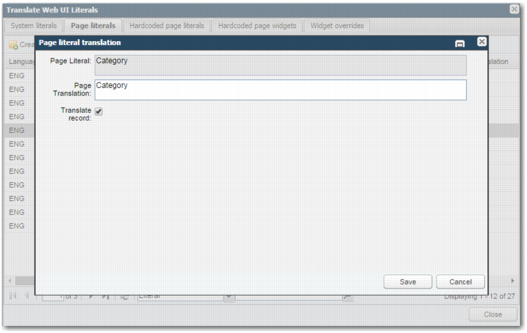
2 Click the Translate button, enter the new translation in the Page Translate field, and select Translate Record, as displayed in
Translating a Page Literal.
3 Click Save.
Translating a Page Literal
4 To view the changes, use F5 to refresh the page. This option allows you to review your changes without having to restart the server, thus speeding up the translation validation process.
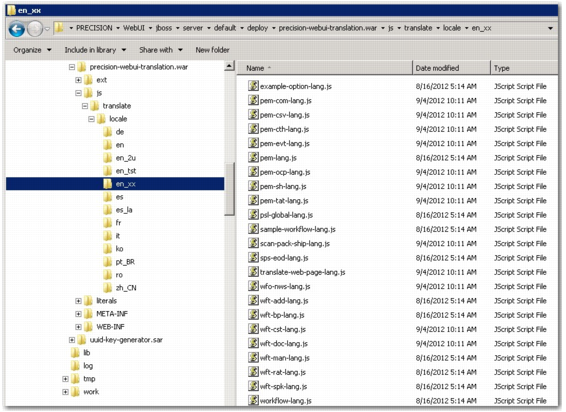
5 As a translation administrator, the literal translations that you see on the screen are taken from the database. For all other users, literal translations are taken from resource files.
Location of Resources Files
To update the translations in the resource files to match the updated database, click the Generate JavaScript Translation File icon

.
6 The Javascript resource files are cached by the browser. To clear this cache and make the most up-to-date translations visible in the Web UI, access the web browser history and clear the browser cache. In addition, access the ADMIN option and click Clear Translation Literals File.
Alternatively, modify the context path within the exploded WAR folder and update the precision.properties file attribute precision.translation.url.context to point to this new context. In addition, access the ADMIN option and click Clear Translation Literals File.