Transaction Panel
The Transaction panel displays all shipments that match the search criteria you specified in the Search panel. The actual panel name matches the transaction type you selected in the View list.
By default, the results of a search are sorted by descending reference sequence. You can use a number of features to customize the default layout of the Transaction panel for displaying results.
Column Options
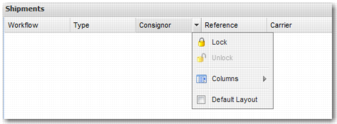
You can resize the width of a column. You can also move columns into different positions on the Transaction panel. To do this, click and drag the column header to your preferred location. Each column on the Transaction panel features a drop-down menu of column options. To access the menu, click the arrow that appears when you roll over any column header on the Transaction panel.
Column Options
• Lock freezes the selected column so it remains locked when scrolling right. You can lock multiple columns. Dragging the column to another location in the panel automatically unlocks the column.
• Unlock unfreezes the selected column.
• The Columns option allows you to select the columns to be included in the display.
Transaction Panel Columns lists the columns available.
• Default Layout reverts the columns to the default layout.
Transaction Panel Columns
Column Type | Description |
Workflow | The name of the workflow associated with the shipment. |
Type | The type of shipment. |
Consignor | The person or company shown on the bill of lading as the shipper. |
Reference | The PRECISION shipment transaction reference. |
Carrier | The carrier code associated with the service used to ship the shipment. |
Route | The route associated with the carrier service. |
Place of Delivery | The place to which the shipment is to be delivered. |
Country of Destination | The country to which the shipment is to be delivered. |
Gross Weight | The gross weight of the shipment. |
Status | The status of the shipment, identifying a particular task or step within the shipping process. |
AES Status | The Automated Export System (AES) status of the shipment. |
ITN No. | The Internal Transaction Number (ITN) for this shipment. |
Customs Ref. | The customs reference for this shipment. |
Despatch Date | The date on which this transaction is manifested. |
Order Number | The number of the order attached to the shipment. |
Description | A description of the shipment. |
Customer | The identifier for the customer attached to the shipment. |
Consignee | The person or company that the shipment is being sent to. |
Mode | The mode of transport for the shipment; for example, air or sea. |
Volume | The total volume of the shipment. |
Place of Loading | The location where the shipment was loaded. |
Haulier | The company transporting the shipment. Hauliers typically deal with heavy goods or goods transferred by road. |
Payment Terms | The payment terms associated with the shipment. |
Delivery Terms | The delivery terms associated with the shipment. |
Total Value | The total value of the shipment. |
Currency | The currency in which the shipment is invoiced. |
Language | The language associated with the shipment. |
Country of Origin | The country the shipment originates from. |
Group | The user group with ownership of this shipment. |
Client | The client this shipment is attached to. |
Despatch | The date that the shipment was despatched. |
AWB / BL No. | Air waybill number (AWB) or bill of lading for the shipment. |
MAWB / MBL No. | Master air waybill number (MAWB) or master bill of lading for the shipment. An airline sends a MAWB or receipt to the customer to advise that the airline has received the goods and agreed to send them by air. This number identifies the MAWB attached to the shipment. |
Consolidated | Indicates if a shipment is consolidated or not. |
Consol. Ref. | The reference number relating to the consolidation. |
User Defined Field 10 | This field is available for configuration by the administrator. When displayed, this field has a different label. |
SHUserDef7 | This field is available for configuration by the administrator. When displayed, this field has a different label. |
SHPSLDef4 | This field is available for configuration by the administrator. When displayed, this field has a different label. |
Panel Scroll Bars
Use the scroll bars on the right and bottom of the Transaction panel to scroll to the last transactions in the results list and to scroll to the columns displayed on the right of the panel.
Mouse-Over Details
The mouse-over option for column information allows you to read information that might be obscured by the column width. For example, the default column width for the Description or Place of Delivery columns may not be sufficient to display the complete entry. The mouse-over option displays the text in full.
Resizing Panels
Click and drag the dividing area between the two panels to resize the Transaction panel. When you resize the Transaction panel, the system automatically recalculates the number of pages required to display the results.
Transaction Panel Toolbar
The number of results pages returned in a search is displayed at the bottom of the Transaction panel. Use the arrow keys to scroll to a particular results page or to the first or last page. Alternatively, insert the page number you want and press Enter. Updates to transaction information occur frequently. Use the Refresh button to update the Transaction panel with new information.
Use the Select All button in combination with the Copy button to export search results from the current page to an Excel spreadsheet, Word document, or other text application. You must click Select All before clicking the Copy button. Otherwise, nothing is copied.
Note: The Select All button only selects the transactions on the current page.
The Unlock button allows you to unlock an unintentionally locked shipment. Typically, when a task is run against a shipment the shipment is locked so that other users cannot modify a task when you are making an update. However, if you refresh the screen or exit the browser without saving the task, the shipment remains locked. In such cases, you can unlock the shipment using this button. Typically, this button is designed for use only in these circumstances. When a task is completed under normal circumstances, the shipment is automatically unlocked.
Transaction Panel Toolbar
Depending on your configuration, there may be other buttons on the toolbar. In the following graphic, the system has been configured to contain buttons that allow you to create a shipment, run the end-of-day manifest, load a routing guide, and fire rules.
Transaction Panel Toolbar: Typical Configuration