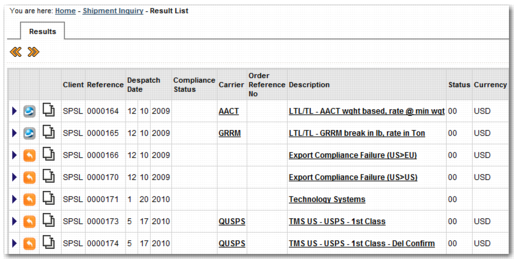
Results
The Results page displays the results of a search.
Results Page
By default, there are many columns of information. Your system may only display a subset of these columns. If there are a large number of results, they may require several pages. Use the orange arrows

above the list to navigate through the results.
The Results page allows you to drill down into a shipment. For example:
• To view details of the shipment, click the blue arrow

in the first column of the table or click the link in the Description column.
• To recall the shipment using Desktop Shipping, click the Recall

icon in the second column. When you click Recall, the shipment details are loaded into Desktop Shipping and you can update the shipment. This functionality is useful if the shipment information has changed or the shipment was only partially created and needs to be amended with additional information.
• To copy a shipment using Desktop Shipping, click the Copy

icon in the third column. This button works similarly to the recall functionality, except the shipment information you copy is used to create a new similar shipment in Desktop Shipping rather than updating the selected shipment. The input fields are populated with the shipment being copied. The user can modify these fields.
• To create a return shipment, click the Return icon. This icon is not displayed in
Results Page. The return shipment functionality is very similar to the copy functionality except the ship from and ship to addresses are swapped so the new shipment is returning the product to the shipper.
• To display the Parties item on the View Details screen More tab, click the link in the Carrier field.
• To view or track the shipment packages in the packages screen, click the Tracking

icon in the second column. When you click this icon, the packages tab of the View Details screen opens. If a tracking number is available, the blue icon is displayed beside it. Click this icon to track the package on the carrier web site.
• Click the Cancel

icon to change the status of the shipment to canceled. This icon is not displayed in
Results Page.
Closed shipments appear in gray text and in italics, with a blue and white arrow

in the first column. A shipment is considered closed if it has been rated. You can still view and track these shipments.
Clicking on a shipment link opens the View Details screen, which displays shipment information for the single transaction selected. The details shown are configurable. By default the header details display.
If you do not find the shipment that you are looking for on the Results page, click New Search

to start again.