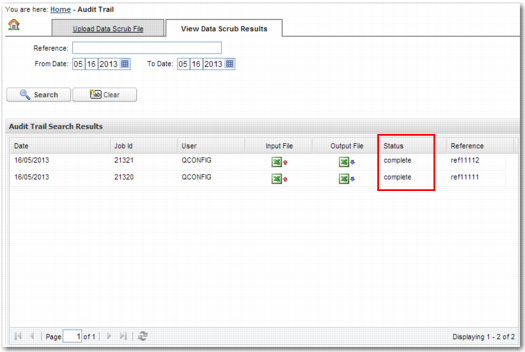
View Data Scrub Results
To view the results of the data scrub, select the View Data Scrub Results tab.
Batch DPL Data Scrub: View Data Scrub Results
Depending on the size of the file to process, the results may not be available to view immediately. When the file finishes processing, the status is displayed as complete, as shown in
Batch DPL Data Scrub: View Data Scrub Results. When the displayed status is Processing, the file is still being processed.
When there are many data scrub requests in the system, you can use the filter fields to narrow your search.
Reference
To search by reference number, specify a reference number in this field. The reference number corresponds to the BatchReference line in the data scrub CSV file, as described in
CSV File Contents. This field accepts wild cards.
From Date, To Date
To search by date, specify a date or date range using these fields.
To run a search, click Search. To clear the contents of the search fields, click Clear. The Audit Trail Search Results table displays the results of searches, and contains a number of columns.
Audit Search Results Table Columns
Column | Explanation |
Date | The date that the data scrub was run. |
Job Id | A unique identifier that is automatically assigned when the data scrub is run. |
User | The ID of the user who ran the data scrub. |
Input File | A copy of the file that was input to the data scrub. Click to download this file, which has the title format IN-<CLIENT>-<USER>-<JOB ID>.csv; for example, IN-TGL-QCONFIG-21328.csv. |
Output File | The data scrub results. Click to download this file, which has the title format OUT-<CLIENT>-<USER>-<JOB ID>.csv; for example, OUT-TGL-QCONFIG-21328.csv. |
Status | The status of the data scrub, which is either Processing or Complete. |
Reference | The reference number corresponds to the BatchReference line in the data scrub CSV file, as described in CSV File Contents. This field accepts wild cards. |