Creating Rate Structures Manually
Depending on the number and complexity of rate structures to configure, it is possible to set up Charge Tables manually. You then associate these rate structures with carrier services.
Calculation Methods (TZ)
Calculation methods are preconfigured in PRECISION. Each calculation method has an associated program. You must specify a calculation method when setting up a charge within a Charge Table. To access this option, choose System Settings|TMS Master Data|Calculation Method or enter TZ in the QuickPath.
Calculation method
This field contains the basis for the calculation method. See
Preconfigured Calculation Methods.
Description
This field contains the description for the calculation method.
Maintenance program
This field contains the preconfigured software program to execute for the basis.
The six preconfigured calculation methods are displayed in
Preconfigured Calculation Methods.
Preconfigured Calculation Methods
|
Basis
|
Charge
|
Description
|
|
00
|
Minimum charge
|
If the calculated charge amount for a particular charge code does not exceed the minimum charge value, the minimum charge for this charge code is applied.
|
|
01
|
Fixed charge
|
A fixed amount is charged.
|
|
02
|
Rate per
|
Calculate the charge based on a rate per chosen unit such as gross weight, volume, or inners.
|
|
03
|
Percentage of value
|
Calculate the charge based on a percentage of a value such as shipping value or FOB value.
|
|
04
|
Tiered user defined table
|
|
|
99
|
Maximum charge
|
If the calculated charge amount exceeds the maximum charge value, the maximum charge is applied.
|
Axis Definitions (ZX)
When creating a tiered user-defined Charge Table, establish an X axis and, where necessary, a Y axis. Set up each axis type with individual breaks for each axis. For more details, see
Creating a Charge Table (TH). To access this option, choose System Settings|TMS Master Data|Axis Definitions or enter ZX in the QuickPath.
Axis
Enter X or Y.
Axis type
Enter the axis type used to identify the specific axis.
Description
Enter a description of the axis, usually indicating the basis of the axis such as gross weight or freight class.
Basis
Select a basis for the axis calculation. For example, an axis such as Weight can be based on the Net Weight on the shipment, or an axis such as Pack Types can be based on the number of inners on the shipment.
Possible basis values are:
01 = Gross Weight
02 = Net Weight
03 = Net Net Weight
04 = Volume
05 = Ship Quantity
06 = Inners
07 = Outers
08 = Packs
09 = Distance (crow-fly)
10 = Distance (roundtrip)
11 = Zone[s]
12 = Freight Class(es)
13 = Simple Tier [no Y axis]
14 = Number of assets
15 = Distance band
16 = Loadspace
Unit of Measure
Enter the unit of measure for the selected basis.
For example, an X axis of Weight and a Y axis of Freight Class means that the charge calculation is based on these parameters. If using the axis method, the user must always have an X axis, but not necessarily a Y axis.
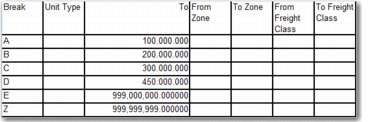
The Break sub-option enables you to maintain breaks within an axis. A break is an explicit value, which is used to indicate values that apply up to a particular point.
If the first break on an axis has a value of 1500, this value represents the range 0-1500. If the next break value is 2000, this value represents the range >1500-2000. Set the last break of an axis to a maximum allowable value such as 99999999999.
Client, Axis, Axis type
These fields are read-only.
Break
Enter a user-defined code for this break.
Up to
Enter an explicit value used to indicate the upper limit of the axis break. Zone, Freight Class, and Distance Band bases do not use the Up to field.
From zone
Enter the From zone for basis type 11 only.
To zone
Enter the To zone for basis type 11 only.
From freight class
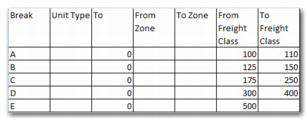
Enter the From freight class for basis type 12 only.
To freight class
Enter the To freight class for basis type 12 only.
Unit type
Enter the Pack Type for basis types 06-08.
Distance Band
The Distance Band for basis type 15 only.
Breaks Example: Weights
Breaks Example: Freight Class
Region Zones (RG)
Important parts of a rate structure include the ship-from and ship-to Region Zones and Zone Classifications. A Region Zone allows for grouping of individual, or ranges of, postal or zip codes into one Region Zone record. To access this option, choose System Settings|TMS Master Data|Zones or enter RG in the QuickPath.
Zone
Enter the code for the zone.
Description
Enter a meaningful description for the zone.
State/Country/Market
Available for future use.
You can then set up one or more Postal/Zip Codes against the Region Zone by completing the following sub-option fields:
From Postal Code
Enter the From Postal/Zip code for the Region Zone.
To Postal Code
Enter the To Postal/Zip code for the Region Zone.
In Use
Select this field to activate this Postal/Zip code range and make it available for rate structure calculations.
Address Book
Reserved for use by PRECISION network carriers.
Partner
Reserved for use by PRECISION network carriers.
Zone Classifications (ZC)
Zone Classifications Maintenance allows you to set up From/To zone relationships, where each relationship may then be associated with rates within a rating structure. To access this option, choose System Settings|TMS Master Data|Zone Classifications or enter ZC in the QuickPath.
Zone classification
Enter the code of the zone class.
From zone
Enter the origin zone for this zone class; for example, CTRY-US.
To zone
Enter the destination zone for this zone class; for example, CTRY-US-STATE:IL.
Description
Enter a meaningful zone classification description.
In Use
Select this field to activate this Zone Classification.
Rate Codes
Reserved for use by Precision’s network carriers.