Creating a Charge Table (TH)
A rate structure, as defined using option TH, is the composition of rate calculation types that make up the required set of charges. One or many charges, of any of the predefined calculation methods, can be included in a rating structure. To access this option, choose System Settings|TMS Master Data|Charge Tables or enter TH in the QuickPath.
Charge Table
Enter a code of up to 10 characters.
Start date
Enter the date when the Charge Table becomes effective. You can optionally add an end date.
Description
Enter a Charge Table description.
Summarize totals by charge
Select this field to summarize charges by charge/revenue code. If multiple rate structure calculation types exist for the same charge/revenue code, then these can be summarized to output a single Shipment Charge line.
Calculate shipment charges per
The purpose of this set is to determine the level at which to apply the charge criteria. For example, if the rate structure has charges based on Weight and Freight Classes, and shipment transactions include differing freight classes on different item lines, it may be appropriate to choose to calculate charges per Line to select weight from shipment item lines.
Note: The Stop choice is not available.
Calculate group charges per
Select the level at which to apply the charge criteria when the rate structure is applied to a Group/Load.
Note: The Stop choice is not available.
Process Level
Available for future use.
Allow Freight Shopping/Service Days/Carrier Route/Carrier/Transport mode
These fields are obsolete.
Zone determination type
Possible values for this field are:
• D2D (Deliver to Destination) uses the From City and To City values. If the field is blank, this value is the default.
• D2P (Deliver to Port) uses the From City and To Port.
• P2D (Port to Delivery) uses the From Port and To City.
• P2P (Port to Port) uses the From Port and To Port.
Charge Details
The Charge details - rate without zones sub-option enables you to create and add charge types to the Charge Table.
Process Sequence
Enter a unique sequence number for the charge detail line; for example, 05, 10, 15. The sequence number determines the order in which the calculation program processes the charges.
Charge Code
Select a charge code for this charge.
Calculation method
Select one of the six predefined calculation methods from
Preconfigured Calculation Methods. Complete the subsequent fields based on the calculation method you select here.
Description
The default description associated with the charge code in option CH is used. However, you can override the description.
Currency
Select the currency in which this charge code is to be calculated.
Tax type
If a tax is to be calculated on the charge, select the tax group code.
Allow zero validations
If a zero charge is allowed, select this field.
From process sequence
This field indicates the process number from which this charge method is to apply.
To process sequence
This field indicates the process number to which this charge method is to apply.
Rate per unit
If you selected method 02 in the Calculation Method field, enter the rate per unit to be used for the charge calculation.
Selling Rate per unit
If you selected method 02 in the Calculation Method field, enter the selling rate per unit to be used for the charge calculation.
Minimum Charge
If you selected method 00 in the Calculation Method field, enter the Minimum Charge amount to be used for the charge calculation. If the calculated charge amount does not exceed this minimum charge value, the minimum charge is taken. This sets a minimum value for a particular charge code of the charge table. Therefore, if the calculation made by the other lines for that charge code does not reach this prescribed value, the value for that charge code is the minimum value.
Note: This functionality is available in the Windows UI. It is under construction in the Web UI.
Selling Minimum Charge
If you selected method 00 in the Calculation Method field, enter the Selling Minimum Charge to be used for the charge calculation.
Note: This functionality is available in the Windows UI. It is under construction in the Web UI.
Maximum Charge
If you selected method 99 in the Calculation Method field, enter the Maximum Charge amount to be used for the charge calculation. If the calculated charge amount does exceed the maximum charge value, the maximum charge is taken. This sets a maximum value for a particular charge code of the charge table. Therefore, if the calculation made by the other lines for that charge code does not exceed this prescribed value, the value for that charge code will be the maximum value.
Note: This functionality is available in the Windows UI. It is under construction in the Web UI.
Selling Maximum Charge
If you selected method 99 in the Calculation Method field, enter the Selling Maximum Charge to be used for the charge calculation.
Note: This functionality is available in the Windows UI. It is under construction in the Web UI.
Fixed Charge
If you selected method 01 in the Calculation Method field, enter the Fixed amount to be used for the charge calculation.
Note: This functionality is available in the Windows UI. It is under construction in the Web UI.
Selling Fixed Charge
If you selected method 01 in the Calculation Method field, enter the selling fixed amount to be used for the charge calculation.
Note: This functionality is available in the Windows UI. It is under construction in the Web UI.
Unit of measure
If you selected method 02 or 04 in the Calculation Method field, specify the UOM the charges are based on.
Unit type
If you selected method 02 in the Calculation Method field, enter the container or pack type code in this field.
% rate
If you selected method 03 in the Calculation Method field, enter the percentage rate to be used for the charge calculation.
Selling% rate
If you selected method 03 in the Calculation Method field, enter the selling percentage rate to be used for the charge calculation.
% basis
If you selected method 03 in the Calculation Method field, select the appropriate value on which the percentage is to be calculated.
% Charge Code
If you selected method 03 in the Calculation Method field and the percentage is to be based on a charge code amount, select a charge code. For example, you can specify insurance as a percentage of the freight amount only, rather than as a percentage of shipment value or shipment value + freight. In this case, select Charge Code as the % basis and specify the freight cost code as the % Charge Code.
Tiered rate scale [1:n]
If you selected method 04 in the Calculation Method field, this field indicates that all rates entered by the user in the X/Y axis are in this unit; for example, an entry of 1000 indicates that the rate is per 1000.
Check next tier
If you selected method 04 in the Calculation Method field and you select this field, PRECISION checks the next tier on the Charge Table. This check can reduce a charge when you are shipping a quantity that is very near to the break. For example, you have a 950 kg shipment, and the rates are as follows:
• 1st tier - rate of $0.48 up to 1000 kg
• 2nd tier - rate of $0.43 up to 1500 kg
Using the first tier price, the total cost is 950 x $0.48 = $456. Using the next tier, the total cost is 1001 x $0.43 = $430.43.
Unit to round towards
If you selected method 04 in the Calculation Method field, use this field to specify the UOM rounding unit. For example, a road carrier deals in quantities that round to full units and a postal carrier rounds to intervals of 0.5 kg. If a round unit is not specified, PRECISION uses the actual weight or volume, rather than the rounded up value. For example, 178.89 kg without rounding uses the value 178.89 as the rate per kg, whereas the same value using a rounding of “1” calculates the figure using 179 as the rate per kg.
Volume to weight conversion
If you selected method 04 in the Calculation Method field, use this field to specify the factor for converting the volume to a weight equivalent.
Weight Volume Divide
This field determines whether the value entered for the volume/weight conversion is to be used for division or multiplication. If this field is selected, the volume is divided by the conversion rate to give the weight equivalent.
Test volume v weight
Select this field to test volume against weight on the Charge Table. PRECISION selects the highest/largest weight to calculate the freight rate, based on the conversion that has taken place.
X axis
If you selected method 04 in the Calculation Method field, this field contains the user-defined X axis as described in Axis Definitions.
Y axis
If you selected method 04 in the Calculation Method field, this field contains the user-defined Y axis as described in Axis Definitions.
Use zone classifications
If you selected method 04 in the Calculation Method field and you want to create a three-dimensional Charge Table, select this field. The third axis is then based on zones.
Use header quantity
If you selected method 04 in the Calculation Method field and charge calculations are to be based on the shipment header quantity rather than at item line level, select this field.
Load Space to weight conversion
If you selected method 04 in the Calculation Method field, use this field to specify the factor for converting the Load Space to a weight equivalent.
Load Space to weight uom
This field determines the weight UOM represented by the conversion factor from loadspace to weight.
Weight Load Space Divide
This field determines whether the value entered for the loadspace/weight conversion is to be used for division or multiplication. If this field is selected, the loadspace is divided by the conversion rate to give the weight equivalent.
Test Load Space v weight
Select this field to test loadspace against weight on the Charge Table. PRECISION selects the highest/largest weight to calculate the freight rate, based on the conversion that has taken place.
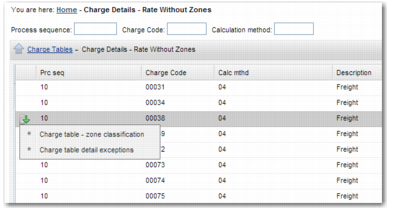
The Charge Details - Rates Without Zones sub-option also has two sub-options, as displayed in
Charge Details - Rates Without Zones Sub-options.
Charge Details - Rates Without Zones Sub-options
Charge Table - Zone Classification
This sub-option enables you to specify a zone class for the Charge Table. The editable fields are:
Zone Class
Enter the zone class for which the rates apply.
Minimum Charge
Enter the minimum charge for this zone classification.
In Use
To enable the zone classification, select this field.
Charge Table Detail Exceptions
This sub-option enables you to control whether other cost types are calculated when another particular cost type is calculated. For example, do not create this type of cost line when the other cost type exists. You can also use this record as a prerequisite. For example, only create this cost line when the other cost type has a value. The editable fields are:
Reason
Use this free-text field to describe the purpose of the record created. The prerequisite condition only kicks in when Reason is set to a value of PREREQUISITE.
In Use
To enable the detail exception, select this field.