Flat Structure File Format
The flat file structure is an alternative spreadsheet format. It is typically used for lane-based freight and accessorial charges. The flat-file structure allows for multiple origin countries in one Charge Table. You can also allow for multiple currencies in one Charge Table because different shipper countries may have rates in different currencies.
The flat-file structure allows you to effectively define cumulative charges based on different aspects of the shipment. Each charge section can be zone-based, which means there may be different surcharges based on the different origin/destination combinations. Therefore, the Charge Table contains a set of different charges that are driven by zone.
Sample File
Note: To view this file, open Topic 039 - Flat Structure - Sample 001.xls, available in the QAD Document Library at QAD Transportation Management|PRECISION Reference Guides|Appendices.
This sample spreadsheet contains two sheets: the formatted PRECISION sheet for PRECISION and the original sheet received from the carrier. To upload any file to PRECISION, format it to the structure used by PRECISION.
Flat File Structure – Header Section
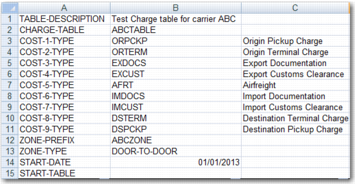
The header section defines the cost types, zone identifier, Charge Table name and start date, as displayed in
Formatted Excel File. You cannot load the data without completing these sections.
Formatted Excel File
Use the first column for keywords. The keywords determine the purpose of subsequent columns for that row in the header section. The possible keywords are:
COST-[number]-TYPE
This keyword identifies a particular cost type for the calculations of charges in the Rate Table section. The [number] uniquely identifies the cost type in the spreadsheet. For more details, see
Flat File Structure – Rate Table Section. If you use this keyword, the second column is the cost type code defined in option CH. The third column is the description stored on the charge detail line on the Charge Table.
Example: COST-1-TYPE has a cost type of ORPCKUP in option CH and a description of Origin Pickup Charge on the charge detail line for charges generated for this cost type.
CHARGE-TABLE
The code of the Charge Table to create in option TH. If you use this keyword, the second column is the Charge Table code for the TH record created. The code cannot be longer than 10 characters.
START-DATE
The start date for the Charge Table to create in option TH. If you use this keyword, the second column is the start date for the TH record created. The format of this field in the spreadsheet must be DD/MM/YYYY.
TABLE-DESCRIPTION
The description of the Charge Table to create in option TH. If there is no description, the description from an existing Charge Table for the same start date is used, when one already exists in the database. Otherwise, the description defaults to Flat Structure Charge Table Upload.
ZONE-TYPE
Determine the city field to use in the rating per zone, when city is used in the determination of the zone. There are four possible values. See the Zone Type field description in
TABLESECTION for details.
ZONE-PREFIX
Contains the identifier of the zone class records generated in PRECISION option ZC when you load a flat file format spreadsheet. When the file is loaded, the ZC records are created to store the relationship between the origin and destination, as per the Rate Table section. These ZC records are used to find the appropriate set of charges within the Charge Table. When this keyword is used, the second column is the prefix value for the ZC records created.
Flat File Structure – Rate Table Section
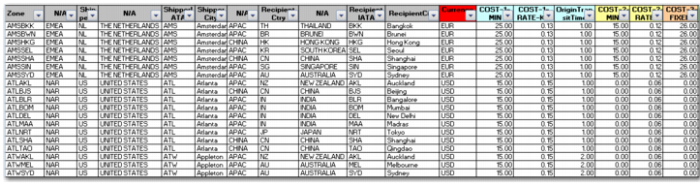
The Rate Table section defines the rates for the different cost types and the origin/destination combinations, as displayed in
Rate Table Section.
Rate Table Section
The start of the rate table section is determined by the START-TABLE in the first column of a row. The START-TABLE entry is the last keyword in the header section. The rate table section begins with a row of keywords that define the purpose of each column. Each keyword determines the purpose of subsequent rows read from the spreadsheet. Ensure the data relevant to each keyword is in the correct column. For example, place the shipper country codes under the ShipperCtry keyword heading. The possible keywords are:
N/A
Any column marked as keyword N/A is skipped in the upload. You can choose to keep the data from the original carrier spreadsheet for information purposes.
COST-[number]-DISTANCE
Indicates the rate per distance value for a particular cost type. The [number] indicates the cost type that applies from the COST-[number]-TYPE defined in the header section. The value in this column is used in conjunction with the DISTANCE column.
COST-[number]-FIXED
Indicates the fixed value for a particular cost type. The [number] indicates the cost type that applies from the COST-[number]-TYPE defined in the header section.
COST-[number]-RATE
Indicates the rate value for a particular cost type. The [number] indicates the cost type that applies from the COST-[number]-TYPE defined in the header section. You can also make this keyword more specific:
COST-[number]-RATE-[unit of measure], where [unit of measure] specifies the UOM that applies for this rate
Example: COST-1-RATE-Kg indicates that the RATE is per Kg for cost type 1.
COST-[number]-RATE-[unit of measure]-[weight break], where [unit of measure] specifies the UOM that applies for this rate and [weight break] specifies the upper limit to which this rate applies.
Example: COST-2-RATE-Kg-45 indicates that the RATE is per kg up to 45 kg for cost type 2. If there is a second column COST-2-RATE-Kg-100, it indicates that the RATE is per kg for cost type 2 up to 100 kg, where the rate kicks in above 45 kg.
Note: Volume can also be handled for the [unit of measure] for these UOM values: M3, CM3, MM3, FT3, and IN3.
It is also possible to configure a rate per PACK as follows:
COST-[number]-RATE-PACK-[pack type], where [pack type] specifies that the rate only applies to a particular pack type.
To calculate the rate per pack, regardless of pack type, the column heading is COST-[number]-RATE-PACK.
Example: COST-2-RATE-PACK-BOX indicates that the RATE is per PACK for packages of pack type BOX.
It is also possible to configure a rate per CONTAINER as follows:
COST-[number]-RATE-CONT-[container type], where [container type] specifies that the rate only applies to a particular container type.
To calculate the rate per container, regardless of container type, the column heading is COST-[number]-RATE-CONT.
Example: COST-2-RATE-CONT-20FT indicates that the RATE is per CONTAINER for containers of type 20FT.
COST-[number]-MAX
Indicates the maximum value for a particular cost type. The [number] indicates the cost type that applies from the COST-[number]-TYPE defined in the header section. A maximum cost only applies where a RATE is also used for the same cost type.
COST-[number]-MIN
Indicates the minimum value for a particular cost type. The [number] indicates the cost type that applies from the COST-[number]-TYPE defined in the header section. A minimum cost only applies where a RATE is also used for the same cost type.
CURRENCY
The rates currency for this row of the rate table.
COST-[number]-CURR
Indicates the currency for a particular cost type. The [number] indicates the cost type that applies from the COST-[number]-TYPE defined in the header section. This value takes precedence over the CURRENCY field value.
Distance
The number of units of distance between the origin and destination. It is used in conjunction with the COST-[number]-DISTANCE column for loading rates-per-distance. The upload program calculates the fixed value from origin to destination for storage in the database. Use this keyword when the carrier provides spreadsheets on a rate-per-distance basis.
DESTTRANSITTIME-[number]
This keyword is for future use.
SHIPPERCTRY
The origin country of the lane for which the rates apply. When creating the ZC records, this keyword determines the Zone From. The cell data for this column must always be an ISO country code.
SHIPPERSTATE
The origin state of the lane for which the rates apply. When creating the ZC records, this keyword determines the Zone From and it is combined with the SHIPPERCTRY data value.
SHIPPERCITY
The origin city of the lane for which the rates apply. When creating the ZC records, this keyword determines the Zone From and it is combined with the SHIPPERCTRY data value.
SHIPPERIATA
This keyword is not currently used.
RECIPIENTCTRY
The recipient country of the lane for which the rates apply. When creating the ZC records, this keyword determines the Zone To. The cell data for this column must always be an ISO country code.
RECIPIENTSTATE
The destination city of the lane for which the rates applies. When creating the ZC records, this keyword determines the Zone To and it is combined with the RECIPIENTCTRY data value.
RECIPIENTCITY
The destination city of the lane for which the rates applies. When creating the ZC records, this keyword determines the Zone To and it is combined with the RECIPIENTCTRY data value.
RECIPIENTIATA
This keyword is not currently used.
RECIPIENTPOSTALFROM
The From Post Code contains the starting postal code of a range of postal codes. If you have several ranges of postal codes for the same zone class, you can enter a comma-separated list of postal code starting characters. If you use a comma-separated list, you cannot use the RECIPIENTPOSTALTO for the same zone class definition line.
RECIPIENTPOSTALTO
Specifies the end postal code for the postal code range definition.
SPECIAL-COMMENTS
This keyword is not currently used.
ZONE
The unique identifier given to a particular lane. If a value is not available, the zone value is generated as a sequential number. The zone value is combined with the ZONE-PREFIX in the header section to create a unique Zone Class in option ZC.
Flat Structure – Sample File Explained
The sample file contains rates for two origins with multiple destinations. The steps to format and upload the file are the same as for the tier-based file.
1 Format the information so it is accepted by the PRECISION Charge Table upload utility.
2 Save the file to a directory and open PRECISION Windows UI.
3 To open the Charge Table screen, type TH in the QuickPath and press Enter.
4 To upload a Charge Table from a file, click the Upload button. The upload screen is displayed.
5 Select the Tier Flat Structure option and choose the Excel file you saved for upload.
6 To begin the upload, click the green check mark (F2). When the upload has finished, a message is displayed that Charge Table ABCTABLE has been successfully loaded. Return to the TH Charge Table list.