Rate Maintenance Screen
The RM screen contains:
• Header fields
• Update Rates tab
• Accessorials tab
• Expire Rates tab
• Review Rates tab
Header Fields
Service
Select the service that this rate structure applies to. You can choose an existing service or enter a new one. If you enter a new service, a message is displayed, asking whether you want to add a service. Click Yes. In the next field, enter a service description. The service code and description are used to automatically create an associated Route record in option RT.
Transport mode
This field is optional. Enter the mode of transport related to this service; for example, ROAD. The value entered here is automatically populated in the Normal Transport Mode field on the Route record.
Carrier
This field is mandatory. Enter the carrier partner code of the carrier supplying the service. You can select an existing carrier or create a new one. This step also creates a record in NR. If you are creating a carrier, enter the name of the carrier in the next field. Otherwise, this field displays the name of the existing carrier. If you are creating a carrier, the name entered here also appears on the NR record.
Global Carrier Code
Each new carrier needs a global carrier code. It is recommended that you use four-character codes, such as the SCAC code, as displayed in
Global Carrier System Carrier Example. You can also choose your own four-character code. After the Global Carrier Code has been created, you can now maintain other features for this carrier such as tracking numbers or freight uplifts.
Global Carrier System Carrier Example
|
Category
|
Sample Key
|
Sample Value
|
|
SPS
|
GLOBAL CARRIER FOR GOETZE
|
GTZE
|
One way
By default, the One Way field is not selected to allow for two-way zoning. If you select this field:
• The rates apply from the origin zone to destination zone but not from the destination zone to origin zone.
• All zones included in this service are one way.
If any of the zone-specific rates in the service are intended for two-way shipping, do not select this field. Set the one-way zone-specific rates at zone level on the Update Rates tab.
In use
By default, this field is selected. If you clear this field, the service is not in use, even if you are shipping within the effective dates of the service. For example, you might make a service temporarily unavailable due to adverse weather conditions or a temporary change in the rate basis for a service.
Preferred Carrier
If you select this field, a message is displayed in the Windows UI Rate Shopping results screen in the Instructions column, indicating that the service is a preferred carrier. If a carrier service is not flagged, the message Not Preferred Carrier is displayed. These messages are for information purposes only. They do not affect the actual rating or use of a service.
Max weight
If the carrier has specified a maximum weight that can be shipped, enter a value in this field. If you try to use this service for a shipment above that weight, an error message is generated.
UOM
Enter a UOM code associated with the weight fields; for example, lb.
Check next tier
If the rate at the current weight break is higher than the rate at the next break, you can check the next available break to see whether it is cheaper to rate the shipment as a higher quantity. This practice is known as deficit weighting.
Max charge
Specify a maximum charge to apply to this service. This field is an upper threshold for the freight rates. If the calculated freight charge for a shipment rated with this service is higher than the Max Charge, Max Charge is used instead.
Carrier Max
Specify a maximum amount that the carrier charges for this service.
Min charge
Specify a minimum charge to apply to this service. This field is a lower threshold for the freight rates. If the calculated freight charge for a shipment rated with this service is lower than the Min Charge, Min Charge is used instead.
Carrier Min
Specify the minimum amount that the carrier charges for this service.
MC Discount
This field is used for SMC integration. For more details, see
SMC Integration.
Single Ship
This field is used for SMC integration. For more details, see
SMC Integration.
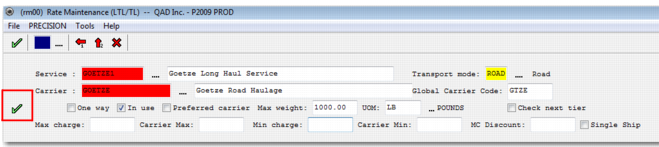
When you have completed the fields, click the green check mark, as highlighted in
RM Header Fields.
RM Header Fields
Update Rates Tab
On this tab, enter or maintain rate and zone details for the service. You can enter as many records as you need.
Rate Basis
Select the basis on which to calculate the rate. The rate basis is the calculation method for the rates. The most common bases involve mileage or weight. The choices available are based on a system value.
Configuring the Rate Basis List
Category | Key | Value |
LTL | RATE BASIS | Flat or Percentage,1| Mileage,2| dont-useCrowFly,3| Mileage per hundred,4| Gross Weight,5| Hundred Gross Weight,6| Net Weight,7| dont-useNetNet Weight,8| Volume,9| Quantity,10| Inners,11| Outers,12| dont-useFreight class,13| dont-useVolume/Weight,14| Pack,15| dont-useStops,16| Containers,17| |
As displayed in
Configuring the Rate Basis List, any list item you do not want to display is marked as dont-use.
Rate Basis Explanations provides an explanation of each list item.
Rate Basis Explanations
Rate Basis | Explanation |
Flat or Percentage | Flat fee or percentage. |
Mileage | Configure a rate and/or fixed amount per mile or kilometer. The calculated total is based on the number of miles or kilometers included in the Shipment Distance field, XMSHDR0.SHPDST. |
CrowFly | Configure a rate and/or fixed amount per crow fly distance. The calculated total is based on the number of miles or kilometers included in the Shipment CrowFly Distance field, XMSHDR0.SHCDST. |
Mileage per hundred | Configure a rate and/or fixed amount per 100 miles or kilometers. The calculated total is based on the number of miles or kilometers included in the Shipment Distance field, XMSHDR0.SHPDST. |
Gross Weight | Configure a rate and/or fixed amount per unit of the shipment gross weight. |
Hundred Gross Weight | Configure a rate and/or fixed amount per each 100 units of the shipment gross weight. |
Net Weight | Configure a rate and/or fixed amount per unit of the shipment net weight. |
NetNet Weight | Configure a rate and/or fixed amount per unit of the shipment net net weight. |
Volume | Configure a rate and/or fixed amount per unit of the shipment volume. |
Quantity | Configure a rate and/or fixed amount per unit of the shipment quantity. |
Inners | Configure a rate and/or fixed amount per pack type inner. If no pack type is specified in RM, the calculated total charge is based on the number of inners in the shipment header Total No. of Inners field XMSHDR0.SHCASE. If a pack type is specified in RM, the calculated total is based on the sum of the number of inners of this type found across all shipment item lines in the No. of Inners field XMSITM0.SIPCK1. This approach allows for different rates per different types of inners. |
Outers | Configure a rate and/or fixed amount per pack type outer. If no pack type is specified in RM, the calculated total charge is based on the number of outers in the shipment header Total No. of Outers field XMSHDR0.SHPAL. If a pack type is specified in RM, the calculated total is based on the sum of number of outers of this type found across all shipment item lines in the No. of Outers field XMSITM0.SIPCK2. This allows for different rates for different types of outers. |
Freight Class | Configure a rate and/or fixed amount per freight class. This rate basis is rarely used because Freight Class is usually used in conjunction with a weight-based service. If the rate basis is Gross Weight, freight classes are included in the rate details along with weight breaks. |
Volume/Weight | This rate basis is rarely used because there are separate fields in RM allowing input of volumetric weight conversion details. |
Pack | Configure a rate and/or fixed amount per pack type. The calculated total is based on the number of pack types in the shipment Total No. of Packs field XMSHDR0.SHPACK. |
Stops | Configure a rate and/or fixed amount per stop. This rate basis is currently not used because the rating engines associated with Rate Maintenance and SMC integration are only called at shipment level and not from load level transactions. |
Containers | Configure a rate and/or fixed amount per container type. The calculated total is based on the number of records of matching container type found in the shipment container Asset Type XMSCNT0.SCTYPE field. If XMSCNT0.SCTYPE is blank, the total is based on the number of records of matching container type found in the shipment container Asset Id field XMSCNT0.SCASID. |
A service can only have one rate basis in the Update Rates tab. If you need weight-based rates for some zones and mileage-based rates for other zones, create two services—one service for weight-based rates and zones and one for mileage-based rates and zones. Different rate bases are only allowed on the Accessorials tab.
Value Basis
This field is only displayed when the selected rate basis is Flat or Percentage. Select the value on which to base the percentage rate.
YFUS:US
This field is displayed when the rate basis is Flat or Percentage, where a carrier offers discounts off the standard Yellow Freight YF500 rates. The field is used when you have a full set of maintained YFUS:US rates in PRECISION. However, the recommended approach for discounting off Yellow Freight rates is to use SMC integration, which is described in
SMC Integration.
YFUS:CA
This field is displayed when the rate basis is Flat or Percentage when the service offers discounts off the standard Yellow Freight YF510 rates for US to Canada. The field is used when you have a full set of maintained YFUS:CA rates in PRECISION. However, the recommended approach for discounting off Yellow Freight rates is to use SMC integration, which is described in
SMC Integration.
Other
This field is displayed when the rate basis is Flat or Percentage. The field is used when the service offers discounts off another set of rates in the system, other than Yellow Freight/Czar Lite rates.
SMC
This field is displayed when the rate basis is Flat or Percentage. The field is used to indicate the service being created is used for SMC integration, which is described in
SMC Integration.
Rate ID
Enter the rate ID, which is the tariff name the service is based on; for example, YFSY500. This rate ID must exist in the RN table.
CAF%
Select this field to enable you to enter a percentage for Currency Adjustment Factor. CAF is calculated as a percentage of the freight charge and applies for all existing breaks and zones in the service. If CAF is required as a charge calculation other than as a Percentage of Freight, leave these CAF fields blank and instead set up CAF as an accessorial charge with a different calculation method such as percentage of shipping value or fixed amount.
The cost code can be defaulted in from system values, as displayed in
CAF, to read CAF for the next field.
CAF
Category | Key | Value |
LTL | CAF COST CODE | CAF |
Fuel %
This field allows you to enter a percentage figure for the fuel surcharge. Fuel surcharge is calculated as a percentage of Freight + CAF. It applies for all existing breaks and zones in the service. If fuel surcharge is required as a charge calculation other than as a percentage of Freight + CAF, leave these fields blank and instead set up the fuel surcharge as an accessorial charge with a different calculation method such as percentage of shipping value.
The cost code can be defaulted in from system values, as displayed in
Fuel, to read FUEL for the next field.
Fuel
Category | Key | Value |
LTL | FUEL COST CODE | FUEL |
Average Pack Weight
If you choose a weight or volume rate basis, you can enter the average pack weight in this field.
Vol to Wght Factor
This field is displayed when the rate basis is weight or volume based. Enter the factor for converting shipment volume to a weight equivalent. The PRECISION rating engine performs the following operation to compare the Actual Gross Weight and Volumetric Weight.
1 The system determines the volumetric weight from the system value in
UOM, which contains the default UOM code for volume. If the shipment volume UOM is different to the system UOM, the shipment volume is converted to the system UOM.
UOM
Category | Key | Value |
System | UOM - DEFAULT VOLUME | <UOM code for volume> |
2 To calculate the weight equivalent of the volume, the volume is multiplied or divided by the value in the Vol to Wght Factor field.
3 Compare the shipment Weight field value—for example, Gross Weight—and Volumetric Weight value. The higher value is used to determine the rate break and the rate for the calculation.
The rate basis must be a weight or volume related basis—such as gross weight—and the Vol to Wght Factor field must be populated with a value for the volume to weight conversion to be performed when rate shopping.
Note: For an example see Topic055 - Sample 001 - Volumetric Weight Conversion.doc on the QAD Document Library in Transportation Management|Reference Guides|Appendices. The images in the example are from a previous version of PRECISION.
Wght/Vol Volume UOM
This field is displayed when the rate basis is weight or volume based. Enter the volume UOM code.
Vol to Wght Multiply
This field is displayed when the rate basis is weight or volume based. It determines whether the value entered for the volume to weight conversion factor is to be used for division or multiplication. If you select this field, the shipment volume in the system volume UOM is multiplied by the conversion rate to give the volumetric weight. If not selected, the shipment volume in the system volume UOM is divided by the conversion rate to give the volumetric weight.
From Date, To Date
If the rates are for a specified period, enter effective start and end dates for these rates. This field enables you to enter future rates in advance. Future rates are visible on the Review Rates tab.
Min Weight
Enter the minimum weight to apply to the shipment. Where a shipment Gross Weight is less than the Min Weight, the rate applied to the shipment is the rate associated with rate break into which the Min Weight falls.
Allow zero validation
Select this field when a charge with zero value is allowed and displays when rating or freight shopping.
The next section of the screen allows you to enter origin and destination zone details.
Country
Enter the origin country code that applies for the rates. This field is mandatory and is the minimum From Zone criteria.
Postal Range
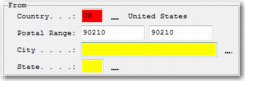
Enter the origin postal code or range of postal codes for which the rates apply. If the origin zone is one specific postal code, enter the full postal code in the first Postal Range field; for example 90210. This postal code defaults into the second Postal Range field, as displayed in
One Origin Zone.
One Origin Zone
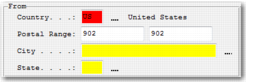
If the origin zone is a specific range of postal codes with the same prefix, enter a three-digit prefix in both Postal Range fields. For example,
Origin Zone Range - Same Prefix displays the configuration for an origin in the range 90200 to 90299, for a country where the post code length is 5 digits.
Origin Zone Range - Same Prefix
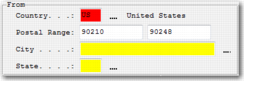
If the origin zone is a range of postal codes, enter the range in both Postal Range fields, using the full postal range. For example,
Origin Zone Range displays the configuration for an origin in the range 90210 to 90248.
Origin Zone Range
City
Enter the origin city code or city name for which the rates apply.
State
Enter the origin State code for which the rates apply.
The fields in the To section behave in the same way and are for destination zone details. As with the From section, the Country field is mandatory.
FC From, FC To, Rate Freight Class
These fields are used together, and allow you to specify a range of freight classes that are classed as a different freight class for rating purposes. For example, all classes from Freight Class 55 to Class 85 are rated as Class 50.
One Way
Select this field when a rate entry only applies for the origin zone to destination zone but not for freight in the other direction. However, if the service header is selected as one way only, by default all zone records are automatically flagged as One Way. If the automatic flag of One Way is then removed at Zone level, you encounter rating errors when attempting to rate a shipment where the Shipper address is included in the To zone of the service and the Ship-to address is included in the From zone of the service. In this case, the shipment does not match the one way configuration specified at the Service header level.
Currency
The currency that applies to the rate entered. This field is mandatory. You can set a default currency code to appear for new rates entered.
Default Currency
Category | Key | Value |
LTL | DEFAULT CURRENCY | Any currency code defined in option CU. |
Fixed Amount
Enter the Fixed amount or Flat fee for this charge to the customer.
Rate Per Unit
Enter the rate per unit charged to the customer. If you enter a fixed amount in the Fixed Amount field and a Rate Per Unit in this field, the two values are calculated and summed to make the charge amount. The value is the shipper charge to the customer.
Percent
If the rate basis is Flat or Percentage, you can enter a percentage of the value you specify as the Value Basis. If you enter a fixed amount in the Fixed Amount field and a percent in this field, the two values are calculated and summed to make the charge amount. The value is the shipper charge to the customer.
Minimum
Enter the minimum charge to the customer when applying these rates.
Discount %
For a service intended for SMC integration or to be used as a discount off another rate ID baseline rate—as specified in the Rate Id field—enter the percent discount to apply to the other rate ID.
Min Charge Floor
If a discount yields a freight charge lower than the minimum charge floor, the value in Min Charge Floor is taken instead. For example, the value in Min Charge Floor is $200. The freight charge after discount is applied is $185. In this case, $200 is taken as the freight charge as it is the lowest possible cost above the charge floor.
Cost Code
Enter a cost code such as FRT.
Carrier Fixed Amount
Enter the fixed amount charged to the shipper by the carrier.
Carrier Rate Per Unit
Enter the rate per unit charged to the shipper by the carrier.
Carrier %
This field is displayed when you select the Flat or Percentage rate basis. It performs the same function as the Percent field but it contains the percentage that the carrier charges the shipper.
Rate UOM
Enter the rate UOM, which is dependent on the Rate Basis. Generally, it is used with weight-based rates.
Rate basis override
This field enables you to enter a second rate basis on which to calculate the freight rate. This rate basis is combined with the main rate basis to return your total. For example, a rate can be calculated on mileage but also on a per carriage basis when transporting by rail.
Freight Class
Enter the freight class for this rate. When configuring a weight-based service—Gross Weight, Net Weight, Hundred Gross Weight—it is often required to use different rates per weight break for different freight classes, as the example in
Different Weight Breaks for Different Classes displays.
Different Weight Breaks for Different Classes
Freight Class | Weight Break in lbs | Rate Per lb |
50 | 0– 500 | $3 |
50 | 501-3000 | $2.50 |
50 | 3001-7000 | $2 |
55 | 0-500 | $4 |
55 | 501-3000 | $3.50 |
55 | 3001-7000 | $3 |
For more details, see Topic055 - Sample 002 - Different Rates for Freight Classes.doc on the QAD Document Library in QAD Transportation Management|PRECISION Reference Guides|Appendices. The images in the example are from a previous version of PRECISION.
From Break, To Break
The range of breaks for which the rates are applicable (From and To values into which the Rate Basis criteria falls). If you have several weight breaks for a service, enter a separate record for each break. You can copy an existing record and amend it.
Break UOM
Enter the unit of measure for the break range, which is dependent on the rate basis you select. You can enter a Break UOM that is different to the Rate UOM. With the Divisor field, the system converts UOMs automatically when calculating rates. For example, you can rate in tons but have your weight breaks and shipment weight in pounds.
Divisor
This field contains the factor to convert Rate UOM to Break UOM. For example, the service weight breaks are in pounds, the shipment weight is pounds, but the rates are in Tons. The system works out the Ton rate in pounds using this divisor. The divisor defaults from the UOM set up in the master table UO for MASS dim/scope, but you can manually override it.
Pack Type
Enter the pack type such as pallet, container, or carton. When configuring a pack based service such as Inners, Outers, Packs, or Containers, it is often necessary to use different rates for each type of package.
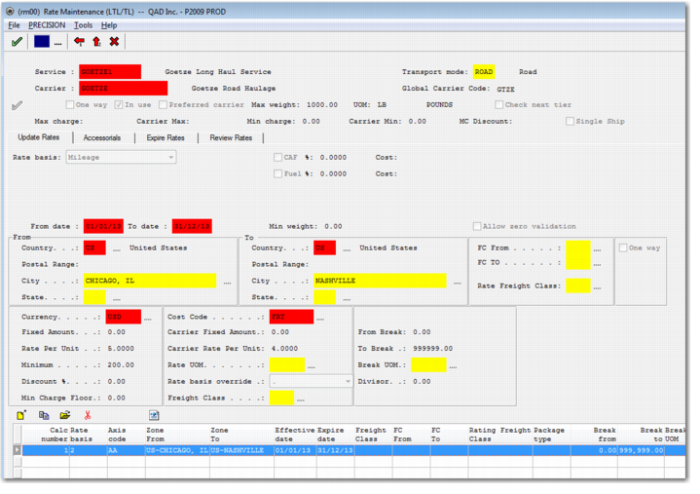
Mileage-based Example Record
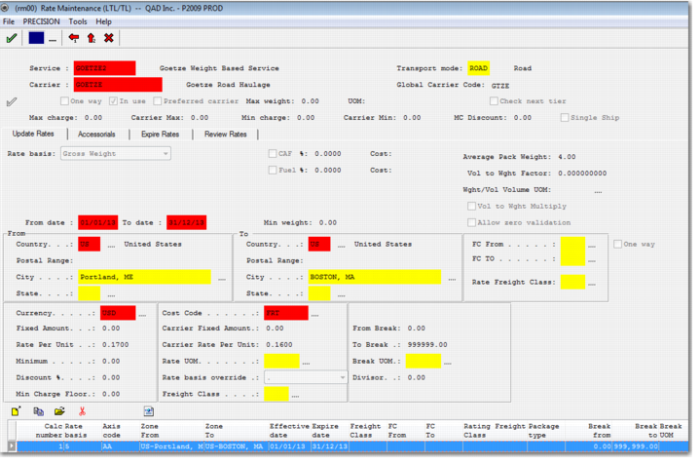
Weight-based Example Record
The bottom browse shows the rate records comprising the Service. The bottom browse contains a standard set of buttons:
• New Rates enables you to add a new set of rates for this service.
• Copy Rates enables you to copy an existing set of rates. This feature is useful if you are creating similar records with different weight breaks or zones.
• Modify Rates enables you to maintain a set of rates.
• Delete an entry enables you to delete a set of rates associated with a service.
• XML Rates enables you to create an xml file of your rates. This feature is useful for moving rates from one environment to another, such as from test to production.
Important: When you add records to a service, the details for each set of rates can change. However, you cannot change the rate basis. You must create a new service for a different rate basis.
Accesorials Tab
The Accesorials tab allows you to add extra charges and costs to your service rates. Accessorials can be charged on any rate basis. The main features of accessorials on the RM screen are:
• You can have different rate bases for different accessorials. For example, you can create a flat rate accessorial and a mileage-based accessorial for a weight-based service.
• You can have zone-based accessorials. It is possible to specify different accessorials for different zones.
The available fields are similar to those on the Update Rates tab. This section describes additional fields that are specific to the Accessorials tab.
Always apply to service
Select this field when the accessorial always applies to the service. For example, when there are always tarping charges on a service, they must always be included in the total cost of the service. The accessorial is not included in the base freight but is displayed as a separate charge line on the shipment transaction. The overall consignment value is the total of the freight and accessorials. When this field is cleared, the accessorial must be manually selected for inclusion in the shipment for it to be calculated.
Value Basis
The possible value bases are displayed in
Value Basis Explanations.
Value Basis Explanations
Value Basis | Explanation |
Shipping | Percentage of shipment total shipping value (XMSHDR0.SHCUMT). |
Statistical | Percentage of shipment total statistical value (XMSHDR0.SHFOBV). |
Cost | Percentage of shipment total cost value (XMSHDR0.SHCOST). |
Insurance | Percentage of shipment insured value (XMSHDR0.SHINSV). |
Charge Code | The system can contain one or a list of charge codes on which to base the percentage when an accumulation of previous costs must be summed before the current cost percentage is calculated. For example, the insurance premium charge is to be calculated as a percentage of the sum of Freight + Handling charges. This functionality is typically useful when configuring accessorials. |
Combination of Shipping / Statistical / Cost / Insurance value and Cost List | This value basis generally applies for accessorials. Use it where an accumulation of previous costs must be summed and added to a shipment value before the current cost percentage is calculated; for example, insurance is calculated as a percentage of the sum of Shipment value + Freight + Handling charges. For this scenario, select Shipping. In the COST LIST field, add a list of cost codes such as freight and handling. To add a cost code to the include list for the current percentage calculation, click the New Rates button. For example, Insurance Premium is based on percentage of Freight + Handling, so include the Freight and Handling cost code in the Cost Code list when configuring the insurance premium cost. The Code List field displays the list of cost codes the current percentage calculation is to be based on. |
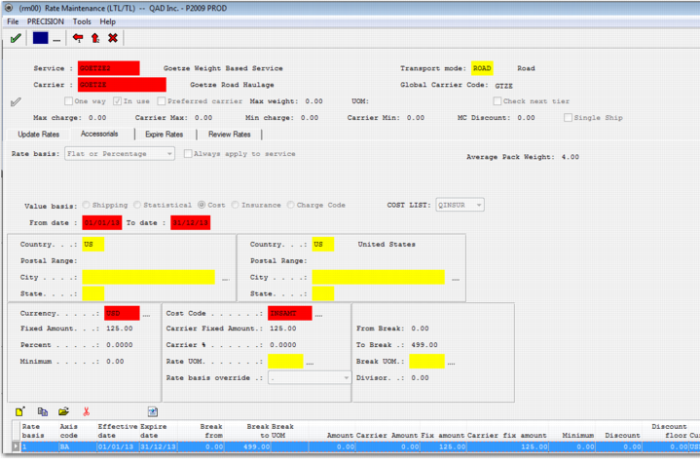
Accessorial Example Record
Expire Rates Tab
The Expire Rates tab enables you to expire a set of rates. Expired rates are not deleted from the service. However, they are no longer used in rating or shopping. The Dispatch Date on the shipment transaction is compared with the rate effective date range to determine the rates that apply for the shipment.
Eff. Date to Expiry
Enter the date as you entered it on the Update Rates tab.
New Expiry Date
Enter the date you now want to expire the rates. For example, if the effective expiry date on the Update Rates tab is 12/31/13, you can expire these rates early by entering 12/01/13.
Review Rates Tab
This tab enables you to review:
• Expired rates
• Future rates
However, you cannot maintain future rates. It is only possible to view them. Wait until the rates become effective before you can edit them with the Update Rates tab.
Note: Future accessorials are not displayed on this tab. To view future accessorials, enter the RN option and choose the Engine Calculation sub-option.