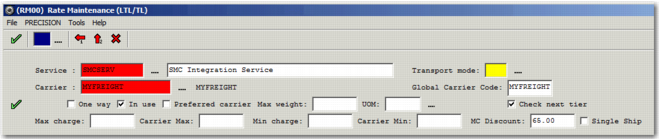
RM Screen
Next, create the service and its weight break discounts. To create the service, open the RM screen.
Header Fields
Header Fields
Service
Enter the service code and a description. If it is a new service, a message is displayed asking if you want to create the new service. Click Yes.
Carrier
Enter the name of the carrier providing the service.
MC Discount
If you have agreed a discount with your carrier on the returned shipment charge from SMC, enter the percentage in this field. The percentage is to be subtracted from the shipment charge when it is greater than the minimum charge floor. RWXL compares the shipment charge returned to the minimum charge floor. If the shipment charge returned is less than the minimum charge floor, the charge floor applies and this percentage is not used. However, if the shipment charge returned is higher than the net charge calculated from the minimum charge floor field, the minimum charge applies. The percentage in the MC Discount field is then subtracted from the minimum charge.
No MC Discount
Step | Value |
Minimum Charge Floor | 215 |
SMC amount returned (including Discount%) | 235 |
MC Discount | 0 |
Total Freight Cost | 235 - 0 = 235 |
With MC Discount
Step | Value |
Minimum Charge Floor | 215 |
SMC amount returned (including Discount%) | 235 |
MC Discount | 10% |
Total Freight Cost | 235 - 23.50 = 211.50 However, this is less than the minimum charge floor, so the final charge is 215. |
Check Next Tier
To enable the system to check whether the next weight break yields a lower charge, select this field.
Single Ship
If required, select this field. When selected, the system rates the bill as a single shipment. This field only applies when the shipment uses a tariff that uses single shipment charges. The default is to rate the bill as a multiple shipment.
To save your changes, select the green check mark. When you complete the header section, a route is created in option RT. A service name based on the tariff is also created in option SE. This record associates the rating with a service.
Update Rates Tab
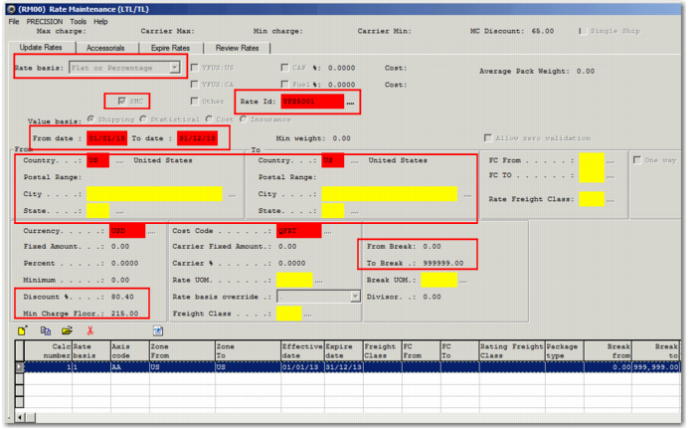
On the Update Rates tab, complete the relevant fields for each weight break discount you require.
Header Fields
Rate Basis
Select Flat or Percentage.
SMC
Select the SMC field.
Rate Id
Enter a rate ID, which is the tariff name the service is based on; for example YFS5001. The rate ID must already exist in the RN table.
From Date, To Date
Enter a valid date range.
Country, Postal Range, City, State
Enter the relevant zone information for the service.
Currency, Cost Code
Complete these mandatory fields.
Discount%
Enter the discount to be applied to the charge. This field is the whole point of SMC, because the discount is subtracted from the base tariff.
Min Charge Floor
You must enter a minimum charge in this field. A floor is a contractual minimum charge. If the calculated charge goes below the floor, the system uses the floor rather than the calculated charge.
Note: Ensure that you enter the charge in the Min Charge Floor field and not in the Minimum field.
From Break, To Break
If you do not enter a weight break, the screen weight break defaults to 0 – 999999. This weight break is then broken down into the standard SMC weight breaks when rating occurs. When you enter a weight break, it must conform to the SMC standard weight breaks. For the purpose of deficit rating, you may need to enter discounts for the full range. SMC has nine standard weight breaks.
SMC Standard Weight Breaks
| Break from | Break to |
1 | 0 | 499 |
2 | 500 | 999 |
3 | 1000 | 1999 |
4 | 2000 | 4999 |
5 | 5000 | 9999 |
6 | 10000 | 19999 |
7 | 20000 | 29999 |
8 | 30000 | 39999 |
9 | 40000 | |
When you have completed the fields, click the Save button. If you did not enter a value in the MC Discount field in the header, a message is displayed when you click Save after completing the first record. It asks whether to apply the discount rate from the Discount% field to the MC Discount header field.
When you complete the Update Rates tab, other records are created in the database.
• The RN database table stores LTL/TL rate definitions. These rate definitions are created when you save the record.
• The tariff name that the service is discounted from is created in SE and associated with the service. The tariff name has a sequence number of 3 and is marked as a temporary calculation, which indicates that this record is an SMC Integration record.