Sample Setup
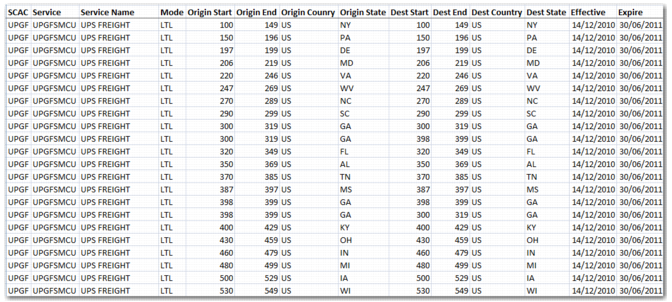
Excel File for Upload displays an Excel file to upload into Precision. The rates are for two services named UPGFSMCU and UPGFSMCU. To begin, save the Excel file as a CSV file.
Excel File for Upload
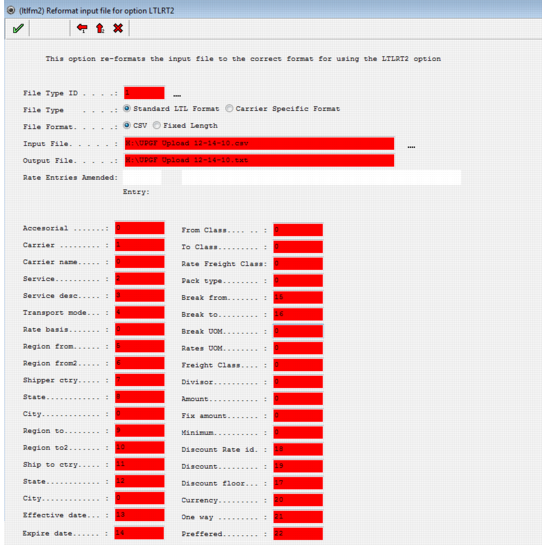
Next, format the file using the LTLFM2 option, as displayed in
Converting to Text File.
Converting to Text File
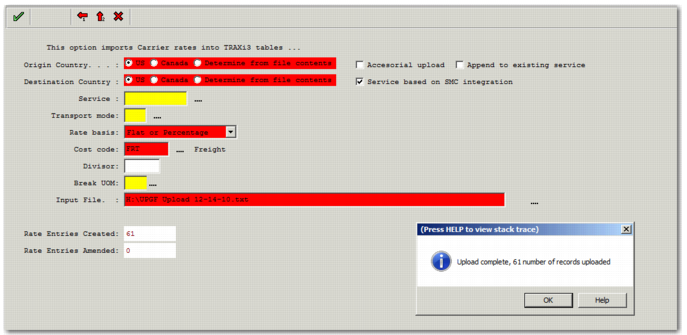
After you format the file, you can upload the file using the option LTLRT2. Complete the fields and click the green check mark to begin processing. After the file is uploaded, the message in
Upload File is displayed.
Upload File
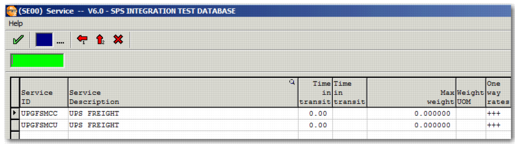
The upload also creates SE records for the two services, UPFGSMCU and UPFGSMCC, as displayed in
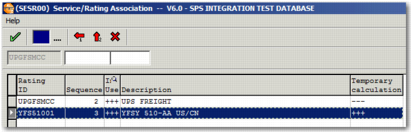
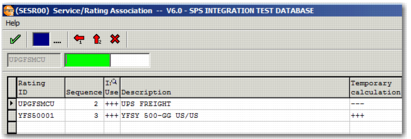
SE Records Created on Upload. Service/Rating Association sub-options are also created, as displayed in
UPGFSMCC Service/Rating Association and
UPGFSMCU Service/Rating Association.
SE Records Created on Upload
UPGFSMCC Service/Rating Association
UPGFSMCU Service/Rating Association
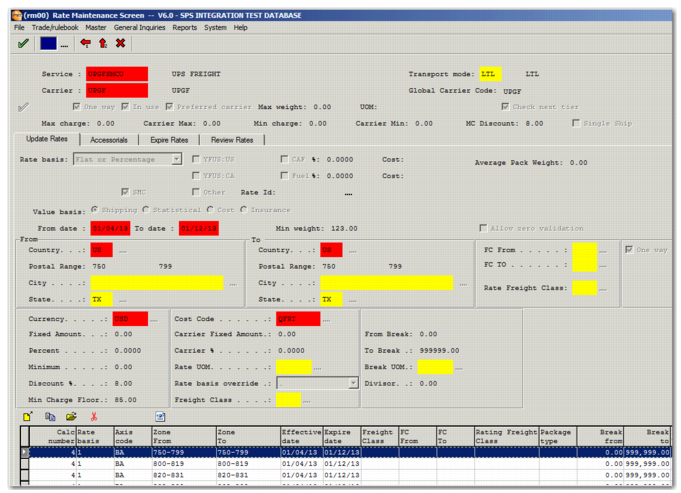
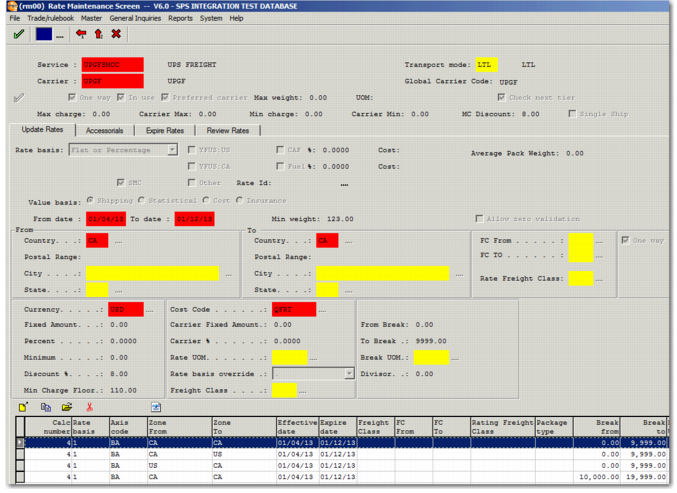
In addition, an RN record is added. The record contains all rating ID information, including calculations, axes, regions, and zones. Now, you can update the RM records, as displayed in
RM Rates and
RM Rates.
RM Rates
RM Rates