Services Step
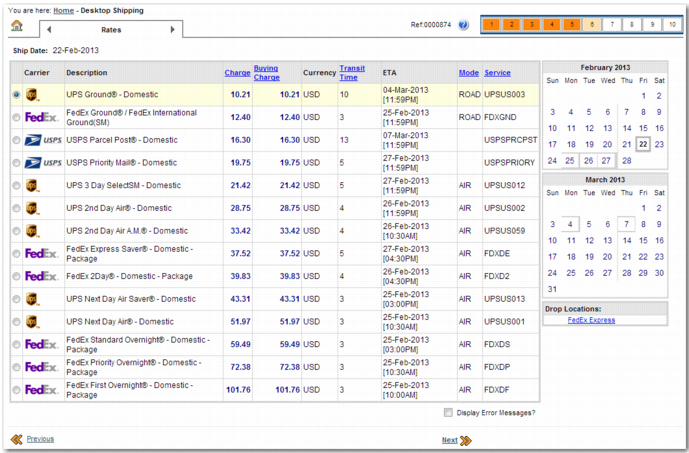
The Services step shops for rates based on the shipment details and the delivery and carrier criteria that the user specifies in the Method/References step.
Services Step
Services Step System Values displays the system values that you can use to configure this screen
Services Step System Values
Category | Key | Description |
ITRAX | RATE SHOP SHOW BASE COSTS | Determines the charge columns that appear on the screen. Assigning a value of CUSTOMER causes the Buying Charge column to appear. The Buying Charge is the amount that the shipper pays the carrier for shipping the item. Assigning a value of COMPANY causes the Selling Charge column to appear. The Selling Charge is the amount that the shipper charges the buyer for shipping the item. Assigning a value of BOTH causes the Buying column and the Selling column to appear. Possible values: COMPANY, CUSTOMER, BOTH Default value: COMPANY |
ITRAX | RATE SHOP TASK - DEFAULT SORT | Controls how the results are sorted. Possible values: COST, MODE, LEADTIME, SERVICE, BUYING_COST, CARRIER_AND_COST. By default, results are sorted based on buying cost. If buying costs are not displayed, then the results are sorted based on selling cost. |
Skipping the Services Step
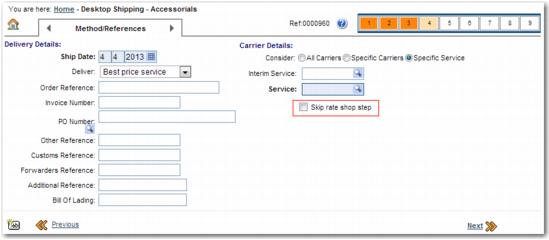
To give the user the option to skip the Services step, set the DTS SKIP RATES ALLOWED system value in the ITRAX category value to yes. Skip rate shop step only appears when the user selects the Specific Service option on the Method/References step, and when no default service is set. A default service is set using the default section of the DS-TEMPLATES <NN> system value.
Skip Rate Shop Step Option
If you do not include the Services step in the Shipment Wizard, you can specify the service using the Service field in the Default section of the DS-TEMPLATES <NN> system value.