Ship To
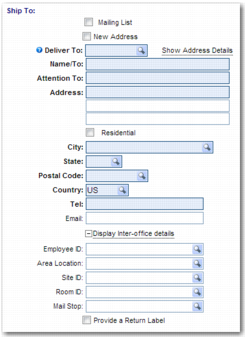
Use the Ship To section to specify who you are shipping the items to, as displayed in
Origin/Destination Step: Ship To Section.
Origin/Destination Step: Ship To Section
Mailing List
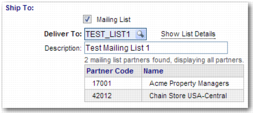
Select this field to ship an item, typically a document, to multiple partners. If you select this field, the appearance of the Ship To section changes, as shown in
Origin/Destination Step: Ship To Section with Mailing List Selected. To select a Mailing List, click the lookup icon next to the Deliver To field.
Note: Your administrator must configure a mailing list of suitable partners before you can select mailing lists using the lookup icon.
Origin/Destination Step: Ship To Section with Mailing List Selected
New Address
Select this field to enter a new address. When you select this field, a Save to Address Book field may be displayed at the bottom of the Ship To section. To save the new address to an address book, select the Save to Address Book field, and choose the particular address book from the accompanying drop-down menu.
Deliver To
Specify the partner code for the consignee. Depending on the information stored in PRECISION, specifying the partner code populates the other Ship To fields with default values.
Show Address Details
If you manually enter the partner code in the Deliver To field, to fill in the other Ship To fields with details already stored in the system, click Show Address Details.
Name/To
The partner organization name.
Attention To
A contact name within the partner organization.
Address
The partner address.
Residential
If the address is a residential address, select this field.
City, State, Postal Code, Country, Tel, Email
Enter the relevant partner organization details in each field.
The Display Inter-office details fields apply when using the Bear River first-mile and last-mile tracking facility. First-mile and last-mile tracking allow you to specify a particular location within a large office or factory complex.
Employee ID, Area Location, Site ID, Room ID
Enter the relevant information in each field.
Mail Stop
A code number that is more specific than a zip code. A zip code can have multiple mail stop codes that divide the zip code area into smaller areas.
Provide a Return Label
Enable this field to create a return label, so that the consignee can return documents or faulty items to you on receipt of the shipment. Use this field with the On Behalf Of field in the Ship From section to create a return label from the partner address specified in the On Behalf Of field. If you leave the On Behalf Of field blank, the address in the Deliver From field appears as the origin address on the return label.