Defining an Inclusion List
Use the Inclusion Details screen to maintain an inclusion list. An inclusion list specifies the target records to include for a specific stage of a campaign, or for an entire campaign. You can define the types of literature for an inclusion list, as well as the intended targets for each inclusion.
You also can define an exclusion list; for details, see
Defining an Exclusion List.
1 Choose Marketing Management|Contact Mailing Preferences|Inclusion List. The Inclusion List browser displays the inclusions currently defined in the system.
2 Right-click the Inclusion List browser and choose Add from the menu.
Note: This menu also contains options for deleting and editing existing inclusions.
Details
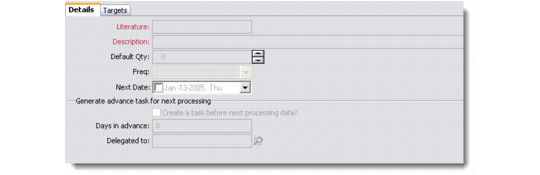
Use the Details tab to create your inclusion list.
Inclusion Details
Literature
Enter a code to identify the literature to include in the list.
Description
Enter a description of literature to include.
Default Quantity
Enter a number to indicate how many copies of the literature to include.
Frequency
Enter a frequency indicating how often the literature should be sent.
Next Date
Enter the date on which the literature will be next sent.
You can indicate whether you want the system to generate an activity before the next inclusion is processed. The generated activity displays on the Activity calendar of the delegated user.
Create reminder before next processing date
Select this option to enable the following fields.
Days in Advance
Enter the number of days in advance the reminder should display on the Activities calendar.
Delegated To
Enter a system user who is responsible for this activity. You must select a user defined in the system. Typically this user is the user entering the inclusions.
Note: The activity defined for this inclusion appears on the Activity calendar for the delegated user.
Targets
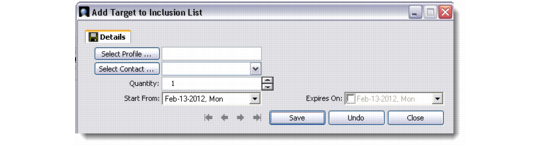
Use the Add Target to Inclusion List dialog box to add targets for your inclusion list. Targets are profiles and/or contacts that are identified as the intended audience for your inclusions.
Note: To display this dialog box, right-click the Targets browser and choose Add from the right-click menu.
Add Target to Inclusion List
Select a profile and/or contact to add to the inclusion list. After selecting a profile, enter a date on which this target’s inclusion on this list should expire.
You also can build your target list by using search criteria. For details, see
Building a Target List Using Search Criteria.
Note: After creating a target for your inclusion list, right-click the target and choose Send Mail or Send Letter to send the target your inclusion. An activity is entered as a reminder on the Activity calendar. For details, see
Working with Activities, Tasks, and E-mails.