QAD Enterprise Asset Management 2017.1
>
User Guide
>
Maintenance
>
Equipment
>
Creating an Equipment Record
Creating an Equipment Record
Follow these steps to create an equipment record:
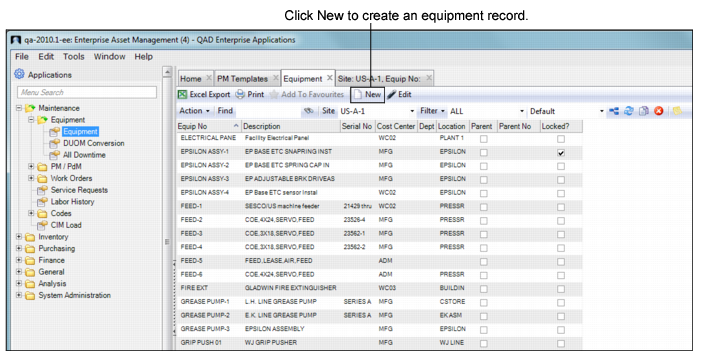
1 Open the Equipment browse in Maintenance|Equipment.
Equipment Browse
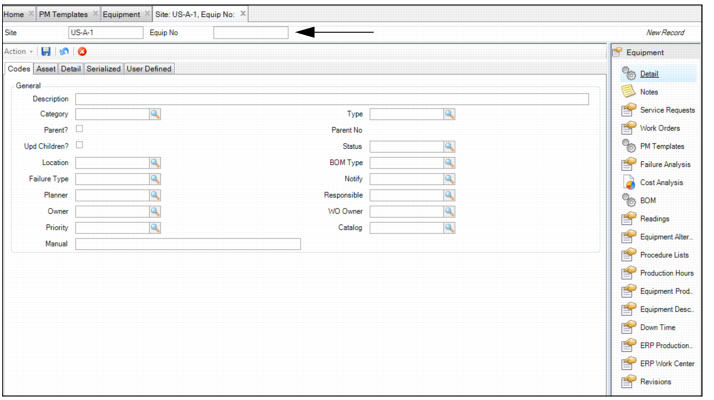
2 Click New. A blank equipment record opens. In the Equipment No field, enter a unique equipment number or name.
Enter the Equipment Number
4 Once all the information has been entered, click Save.
Filling Out the Equipment Tabs
Enter information about the equipment in the Codes, Asset, Detail, Serialized, and User Defined tabs.
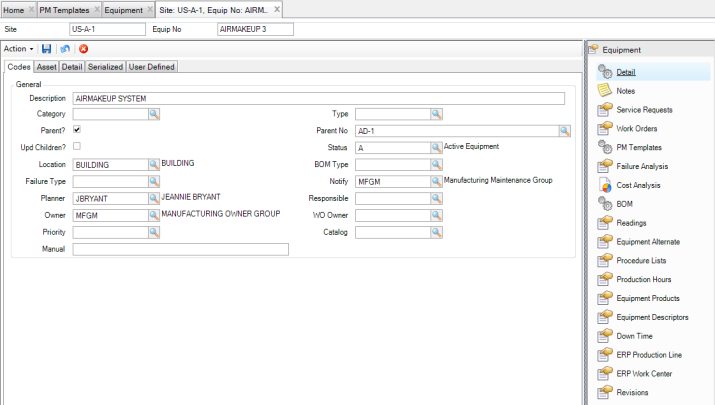
Equipment: Codes Tab
The information entered in the Codes tab is used to group equipment by type or category. It includes a brief description of the equipment, individuals, or groups associated with the equipment, and parent/child data.
Equipment: Codes Tab
General
Description
A brief description of the equipment.
Category
The most general equipment code. Use it to designate ownership or virtual equipment.
Type
Group equipment by functional application or classification.
Status
The status of the equipment or machine. A code shows the current standing of equipment; for example, A – Active, I – Inactive, O – Obsolete, or M – Moved.
Parent?
Select this check box to make this piece of equipment a child to another and attach it to a parent piece of equipment. For example:
Parent – Production line (a virtual piece of equipment)
Children – Blow mold machines, formers, labelers, ink jet printers, conveyors, palletizers, and so on.
Parent No
The associated parent equipment of the component.
Upd Children?
Select this check box to update the equipment DUOM when the parent’s current reading changes. Any children conversions set up in DUOM Conversion are calculated.
Manual
The name of the equipment manual for a specific piece of equipment. Manual is for reference purposes only.
BOM Type
A grouping of system and assembly codes unique to a specific type of equipment, building, or facility.
Equipment Failure Type
Group selected failure and repair codes for the equipment. When the failure or repair lookup runs from the Work Order Maintenance screen, the system filters to those codes linked to the failure type of the equipment.
Location
The physical location of a piece of equipment.
Catalog
The class or group structure of the equipment.
Planner
The employee responsible for planning the maintenance on a piece of equipment. EAM validates your selection against the list of designated planners. Planner copies to associated PM templates and work orders.
Notify
The user or group of users to notify with e-mail when a piece of equipment reaches its spending limits.
Responsible
The employee who is responsible for the equipment.
Owner
The user or group of users authorized to edit the equipment record. If an owner is associated with the equipment record, only the owner or owner group members can edit the equipment record. Unlike most fields that appear on the Equipment Maintenance screen, copying an equipment record does not copy the owner.
WO Owner
If a WO owner is added to the equipment record, only the owner or owner group members can edit any work orders for that equipment.
Priority
This editable code indicates the priority level for the piece of equipment. It automatically copies to service requests and work orders added for this equipment.
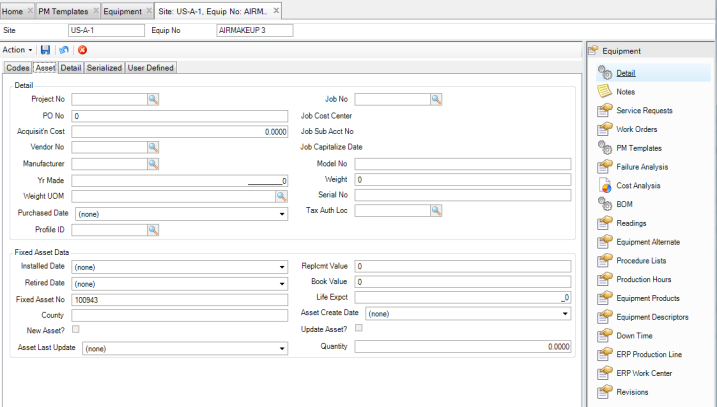
Equipment: Asset Tab
Use the Asset tab for equipment that is not serialized. It includes details about the equipment acquisition and its nameplate data, the information typically found on the equipment, and fixed asset data from finance.
Equipment: Asset tab
Detail
Project Number
Use a project number when you purchase and install a new piece of equipment. When you enter a project number, EAM defaults the acquisition cost from the total spent in the project record.
Job No
Use the lookup to select a valid job number associated with the project.
PO Number
The original purchase order number used to purchase the equipment.
Job Cost Center
The default job cost center from Finance|Projects displays.
Acquisition Cost
The original purchase cost of the equipment.
Job Sub Account Number
The default job sub-account number from Finance|Projects.
Vendor No
The vendor from whom the equipment was purchased. EAM validates this number against the Vendor table.
Job Capitalize Date
The job’s capitalize date from Finance|Projects. This field cannot be modified.
Manufacturer
The manufacturer for a piece of equipment. There is a lookup available for this field.
Model No
A reference field for storing the equipment or machine’s model number.
Yr Made
The year the equipment was built.
Weight
The weight of the asset or equipment represented by the GVWR (Gross Vehicle Weight Rating), information widely used in the construction and fleet industry.
Weight UOM
The weight unit of measure. There is a lookup table available for this field.
Serial Number
The serial number of the equipment or machine. Serial number is for reference purposes only and has no other functionality within EAM.
Purchased Date
The purchase date of a piece of equipment.
Tax Auth Loc
The physical location where the asset resides to identify proper depreciation/tax codes in Asset Management. The lookup for this field is a validated list for Tax Authority Loc defined in Finance|Codes. Use the lookup to select a tax authorization location.
Profile ID
Use the lookup to select a profile ID.
Fixed Asset Data
Installed Date
Enter the date a piece of equipment was installed.
Replacement Value
Enter the cost of replacing this piece of equipment.
Retired Date
Enter the date a piece of equipment was removed from service.
Book Value
Enter the amount that represents the calculated worth of the equipment. Accounting can update the field and use it for insurance purposes.
Fixed Asset No
Enter the asset number that cross-references the equipment with the equipment fixed asset or tag number from your finance department.
Life Expectancy
Enter the life expectancy of a piece of equipment in years. This field is for reference purposes only.
County
Enter the county where the equipment resides.
Note: The data in the following asset fields are entered or updated based on the Asset Accounting Interface setting (Acquisition Options) in the General|Business Units|Site|Maintenance tab.
Asset Create Date
The default value for this field is blank. This field is system generated when the interface picks up the asset and sends it to asset accounting as a new asset. When this field is filled, clear the New Asset? check box.
New Asset?
By default, this check box is clear. This check box is only enabled if the Asset Create Date field is blank. This field is used to determine new records to pick up in the Asset Accounting interface.
Update Asset?
By default, this check box is clear. It is only available for update if the Asset Create Date field is populated (the asset has already been created).
Asset Last Update
This field is system generated and provides the date on which the asset was last updated in Asset Accounting.
Quantity
Enter a quantity for this asset.
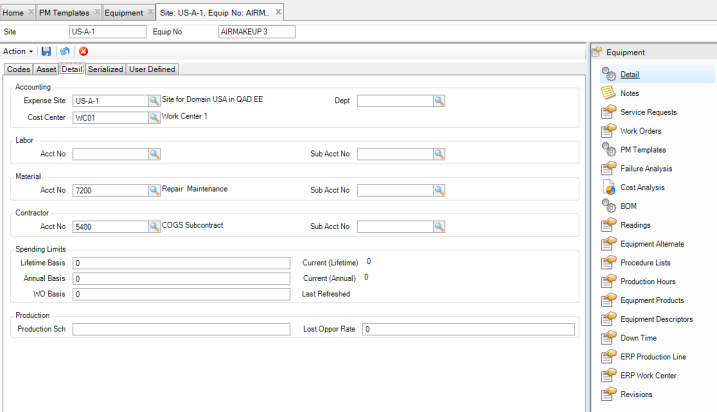
Equipment: Detail Tab
Use the Detail tab to enter information about an equipment record.
Equipment: Detail Tab
Accounting
Expense Site
This field defaults to the current site, but you can charge expenses for this equipment to another site.
Department
Accounting does not assign department. Maintenance or Production can use this field to track expenses. It can represent legacy departments or cost centers.
Cost Center
Accounting assigns this piece of equipment to a cost center. All labor, material, and contractor maintenance costs are charged to this cost center.
Labor
Labor Acct No /Sub Acct No
Enter the account number assigned to a piece of equipment to collect internal labor costs. The sub-account number allows for further details associated with an account number.
Material
Material Acct No /Sub Acct No
Enter the account and sub-account numbers assigned to a piece of equipment to collect material costs. The sub-account number allows for further detail associated with an account number.
Contractor
Contractor Acct No /Sub Acct No
Enter the account and sub-account number assigned to a piece of equipment to collect contractor costs. The sub-account number allows for further details associated with an account number.
Spending Limits
Lifetime Basis/Current
These values track the expense limit and the maintenance costs charged to equipment during its lifetime. The Current value requires no setup. You can use the Initialize Limits option in Actions to record expenses predating a new equipment record. This field displays transaction costs from other areas of EAM, specifically when labor, parts, or contractor costs are charged to a piece of equipment.
Annual Basis/Current
These values track the expense limit and the expenses charged to equipment during the year.
For the warning messages and automatic e-mails to Notify to work properly, click Refresh periodically. If the annual basis has been exceeded, EAM displays the message, “Equipment has exceeded the Annual Limits.”
WO Basis
The limit on expenses charged to a piece of equipment per work order.
Last Refreshed
This field displays when the current (lifetime) and current (annual) fields were last refreshed.
Production
Production Schedule
This text field displays the code for the production schedule.
Lost Opportunity Rate
The per-hour cost to the company when the equipment is down.
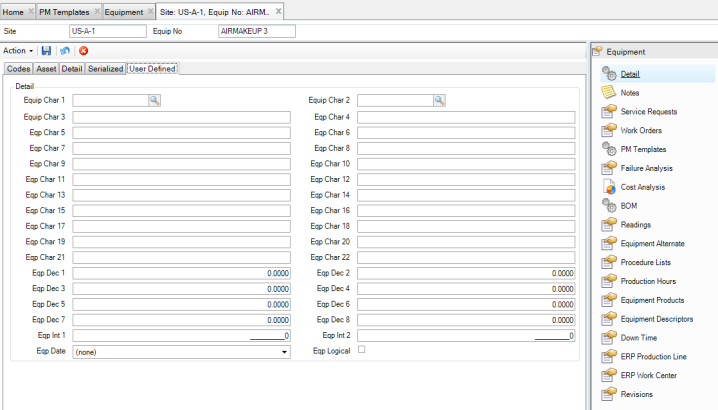
Equipment: User Defined Tab
Use the User Defined tab to track information against specific equipment in EAM. There are multiple user-defined fields.
Equipment: User Defined Tab
Detail
Character 1-2
User-defined character fields, validated against tables that you add.
Character 3-22
Free-form, user-defined character fields, not validated against tables.
Decimal 1-8
User-defined decimal fields for equipment.
Integer 1-2
User-defined integer fields for equipment.
Date
User-defined date.
Enable/Disable Logical
User-defined check box.
Initialize Limits for Equipment
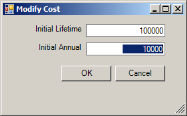
The Initialize Limits option allows you to enter the initial lifetime and annual maintenance costs to record expenses predating creation of a new equipment record. Entries display in the Lifetime Basis and Annual Basis fields on the Detail tab.
Follow these steps to enter the initial limits for a piece of equipment:
1 Open the equipment record.
2 Select Initialize Limits from the Equipment Action menu.
3 The Modify Cost window opens. Enter the initial lifetime and annual maintenance costs in the fields. Click OK to save.
Equipment Modify Cost
Note: Refresh the equipment record to display changes.
Parent Child Equipment Lookup
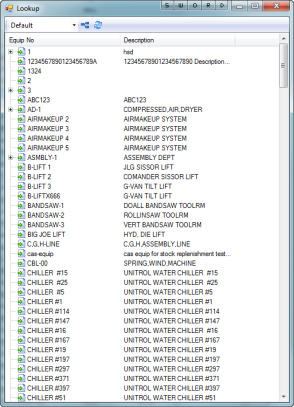
The Parent Child Lookup option allows you to see which pieces of equipment are parents and which are their children.
To view the parent and child relationship for a piece of equipment, select the equipment record in the Equipment browse. Select Parent Child Lookup from the Action menu.
Note: When you click the Parent Child Lookup option, the parent/child tree displays regardless of the Parent Lookup setting on the System Site Maintenance screen.
Parent Child Lookup
Attach a File to an Equipment Record
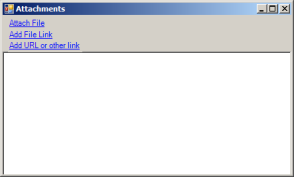
EAM gives you the option of attaching and linking an unlimited number of files and linking an unlimited number of URLs to an EAM equipment record. If you can run the file on your operating system, you can run it from EAM once it is attached or linked.
Attaching or Linking a File to an Equipment Record
Attach a File
To attach a file to an equipment record:
1 Select the equipment from the Equipment browse.
2 Select Attachments from the Action menu.
3 In the Attachments window, select Attach File.
4 Locate the file on your computer and click Open. The file is now attached to the equipment record.
Link a File
To link a file to an equipment record:
1 Select the equipment record from the Equipment browse.
2 Select Attachments from the Action menu.
3 In the Attachments window, select Add File Link.
4 Locate the file on your computer and click Open. The file is now linked to the equipment record.
Link a URL
To link a URL to an equipment record:
1 Select the equipment record from the Equipment browse.
2 Select Attachments from the Action menu.
3 In the Attachments window, select Add URL or other Link.
4 Copy and paste the link into the field and then click OK. The URL is now linked to the equipment record.
Add an Alternate Name for Equipment
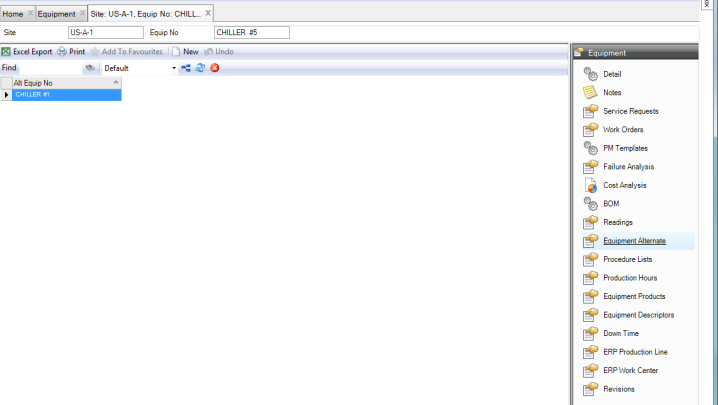
In the Equipment Alternate submenu, you can enter an alternate name for the selected piece of equipment. The system checks this alternate name during the Loads DUOM batch job, which reads a DUOM file from an outside source.
To add an alternate name for an equipment record, open the record and select the Equipment Alternative submenu. Click new and then enter the alternate name in the Alt Equip No field. Press Enter to save.
Equipment Alternative Submenu
Associate a List of Products Made by the Equipment
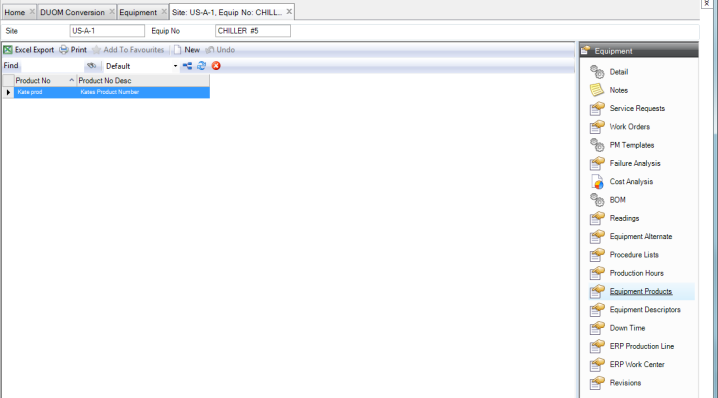
The Equipment Products submenu allows you to associate a list of products that a piece of equipment made. Specify the products produced on the work order when a repair is required for the equipment. You can run reports to analyze maintenance cost based on the product being produced.
To associate products with a piece of equipment, open the equipment record and select the Equipment Products submenu. Click New and use the lookup in the Product No field to select the product. Press Enter to save.
Equipment Products Submenu
Linking Production Lines to Equipment
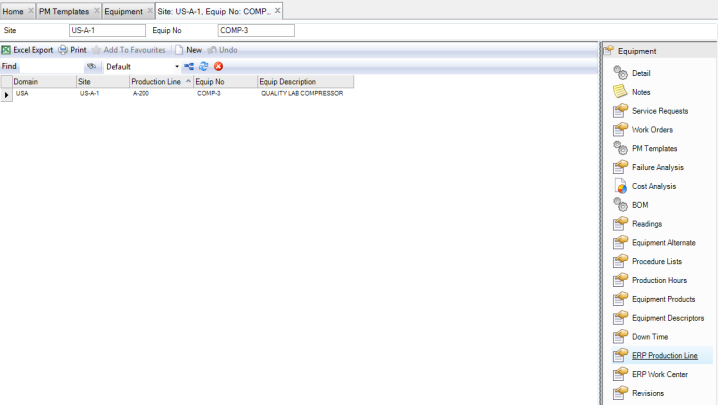
EAM provides a method of linking the production lines from the ERP system directly to specific equipment records.
Note: You can view all production line to equipment relationships in the Production Line Mapping to ERP browse located in System Administration.
To link a production line to an equipment record, open the record and select the ERP Production Line submenu. Click New and then use the lookup in the Production Line field to select the ERP production line. Press Enter to save.
Equipment ERP Production Line Submenu
Linking Work Centers to Equipment
EAM provides a method of linking the work centers from the ERP system directly to specific equipment records.
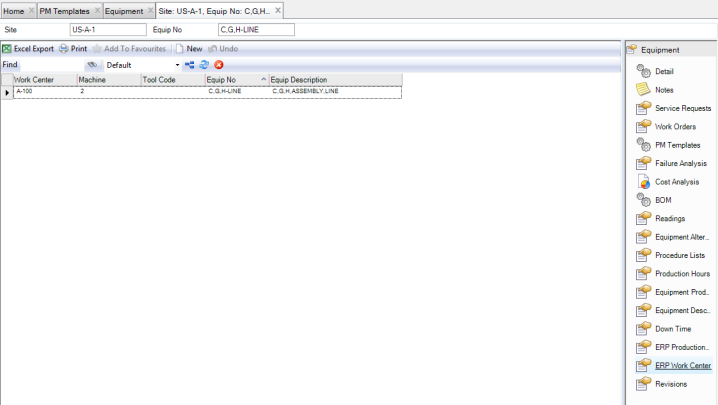
To link a work center to an equipment record, open the record and select the ERP Work Center submenu. Click New and then use the lookup in the Work Center field to select the ERP work center. Press Enter to save.
Note: You can view all work center to equipment relationships in the Equipment Mapping to ERP browse located in System Administration.
Equipment ERP Work Center Submenu
Defining the Equipment BOM
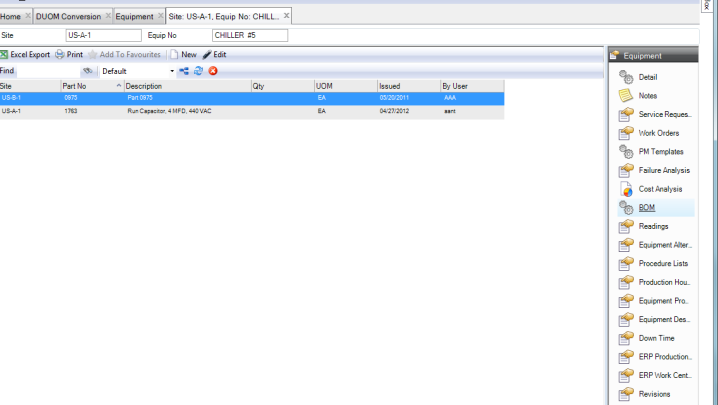
Each piece of equipment can be associated with a single-level or multi-level Bill of Materials (BOM). To create a multi-level BOM, the BOM type must be filled in on an equipment record. The BOM type is a grouping of system and assembly codes. Adding a BOM type to a piece of equipment automatically creates the multi-level BOM structure. Then when you issue parts to the equipment, you can add parts to the appropriate system and assembly for the equipment.
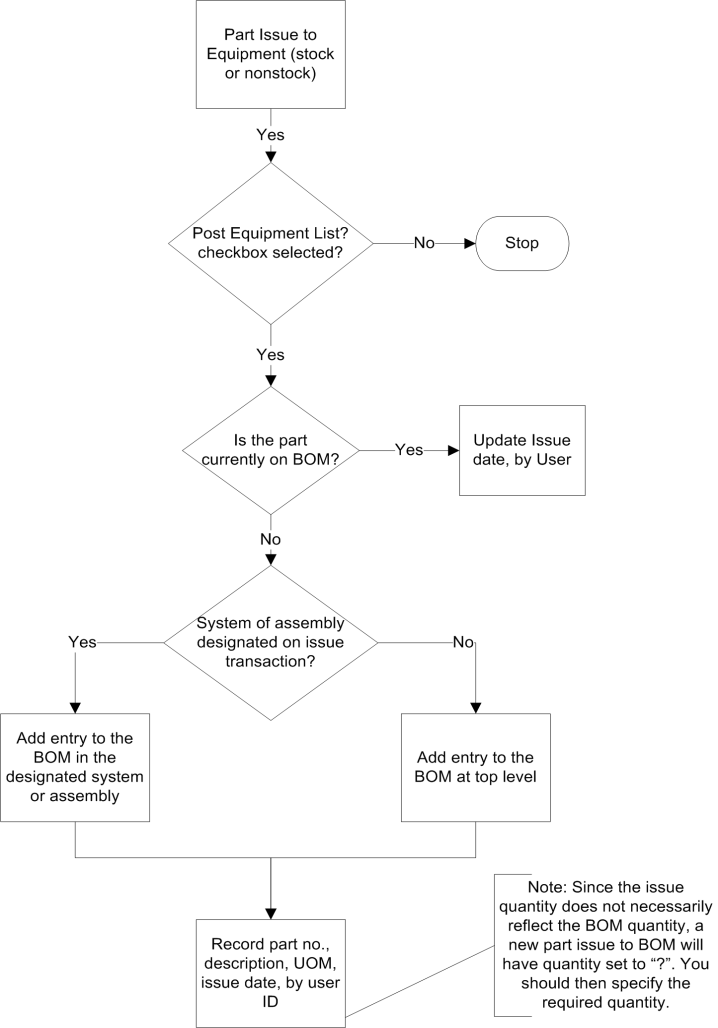
EAM can automatically build the BOM with parts initially issued to equipment. To use the automated functionality, the Post Equipment List? check box must be selected in the General|Business Units|Domain|Maintenance tab.
Defining Equipment BOM Flowchart
Equipment: BOM Submenu
Attach MILs to Equipment
EAM allows you to attach any number of MILs designated as safety procedures to a piece of equipment. When a work order is created for the piece of equipment, these safety procedures automatically copy to the work order.
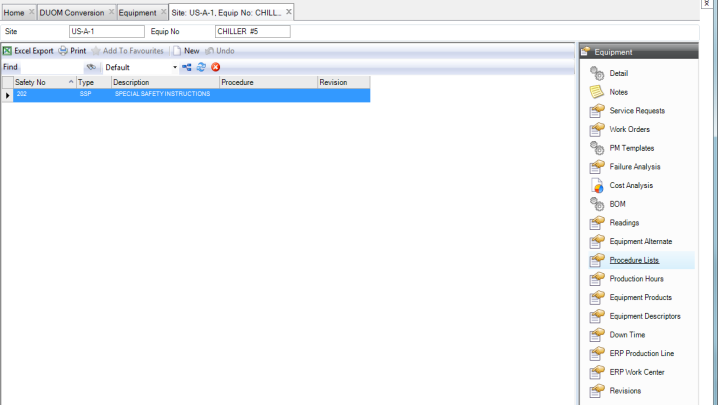
To attach an MIL to an equipment record, open the record and select the Procedure Lists submenu. Click New and use the lookup in the Safety No field. Select the MIL and press Enter to save.
Equipment Procedure Lists Submenu
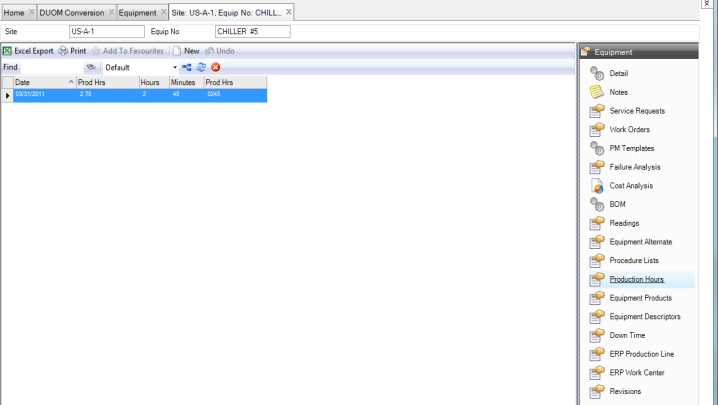
Production Hours for Equipment
You can view the production hour readings for equipment loaded from a data file using the job program Load Production Hours (prodload.p). For more information, see
Load Production Hours.
Equipment Production Hours Submenu
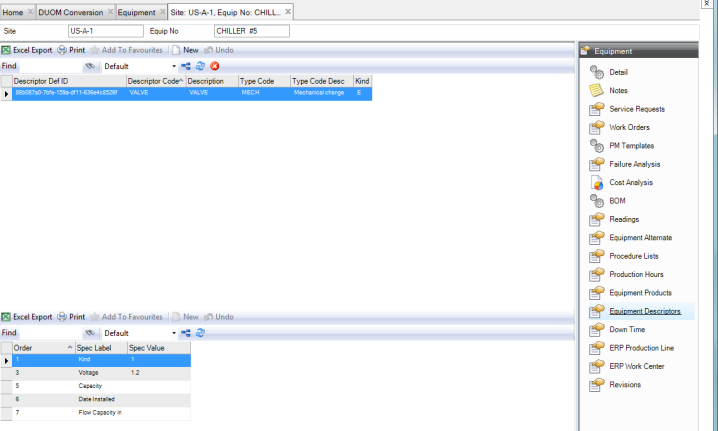
Defining Equipment Descriptors
Equipment descriptors allow the user to set up a standard template for certain technical information, and then these descriptors can be associated with a number of pieces of equipment. A piece of equipment can have multiple descriptors associated with it. Once the descriptor is associated with an equipment record, the user can update the information on a field.
Equipment Descriptors Submenu