QAD Enterprise Asset Management 2017.1
>
User Guide
>
Maintenance
>
Equipment
>
Equipment—Maintenance Activity
Equipment—Maintenance Activity
Creating Service Requests for Equipment
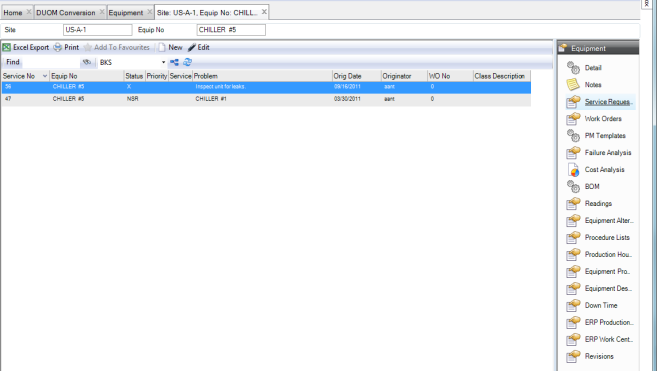
EAM gives you the ability to create service requests from an equipment record. When you create a service request from an equipment record, EAM pulls in all the data from the equipment record and automatically enters it into the service request. This feature saves you time and ensures data integrity. If a service request has been created from an equipment record, the service request is directly tied to the equipment record and the associated service request numbers appear in the Service Request submenu.
To create a service request from an equipment record, open the equipment record. Select the Service Requests submenu and click New. Enter the necessary information in the service request record. See
Filling Out the Service Request.
To view the service requests associated with a piece of equipment, open the equipment record and select the Service Requests submenu.
Equipment: Service Requests Submenu
Creating Work Orders for Equipment
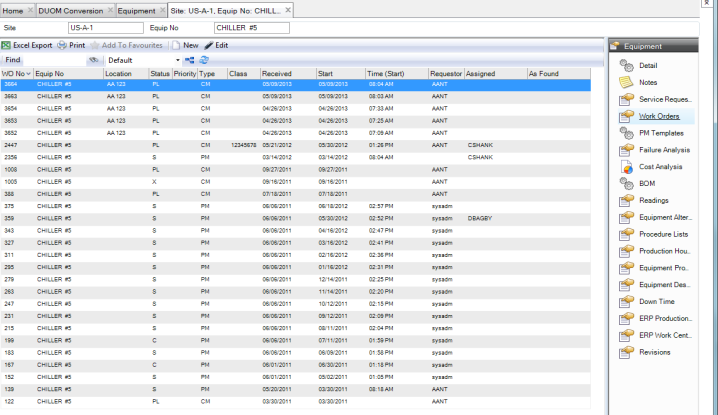
EAM gives you the ability to create work orders from an equipment record. When you create a WO from an equipment record, EAM pulls in all the data from the equipment record and automatically enters it into the WO. This feature saves you time and ensures data integrity. If a WO has been created from an equipment record, the WO is directly tied to the equipment record and the associated WO numbers appear in the Work Orders submenu.
To create a WO from an equipment record, open the equipment record. Select the Work Orders submenu and click New. Enter the necessary information in the WO record. See
Filling Out the Work Order.
To view the work orders associated with a piece of equipment, open the equipment record and select the Work Orders submenu.
Equipment: Work Orders Submenu
Entering Equipment Downtime
Downtime is considered to be the entire time a piece of equipment is not operational. EAM provides a method of tracking downtime for a specific Equipment record.
Follow these steps to enter equipment downtime:
1 Open the equipment record and select Create Downtime from the Action menu.
A blank Downtime record opens.
2 Enter the information in the fields.
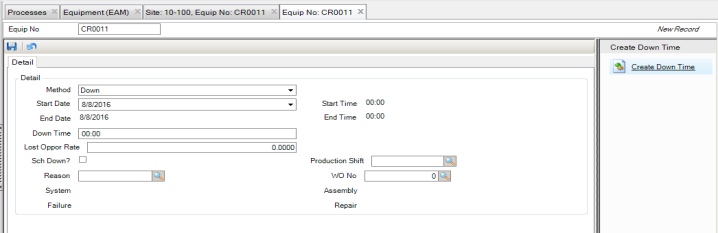
Equipment Downtime Record
Method
Select Start/End or Down from the drop-down menu. This setting determines which fields on the window are active and how downtime is calculated.
Method Selection
• Start/End – EAM automatically calculates the equipment downtime based on the actual starting date and time and the actual ending date and time that you enter.
• Down – EAM defines the End Date as today and calculates the Start Date backward based on the amount of downtime you enter.
Start Date
Active for both Start/End and Down Methods. This date must be the same as or earlier than the End Date.
• Start/End – Select the starting date for the equipment downtime.
• Down – Select the starting date for the equipment downtime or allow EAM to automatically calculate the Start Date based on the amount of downtime you enter.
End Date
Active only for the Start/End Method. Defaults to today’s date. This date must be the same as or later than the Start Date.
Start Time, End Time
Active only for the Start/End Method. Enter the starting and ending times for the equipment downtime. Enter the time in 00:00 HH:MM format.
Down Time
Displays the equipment downtime.
• Start/End – Auto-fills based on the information entered in the starting and ending date and time fields.
• Down – Enter the equipment downtime in the format HH:MM. EAM automatically calculates the Start Date based on a 24-hour time period.
Lost Oppor Rate
Enter the hourly rate for the lost opportunity due to the equipment’s downtime.
Sch Down?
Select this check box if the downtime was scheduled.
Production Shift
Use the lookup to select the production shift during which the downtime occurred.
Reason
Use the lookup to select the reason why the equipment was down.
WO No
Use the lookup to select the work order associated with the downtime repair.
System, Assembly,
Failure, Repair
These fields auto-fill with the information from the work order selected in the WO No field.
3 Once all the information has been entered, click Save.
Note: EAM also provides a browse that displays all the downtime for all equipment. See
All Downtime Browse.
Defining the DUOM for Equipment Readings
The Equipment Readings submenu supports two driving unit of measure (DUOM) types:
• Monitor. The equipment’s DUOM reading is measured, such as temperature.
Enter calibration readings and view a list of all the readings that have been recorded for a piece of equipment. This submenu allows you to:
• Set upper and lower calibration reading limits.
• Use the Update Tolerance action to set the number and frequency limits for out of tolerance (OOT) readings.
• Optionally set an e-mail alert to notify you when OOT readings occur.
• Optionally select to automatically create CM work orders when readings cause an OOT condition.
• Meter. The equipment’s reading is a number of cycles, such as time, miles, or revolutions. The capabilities of the Meter DUOM type include:
• Meter Rollover. Use the meter rollover when entering a meter reading that is less than the previous current reading. If your entry indicates that the meter has rolled over, the system automatically calculates the correct usage based on the upper and lower limits.
• Meter Replacement. Use the Replace action to replace a meter. A new lower and upper limit can be entered as well as a new current reading. When this function is used, no new usage is calculated.
Note: Before the meter is replaced, enter the last reading on the broken meter; otherwise, the last units used are not recorded.
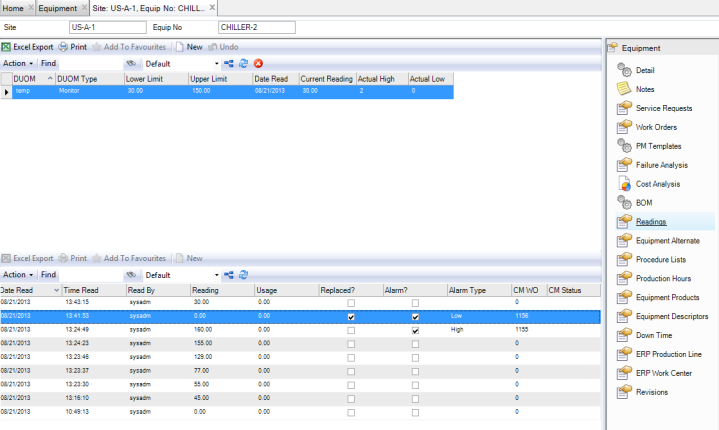
Equipment DUOM Readings Submenu
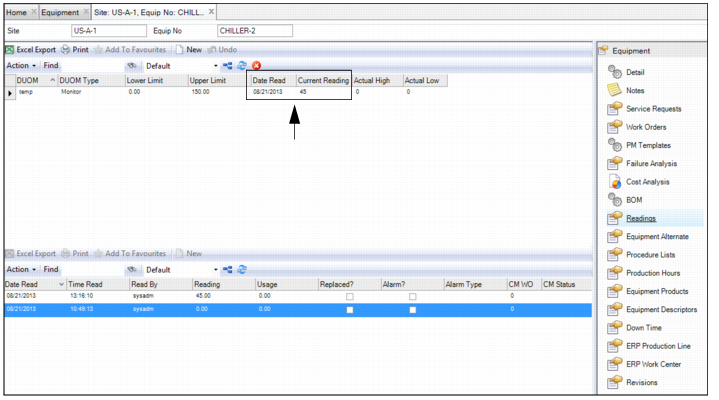
To access the Equipment DUOM Readings submenu, open the equipment record and select the Readings submenu.
Equipment Readings Submenu
Upper Browse
DUOM
Displays the DUOM for the piece of equipment. DUOMs are set up in Maintenance|Codes|DUOM and can be used across the system.
DUOM Type.
Displays the following DUOM types for the piece of equipment:
• Monitor. DUOM reading is measured such as temperature.
• Meter. Reading is a number of cycles such as time, miles, or revolutions.
Lower Limit.
Displays the lower limit for the calibration reading.
Upper Limit.
Displays the upper limit for the calibration reading.
Date Read.
Defaults to today’s date for the first reading. The field displays the same date for subsequent readings entered, unless you change it.
Current Reading.
Used to enter the current calibration reading.
Actual High.
Displays the number of readings that have exceeded the high limit.
Actual Low.
Displays the number of readings that have exceeded the low limit.
Lower Browse
The lower browse displays the history of DUOM readings entered for the piece of equipment.
Date Read, Time Read, Read By
Displays the time and date the reading was entered and the user who entered the reading.
Reading
Displays the DUOM reading number that was entered.
Usage
Displays the number of cycles since the last reading was entered. For monitor DUOM types, this field displays 0.
Replaced
This check box indicates if a meter was replaced.
Alarm?
The system updates this check box, which indicates if there is an OOT condition based on the calibration readings entered. If the check box is clear, the readings have not exceeded the Max or Min Occurrences measured by the Actual High or Low readings recorded. If the check box is selected, an OOT condition exists where the number of readings exceeded the Max or Min Occurrences measured by the Actual High or Low readings recorded.
Alarm Type
Displays if the OOT reading exceeded the Actual High or Low.
CM WO
If the Create CM? setting is activated, this field displays the CM work order that is created automatically when the OOT reading was entered. To activate the Create CM? setting, see
Automate CM for OOT Readings.
CM Status
Displays the status of the CM work order that was created to address the OOT reading.
Entering the DUOM for Equipment Readings
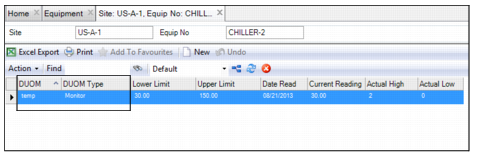
To enter the DUOM for equipment readings, open the Readings submenu. Enter the necessary information in the DUOM and DUOM Type fields. Press Enter to save.
DUOM
Displays the DUOM for the piece of equipment. DUOMs are set up in Maintenance|Codes|DUOM and can be used across the system.
DUOM Type.
Displays the following DUOM types for the piece of equipment:
• Monitor. Reading is measured, such as temperature.
• Meter. Reading is a number of cycles, such as time, miles, or revolutions.
Entering the DUOM for Equipment Readings
Third-Party Computer Integrated Manufacturing (CIM) Load
The Third-Party Computer Integrated Manufacturing (CIM) Load is an alternative method to populate Equipment Readings from a third-party manufacturing system.
Setting the DUOM Reading Limits
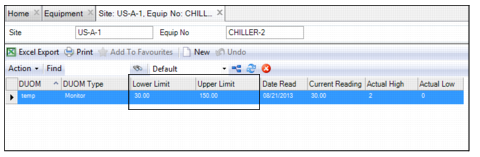
To set the DUOM reading limits, open the equipment’s Readings submenu. Enter the necessary information in the Lower and Upper Limit fields. Press Enter to save.
Lower Limit.
Enter the lower limit for a reading.
Upper Limit.
Enter the upper limit for a reading.
Setting Calibration Reading Limits
Set the Max High and Low Occurrences for OOT Readings
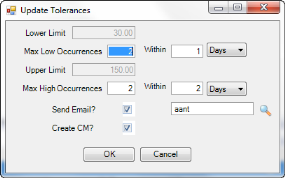
To set the max high and low occurrences for OOT readings, select Update Tolerances from the Readings Action menu. Enter the necessary information in the Max Low and Max High Occurrences fields. Click OK to save.
Max Low Occurrences
Set the number of times that an out of tolerance (OOT) low reading can occur before the system triggers a corrective action. Specify the frequency (days, hours, or minutes) that makes the reading OOT.
Max High Occurrences
Set the number of times that an OOT high reading can occur before the system triggers a corrective action. Specify the frequency (days, hours, or minutes) that makes the reading OOT.
Equipment Readings: DUOM Setup
Set E-mail Alert
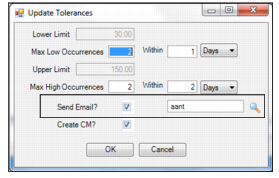
When the OOT readings exceed the Max High or Low Occurrences, EAM can automatically send an alert e-mail. By default, the e-mail is sent to the notify user or group identified on the equipment record. In the Notify field next to the Send e-mail? check box, you can use the lookup to select another user or group to receive the e-mail alert.
To set the e-mail alert, select Update Tolerances from the Readings Action menu and select the Send e-mail? check box. Select the user or group to receive the e-mail using the lookup to the right of the Notify check box. Click OK to save.
Equipment Readings: DUOM Setup
Automate CM for OOT Readings
When the OOT readings exceed the Max High or Low Occurrences, EAM can automatically create a CM Work Order to address the OOT condition for the piece of equipment.
When the CM work order is created for the OOT reading, information from the MIL step and the equipment record is pulled into the work order. The problem description on the CM work order states that there is an OOT reading and that the reading is entered in a PM WO, which is referenced.
To activate the create CM work order option, select Update Tolerances from the Readings Action menu and select the Create CM? check box. Click OK to save.
Enter Current Readings
Follow these steps to enter a calibration reading:
1 Open the equipment record and select the Readings submenu.
2 In the upper browse, use the calendar lookup to select the date read.
3 Enter the current reading in the Current Reading field.
Entering a Calibration Reading
4 Press Enter or tab through the line to save the reading.
Note: If the reading exceeded the limits, a message appears alerting you that the reading has exceeded the limits. Click OK to continue. The actual high or low is incremented when limits are exceeded.
5 A record of the reading appears in the lower browse.
Manage and View Equipment DUOM Reading History
Replacing a Meter
Note: This section only applies to equipment that is the Meter DUOM Type.
When you replace the meter in a piece of equipment, update the upper and lower limits in the Equipment Readings submenu.
Follow these steps to change the upper and lower limits for a meter on a piece of equipment:
1 Open the equipment record and select the Readings submenu.
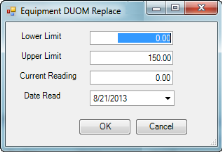
2 In the upper browse, select Replace from the Action menu.
3 Enter the new upper and lower limits in the fields.
• Lower Limit. Enter the starting number on the meter.
• Upper Limit. Enter the maximum number that the meter reaches.
4 Press OK to save.
Changing the Upper and Lower Limits
5 The lower browse displays a record of this change. The Replaced? check box on this record is selected, indicating that the limits on the record were changed.
Reset Actuals
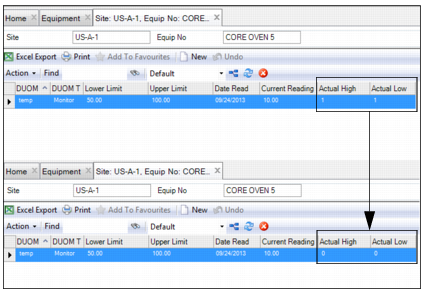
The Actual High and Actual Low fields display the number of times the calibration readings have exceeded the high and low limits. To reset these fields to 0, select Reset Actuals from the Readings Action menu in the upper browse.
Reset Actuals
Correcting a DUOM Reading
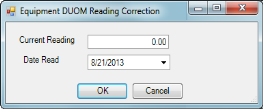
If a DUOM reading was incorrectly entered, select the record and then select Correct from the Action menu in the lower browse. Enter the reading in the Correct Reading field. Verify that Date Read is correct and click OK to save. The previous record that was entered incorrectly is overwritten by the new reading.
Note: A correction to a monitor reading can cause an OOT condition. If this occurs, the system executes the OOT actions selected for the DUOM.
Correcting a DUOM Reading