QAD Enterprise Asset Management 2017.1
>
User Guide
>
Maintenance
>
Equipment
>
Editing an Equipment Record
Editing an Equipment Record
To edit an equipment record, open the equipment record and make the necessary changes. For information regarding the equipment record tabs, see
Filling Out the Equipment Tabs.
Renaming Equipment
The Rename Equipment action allows you to assign a new name to a piece of equipment. EAM updates all records that include this equipment, retaining the history.
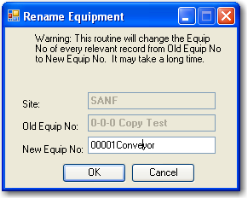
To rename an equipment record, select the record in the Equipment browse. Select Rename Equipment from the Action menu. Verify that Site and Old Equip No are correct. Enter New Equip No and click OK.
Rename Equipment
Lock/Unlock an Equipment Record
As equipment ages and goes out of service, you can prevent any additional charges, such as inventory issues and labor distribution, against the equipment ID by locking it.
To lock a piece of equipment, open the equipment record and select Lock/Unlock from the Equipment Action menu.
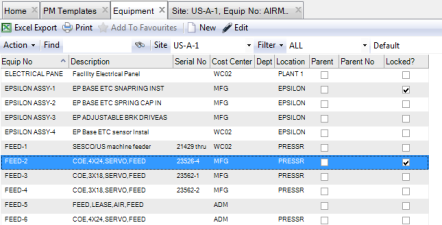
Note: When an equipment record is locked, the Locked? check box on the Equipment browse is selected.
To unlock an equipment record, open the equipment record and select Lock/Unlock from the Equipment Action menu.
Equipment Locked
Refresh Equipment Costs
The Refresh action updates an equipment record so that it displays the most recent equipment cost figures on the Detail tab.
To refresh an equipment record, select the record in the Equipment browse and select Refresh from the Action menu.
To refresh a group of equipment, select all the equipment records you want to refresh and then select Global Refresh from the Action menu.
As an alternative, you can schedule a batch job to run that refreshes equipment automatically (Equipment Refresh) on a periodic basis. See
Job Program.
Copy Equipment
The copy function allows you to copy data from one piece of equipment and use it as a template for a new piece of equipment.
The copy button copies the following:
• PM templates
• BOM content
• DUOM
• DUOM type
• Lower and upper tolerance limits
Follow these steps to copy equipment:
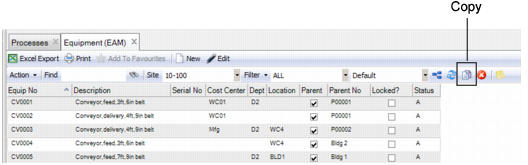
1 Open the Equipment browse and highlight the piece of equipment that you want to copy.
Copy Equipment
A new equipment record opens with fields on all tabs populated with copied information.
3 Enter a new equipment number in the Equip No field.
4 Update fields for the new piece of equipment as necessary and enter additional information as needed. Click the disc icon to save.