Creating a Tool Record
Follow these steps to create a tool record:
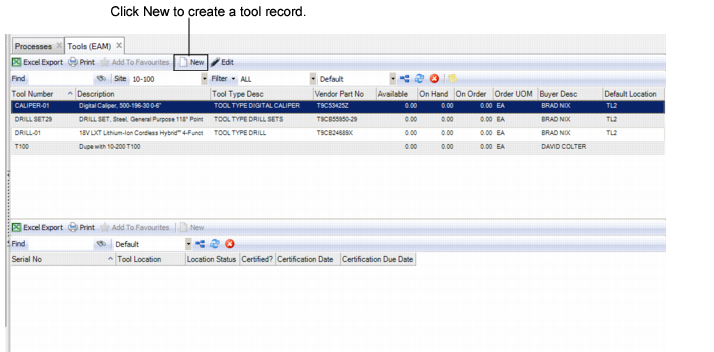
1 Open the Tools browse in Maintenance|Tools.
Tools Browse
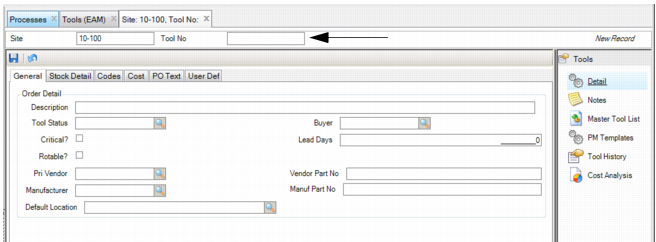
2 Click New. A blank Tool Number record opens. In the Tool Number field, enter a tool number or name. This ID must be unique for the site.
Enter the Tool Number
3 Enter information in the relevant fields on the General, Stock Detail, Codes, Cost, PO Text, and User Defined tabs. See
Filling Out the Tools Tabs.
4 Once you have entered the information, click Save.
Filling Out the Tools Tabs
Enter information on the General, Stock Detail, Codes, Cost, PO Text, and User Defined tabs.
Tools: General Tab
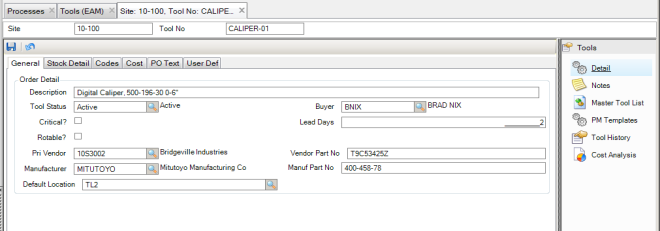
The General tab is used to record tool order information.
Tools: General Tab
Description
Enter the tool’s primary description.
Tool Status
Enter or select the status from the lookup.
Buyer
Use the lookup to select the buyer’s employee ID. Buyer is defined by site. You must select a buyer before you can save the record.
Critical?
Select this check box if the tool is critical. This setting enables sort and filter.
Lead Days
Enter the number of days a vendor requires to deliver an ordered tool.
Rotable?
Select this check box to identify this tool as reusable. For more information, see
Managing Rotable Parts.
Pri Vendor
Select a primary vendor to default into requisitions. Vendors are shared across the system.
Vendor Part No
The part number the vendor uses to identify this tool.
Manufacturer
Select the manufacturer of the tool, identified when the tool is received. Manufacturers are shared across the system.
Manuf Part No
The number the manufacturer uses to identify this tool.
Default Location
The location where the tool is stored. This field must be populated before you can save the record.
Tools: Stock Detail Tab
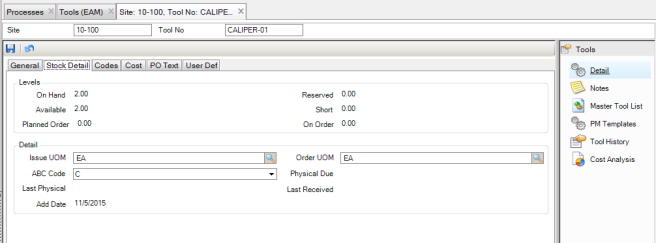
The Stock Detail tab displays stocking information for a tool.
Tools: Stock Detail Tab
Levels
On Hand
The quantity (in Issue UOM) of this tool currently in all tool locations for this site.
Reserved
Reserved for future development.
Available
Displays the total quantity on hand at all locations within a site, minus the quantity on reserve. This quantity represents the tools available to be issued. This field is not updateable by the user.
Short
Reserved for future development.
Planned Order
Reserved for future development.
On Order
reserved for future development.
Detail
Issue UOM
The unit of measure, such as each, used when issuing a tool from the tool crib. When you purchase tools and receive them into your tool location, the purchasing unit of measure is automatically converted to the issuing unit of measure. When you view tools on the Tools browse, the quantity is always listed in the issuing unit of measure.
Order UOM
Select the unit of measure to use when ordering the tool. For example, if your organization stocks the tool by each but you purchase the tool in boxes, then boxes would be Order UOM.
ABC Code
Classify each tool as A, B, or C, based on its relative value used for cycle count planning.
Physical Due
Reserved for future development.
Last Physical
Reserved for future development.
Last Received
Reserved for future development.
Add Date
The date this tool record was created.
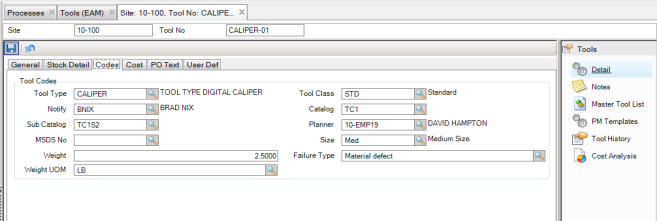
Tools: Codes Tab
The Codes tab is used to enter code information for a tool. All codes you enter in the lookups must match codes already available in the system or you receive an error and cannot proceed past this screen.
Tools: Codes Tab
Tool Type
Use the tool type for filtering purposes for tools only.
Tool Class
Use the tool class for filtering for tools only.
Notify
Notify this user ID or group by e-mail when the tool is moved.
Catalog
The tool is hierarchical. The higher level, catalog, can be a broad grouping of tools to use in filtering.
Sub Catalog
This lower level consists of types in the catalog, used for grouping within the catalog.
Planner
The system displays the employee name or code for the planner and populates the name field. This information defaults into the WO.
MSDS No
Use the lookup to select a code that is tied to descriptions of the MSDS (Material Safety Data Sheet).
Note: MSDS sheets may be stored elsewhere in the organization. EAM cross-references these sheets.
Size
Use the lookup to select the size of the tool; for example, large, medium, or small. This value is not unique to Tools.
Weight
The weight of the tool.
Weight UOM
The weight unit of measure for this tool; for example, pounds or kilograms.
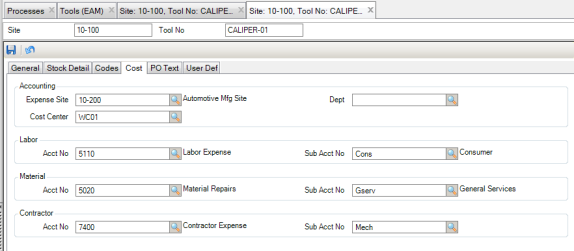
Tools: Cost Tab
The Cost tab contains accounting information for the tool.
Tools: Cost Tab
Accounting
Expense Site
Enter or select from the lookup the accounting expense site for this tool.
Dept
Enter or select from the lookup the accounting department for this tool.
Cost Center
Enter or select from the lookup the accounting cost center for this tool
Labor
Acct No
Enter or select from the lookup the account number to use for labor expenses.
Sub Acct No
Enter or select from the lookup the sub-account number for labor expenses.
Material
Acct No
Enter or select from the lookup the account number for material expenses.
Sub Acct No
Enter or select from the lookup the sub-account number for material expenses.
Contractor
Acct No
Enter or select from the lookup the account number for contractor expenses.
Sub Acct No
Enter or select from the lookup the sub-account number for contractor expenses.
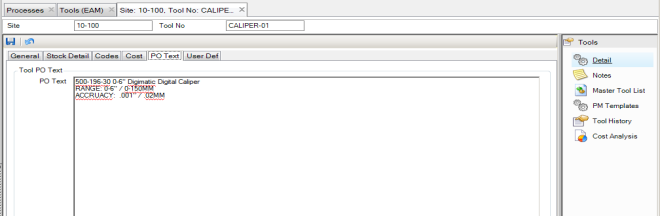
Tools: PO Text Tab
The PO Text tab is used to add an expanded definition of the tool.
Tools: PO Text Tab
PO Text
Enter an expanded description, specifications, or other data for you and the supplier to identify the tool. This information is used on requisitions and POs for the tool.
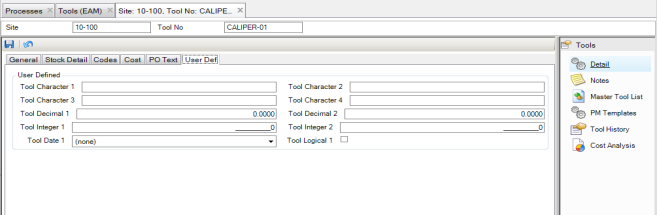
Tools: User Defined Tab
The User Defined tab is used to track information against a specific tool in EAM. There are ten user-defined fields.
Tools: User Defined Tab
Tool Character 1/2/3/4
Free-form user-defined character fields, not validated against tables.
Tool Decimal 1/2
User-defined decimal fields for tools.
Tool Integer 1/2
User-defined integer fields for tools.
Tool Date 1
A user-defined date field for tools.
Tool Logical 1
A user-defined logical field for tools.