Operational Direct Data File Load
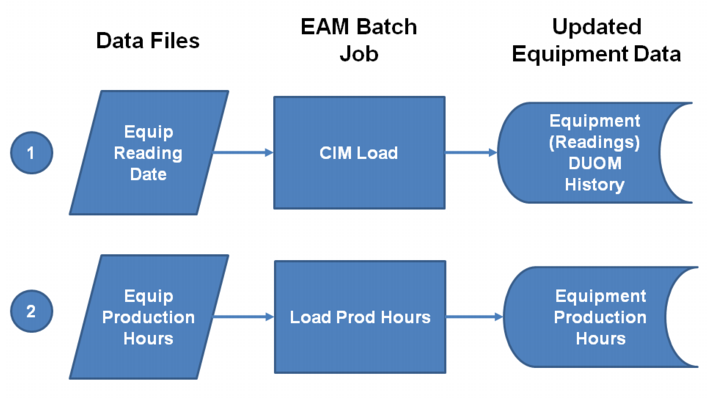
Flowchart: Operational Direct Data File Load
Computer Integrated Manufacturing (CIM) Load
The Computer Integrated Manufacturing (CIM) module is used to automatically load equipment DUOM readings into EAM and reduce the number of manual entries necessary. The file containing the DUOM readings tied to the piece of equipment originates from another application, outside of EAM. An EAM batch job reads the file and pulls those readings into EAM. These readings are then used the same as if they were entered manually in Equipment DUOM Maintenance.
CIM Load Setup
Create the Data File
To use the CIM functionality, you must write a routine that generates a simple text file for EAM to read.
The setting of the CIM Load field on the Maintenance tab of the site record controls whether the system expects the file to include the equipment usage or the equipment reading. For more information on the CIM Load field setting, see
Sites: Maintenance Tab.
• Equipment Usage. The accumulated usage for the time frame being reviewed. If you are using equipment usage, the text file needs the following data in the following order:
• Equip No
• DUOM
• Usage
• Date
• Time
• User ID
Example: The simple text file that contains equipment usage would have the following data:
EB107 222 800 5/1/2012 10:10:09 aant
EB110 222 796 5/1/2012 10:10:09 aant
EB111 222 801 5/1/2012 10:10:09 aant
Note: The time value can be entered in the HH:MM:SS format or as an integer (seconds since midnight 0 to 86400). In the previous example, if you enter the time as an integer, the simple text file would have the following data:
EB107 222 800 5/1/2014 36609 aant
EB110 222 796 5/1/2014 36609 aant
EB111 222 801 5/1/2014 36609 aant
• Equipment Reading. The current meter reading for the DUOM. If you are using equipment readings, the text file needs the following data in the following order:
• Equip No
• DUOM
• Reading
• Date
• Time
• User ID
Example: The simple text file that contains equipment readings would have the following data:
PM117 210 505 7/12/2014 10:10:09 eefn
PM120 210 500 7/12/2014 10:10:09 eefn
PM121 210 501 7/12/2014 10:10:09 eefn
Note: The time value can be entered in the HH:MM:SS format or as an integer (seconds since midnight 0 to 86400). In the previous example, if you enter the time as an integer, the simple text file would have the following data:
PM117 210 505 7/12/2014 36609 eefn
PM120 210 500 7/12/2014 36609 eefn
PM121 210 501 7/12/2014 36609 eefn
Note: Make sure that the data file is tab delimited, not comma delimited. Additionally, a return character is required at the end of each line to ensure that the History browse under Equipment DUOM browse is updated.
Define Equipment Alternate
It is possible that the data file containing the DUOM reading does not reference the piece of equipment by the same name or code used in EAM. In some cases, various codes can be used to refer to the same piece of equipment. To avoid the need to standardize readings sources to match EAM, EAM provides the Equipment Alternate submenu, which allows you to specify all alternate equipment numbers and descriptions that reference a piece of equipment. When EAM pulls in the readings, the alternate equipment numbers are checked and recognized, allowing EAM to match the readings to the correct equipment record. For more information about the Equipment Alternate submenu, see
Add an Alternate Name for Equipment.
Load Production Hours
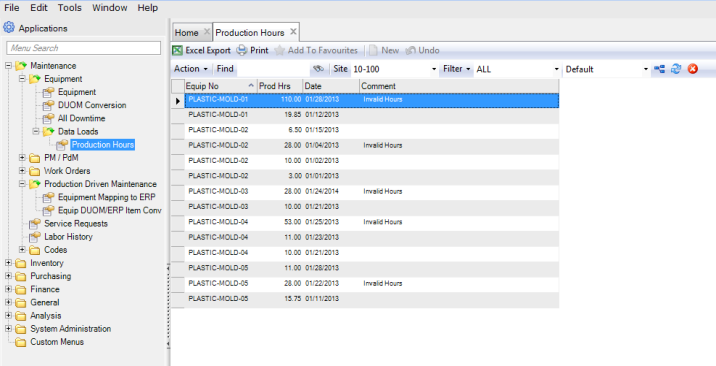
The Load Production Hours job program loads the data from a predefined data file into EAM Equipment. All records, whether they have errors or are error free, are loaded into the Production Hours browse, which is located in Maintenance|Equipment|Data Loads|Production Hours. The records that are error-free are also loaded into the Production Hours submenu in the equipment record. If the record contains an error, a description of the error is displayed in the Comments field in the Production Hours browse. For more information, see
Load Production HoursProduction Hours Browse
The Production Hours browse, located in Maintenance|Equipment|Data Loads, displays the equipment production readings that the Load Production Hours Job program loaded.
Equipment Data Load – Production Hours
The Production Hours browse contains the following fields:
Equip No
Displays the equipment number for which an equipment production reading has been recorded.
Prod Hours
Displays the production hours for the piece of equipment.
Date
Displays the date of the equipment production reading.
Comment
Displays a system-generated comment that identifies why the equipment production reading could not be loaded. The following is a list of error messages and problems:
Comment | Problem |
Invalid Date | Date is not formatted as a date |
Invalid Hours | Hours is not formatted as a number or is greater than 24 |
Invalid Equip No | EAM cannot find a match for the Equip No either in the equipment table itself or the alternate table |
Fixing Errors and Reloading the Records
After fixing the records that contain errors, select Load from the Production Hours Action menu. When the Load action is performed, EAM reloads the records and adds the production hours to the equipment records. If any records still contain errors, EAM displays the new error message in the Comment field. Continue to fix the errors and reload the records until all the records have been loaded into the equipment records.