Edit a Service Request
To edit a service request, open the service request and make the necessary changes. See
Filling Out the Service Request.
Change the Status of a Service Request
Service requests use the same list of statuses as work orders. EAM comes with standard service request/work order statuses such as closed, finished, and canceled. The closed, finished, and canceled statuses cannot be deleted, but you can add to this list. EAM gives you the ability to create statuses with specific functionality. For example, you can:
• Determine the default status when creating a service request.
• Allow EAM to automatically send an e-mail to the SR notify person any time a service request changes to a particular status.
For more information about creating new service request/WO statuses, see
Work Order Status Codes.
To change the status of a service request, highlight the service request and select Change Status from the Service Request Action menu. A window opens. Double-click to select the new status from the list.
Note: If the SR is associated with a WO, the following message is displayed: “Change the status of a service request that is associated with a work order, you must change the status of the work order.”
View the Work Orders Associated with a Service Request
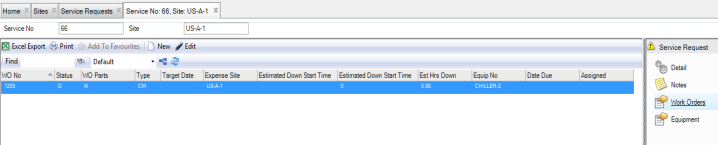
To view the work orders associated with a service request, open the service request and select the Work Orders submenu.
Service Request WO Submenu
View Equipment Records Associated with a Service Request
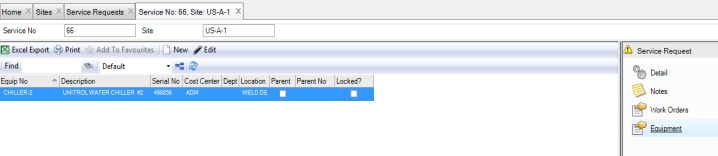
To view the equipment records associated with a service request, open the service request and select the Equipment submenu.
Service Request Equipment Submenu