QAD Enterprise Asset Management 2017.1
>
User Guide
>
Finance
>
Accounting
Accounting
Accounting includes the following:
Posted GL Transactions
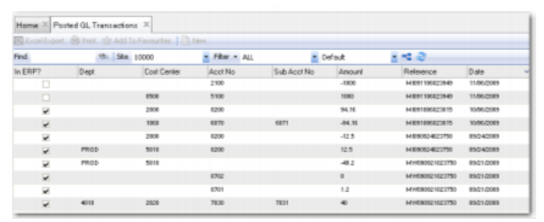
Access this browse from Finance|Accounting|Posted GL Transactions. Use it to view posted GL transactions. Organize and display records, access supporting functions, export to Excel, and edit or create new records.
Posted GL Transactions Browse
The Posted GL Transactions screen displays all EAM transaction records on the browse after filtering.
Unposted GL Transactions
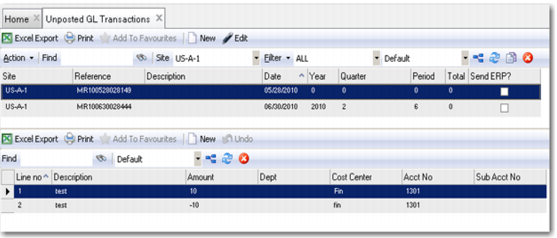
Access this browse from Finance|Accounting|Unposted GL Transactions. Use it to enter general ledger transactions into EAM. You can also organize and display records, access supporting functions, export to Excel, and edit or create new records.
Unposted GL Transactions: Browse
You can associate the manually created GL with a work order number, equipment number, or project number and job number in EAM. You can indicate whether the manually entered GLs should ultimately post to QAD ERP.
Unposted GL Transactions Action Menu (upper browse)
Options on this menu depend on context. Access the Action menu from the toolbar or right-click menu.
Unposted GL Transactions Action Menu
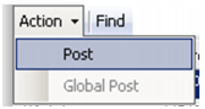
Post
Select the Post action to post the selected GL record to EAM.
Global Post
Select the Global Post action to post the selected GL records to EAM.
GL Calendar
Use the GL Calendar to set up and close accounting periods based on year, period, and site.
GL Calendar Browse
Access this browse from Finance|Accounting|GL Calendar. Use it to set up the GL calendar for a fiscal year, period, and quarter for each site. Organize and display records, access supporting functions, export to Excel, and edit or create new records.
Sites Account Calendar Browse
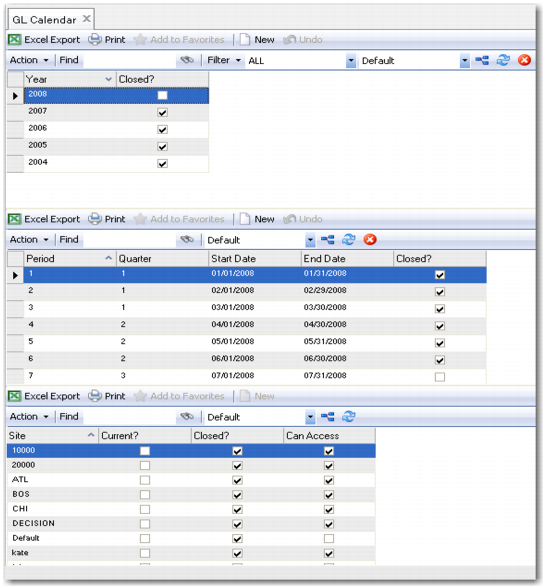
The Sites calendar includes three browses: year, period, and site. The upper browse displays the selected accounting year.
The middle browse contains quarters and periods for the selected accounting year. The first period is number 1, and the system sequentially increments the numbers of subsequent periods. You can manually enter beginning and end dates for each period. If you change an account period’s end date, EAM automatically changes the start date of the following period to eliminate gaps or overlaps. Use the Close action to close the selected period.
Use the lower browse to close account periods on a site-by-site basis.
Important: You cannot reopen closed accounting periods.
GL Calendar Action Menu (upper browse)
Options on this menu depend on context. Access the Action menu from the toolbar or right-click menu.
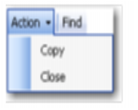
Sites Account Calendar Action Menu
Copy
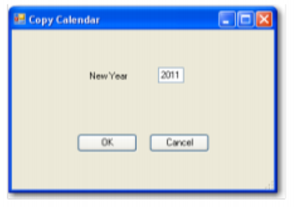
Use Copy to copy the selected GL calendar to the new year on the Copy Calendar screen.
Copy Calendar
Close
Use Close to end the selected year. EAM notifies you when there are transactions you must send to QAD ERP.
Note: You cannot overwrite an existing GL calendar.
GL Calendar Action Menu (middle browse)
Options on this menu depend on context. Access the Action menu from the toolbar or right-click menu.
Sites Account Calendar Action Menu
Close
Use Close to end the selected period. EAM notifies you to send transactions to QAD ERP. If you proceed, QAD ERP excludes unsent transactions from period totals.
You may close account periods in certain sites earlier due to time zone differences. Close account periods by site to set specific end-of-period accounting deadlines for individual sites.
GL Calendar Action Menu (lower browse)
Options on this menu depend on context. Access the Action menu from the toolbar or right-click menu.
Sites Account Calendar Action Menu
Close
Use this action to close account periods on a site-by-site basis. EAM notifies you to send transactions to QAD ERP. If you proceed, QAD ERP excludes unsent transactions from period totals.
You may close account periods in certain sites earlier due to time zone differences. Close account periods by site to set specific end-of-period accounting deadlines for individual sites.
GL Calendar Right-Click Menu (All Browse Levels)
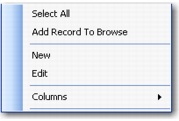
The right-click menu contains administrative functions and options from the Action menu.
Sites Account Calendar Right-Click Menu
New
Use New to open the GL calendar browse to create a record.
Edit
Use Edit to open the GL calendar browse to edit the selected record.
Columns
A list of columns available to the browse displays here. Select a column header to display it. Clear the column header to hide it.
Copy and Close are options from the Action menu.
GL Calendar Record Detail
Download any GL calendars from QAD ERP.
Creating a GL Calendar Site Record
1 Click New to add a blank GL calendar for a fiscal year.
2 Assign the fiscal year.
3 Verify the domain.
Editing a GL Calendar Site Record
EAM displays downloaded accounting period dates as they have been set up in QAD ERP. On the GL Calendar middle browse, you can edit beginning and end dates for each period. If you change an account period’s end date, EAM automatically updates the start date of the following period.
1 Double-click a record from the middle browse to edit begin and end dates for a period.
2 Verify or change the dates.
3 Verify the site.
Requisition Budget
Use this module to plan resource allocations. Enter cost center, account, and sub-account combinations for specific account calendar periods. Download budgets in QAD ERP to EAM.
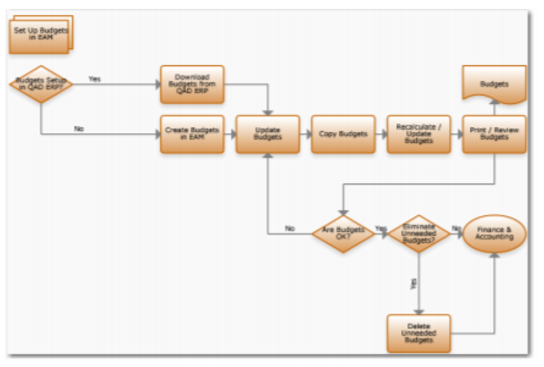
Budgets Process Flow
1 Create budgets in EAM if you are not downloading them from QAD ERP.
2 Update budgets in EAM.
3 Copy budgets in EAM.
4 Recalculate and update budgets in EAM.
5 Print and review budgets
6 Eliminate unnecessary budgets.
Requisition Budget Browse
Access this browse from Finance|Accounting|Requisition Budget. Use it to set up budgets for the fiscal year and periods for each site. Organize and display records, access supporting functions, and edit or create new records.
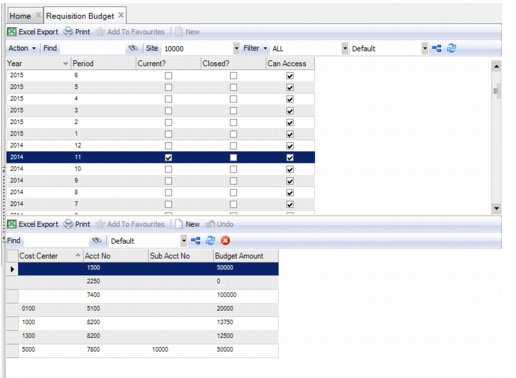
Requisition Budget Browse
The Requisition Budget functionality includes two browse levels. The upper browse, which is read only and site specific, can display numerous columns, including the Domain, Site, Year, and Period set up in the GL calendar.
The lower browse contains budget details for cost center, account, and sub-account combinations and the planned spending amount for the selected accounting periods. You can add new records, modify current records, and delete records within the lower browse.
Set up a budget for Period 1 of a year for a site. Copy this budget to all periods (including Period 1) for the year.
Requisition Budget Right-Click Menu (Upper Browse)
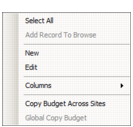
The right-click menu contains administrative functions. You cannot update the upper browse.
Requisition Budget Right-Click Menu
Columns
A list of columns available to the browse displays here. Select a column header to display it. Clear the column header to hide it.
Copy Budget Across Sites
Copy the single, highlighted requisition budget to other sites within the same entity. You are prompted to confirm the update for a site if the budget already exists in the target site. You can only copy a budget to other sites to which you have access.
Global Copy Budget
Copy multiple requisition budgets to other sites within the same entity. You are prompted to confirm updates if the budget already exists in a target site. You can only copy budgets to sites to which you have access.
Requisition Budget Right-Click Menu (Lower Browse)
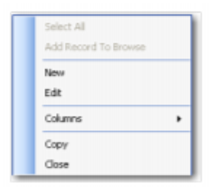
The right-click menu contains administrative functions.
Requisition Budget Right-Click Menu
New
Use New to open the budgets browse to create a record.
Edit
Use Edit to open the budgets browse to edit the selected record.
Columns
A list of columns available to the browse displays here. Select a column header to display it. Clear the column header to hide it.
Budget Record Detail
Budget Records for a Site in a Domain (upper browse)
Download budgets from QAD ERP to the QAD EAM application. The display in the upper browse comes from the data set in the GL calendar and is not updateable.
Creating a Budget Site Record (lower browse)
EAM displays the accounting period’s budgets as they have been set up in QAD ERP. On the lower browse, set up or edit a budget for Period 1 of a year for a site. Copy it to all other periods for that year in the site. You can copy this budget to all periods (including Period 1) for the year in a different site.
1 Click New.
2 Enter the cost center, account, and sub-account combination for the highlighted budget period record.
3 Add the budget amount for the cost center, account, and sub-account combination.
Editing a Budget Site Record (lower browse)
1 Double-click a record from the lower browse to open the site’s budget record detail.
2 Verify or change the budget amount for the cost center, account, and sub-account combination.
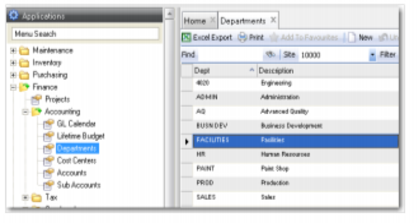
Departments Browse
Access this browse from Finance|Accounting|Departments. Organize and display records, access supporting functions, and edit or create new records. Each site may contain different departments. QAD ERP does not use departments. Departments in EAM do not impact GL transactions in QAD ERP.
Departments Browse
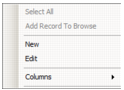
Departments Right-Click Menu
The right-click menu contains administrative functions.
Departments Right-Click Menu
New
Use New to open the department record detail to create a record.
Columns
A list of columns available to the browse displays here. Select a column header to display it. Clear the column header to hide it.
Edit
Use Edit to open the department record detail to edit the selected record.
Creating a New Department
1 Click New. EAM assigns the user’s current site.
2 Enter a department name and description.
Editing a Department
1 Double-click the department to edit.
2 Enter or edit the department description. The system automatically saves the updated description.
Cost Centers
Use cost centers with the cost center group. Associate a cost center group code with the user ID.
You can use a cost center as a basis of routing approvals for a purchase requisition as well as a stores requisition. You can associate each cost center with an approval group.
Create and name a cost center group at Finance|Groups|Cost Center Group. Add a list of cost centers to the group on the lower browse.
Use EAM to associate the cost center group with selected user IDs under System Administration|User|User Subdetail|Cost Center Group. You can associate multiple cost center groups with a user ID.
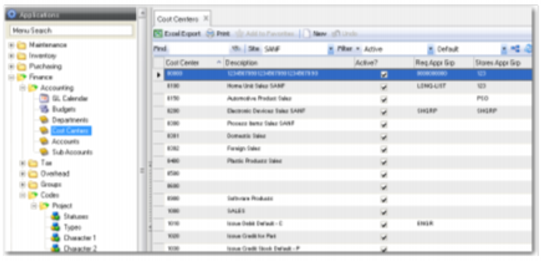
Cost Centers Browse
Access this browse from Finance|Accounting|Cost Centers. Organize and display records, access supporting functions, and edit or create new records.
Cost Center Browse
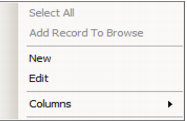
Cost Centers Right-Click Menu
The right-click menu contains administrative functions.
Cost Centers Right-Click Menu
New
Use New to create a cost center record. Download cost centers from QAD ERP.
Edit
Use Edit to edit the selected cost center record.
Columns
A list of columns available to the browse displays here. Select a column header to display it. Clear the column header to hide it.
Creating a New Cost Center
1 Click New.
Note: Download cost centers from QAD ERP.
2 Enter a cost center name, description, requisition approval group, and stores approval group.
3 Select the check box if this cost center is currently active.
Editing a Cost Center
1 Double-click a record from the browse to open the cost center record detail.
2 Enter or edit a cost center name, description, requisition approval group, or stores approval group.
3 Select the check box if this cost center is currently active.
Accounts
Use accounts to charge labor, issue parts, or purchase materials for a site. Use an account as a basis of routing approvals for a purchase requisition and a stores requisition. Associate each account with an approval group.
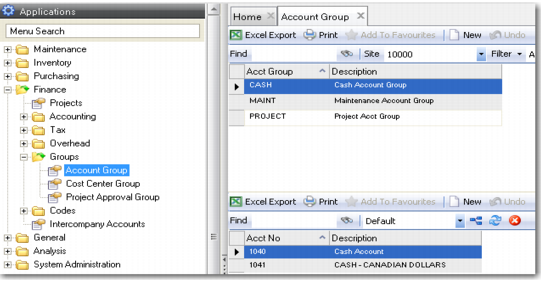
Create and name an account group at Finance|Groups|Account Group. Add a list of account numbers to the group on the lower browse.
Use EAM to associate the account group with any selected user IDs, under System Administration|Users|User Subdetail|Account Group. You can associate multiple account groups with the user ID.
Account Browse
Access this browse from Finance|Accounting|Accounts. Use it to organize and display records, to access supporting functions, and to edit or create new records.
Account Browse
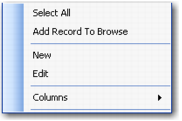
Account Right-Click Menu
The right-click menu contains administrative functions.
Account Right-Click Menu
Creating a New Account
1 Click New.
Note: Download account data from QAD ERP.
2 Enter an account name, description, type, requisition approval group, and stores approval group.
3 Select the check box if this account is currently active.
Editing an Account
1 Double-click a record from the browse to open the account record detail.
2 Enter or edit an account, description, type, requisition approval group, or stores approval group.
3 Select the check box if this account is currently active.
Adding a Valid Account Range
1 Click New on the lower browse. Designate the cost centers for which the selected account number is valid.
2 Enter the starting cost center, press Tab, and enter the ending cost center.
3 Repeat as necessary. You can associate multiple cost center ranges to an account number.
Note: When you download accounts and cost centers from QAD ERP, the valid account associations for cost centers download as well.
Sub-Accounts
Use the sub-account download feature to download accounts from QAD ERP into EAM. QAD ERP uses sub-accounts to analyze activity on an account code and to provide detail for financial reporting. Use sub-accounts to report on the financial activity of business units or divisions in an entity.
Sub Accounts Browse
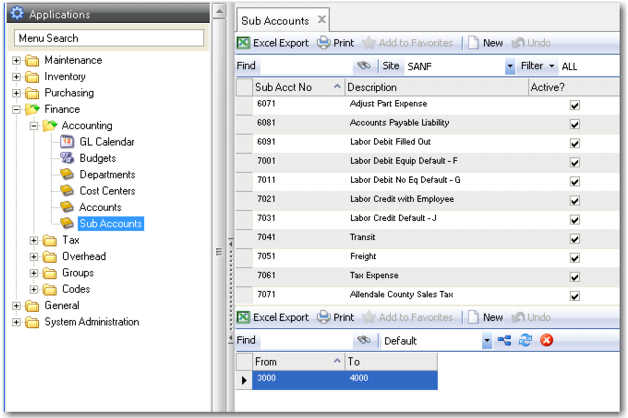
Access this browse from Finance|Accounting|Sub Accounts. Use it to organize and display records, to access supporting functions, and to edit or create new records.
Sub Accounts Browse
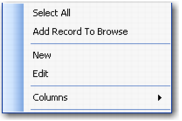
Sub Accounts Right-Click Menu
The right-click menu contains administrative functions and options from the Action menu.
Sub Accounts Right-Click Menu
Creating a New Sub-account
1 Click New. Download sub-accounts from QAD ERP.
2 Enter a sub-account code and description.
3 Select the check box if this sub-account is currently active.
Editing a Sub-account
1 Double-click a record from the browse or click Edit to open the sub-account record detail.
2 Enter or edit a sub-account code and description.
3 Select the check box if this sub-account is currently active.
Adding a Valid Sub-Account Range
1 Click New on the lower browse. Designate the accounts for which the selected sub-account number is valid.
2 Enter the starting account, press Tab, and enter the ending account.
3 Repeat as necessary. You can associate multiple account ranges to a sub-account number.
Note: When you download accounts and sub-accounts from QAD ERP, the valid account associations for sub-accounts download as well.
COA Requisition Approval
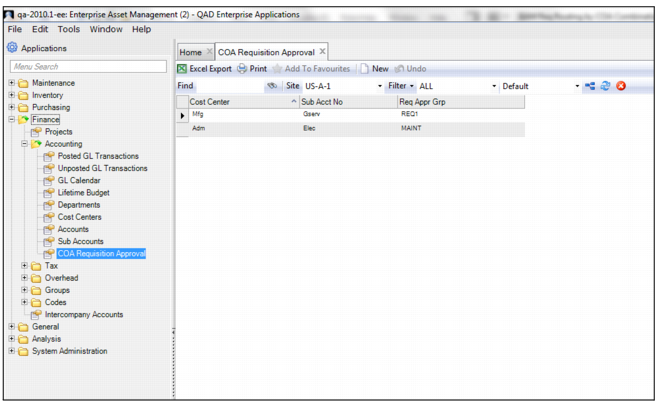
Use Chart of Accounts (COA) Requisition Approval as a basis of routing approvals for a purchase requisition by associating a specific cost center or sub-account, or cost center and sub-account combination with an approval group.
COA requisition approval uses the following logic:
Before the system checks the Use Hierarchy? setting in the site record, the system checks if the specific cost center or sub-account, or cost center and sub-account combination matches the combination in a COA requisition approval record.
• If a combination is found, the requisition is routed to the requisition approval group specified in the COA requisition approval record.
Follow these steps to create a COA requisition approval record:
1 Open the COA Requisition Approval browse in Finance|Accounting|COA Requisition Approval.
2 Click New.
3 Use the lookups in the Cost Center and Sub Acct No fields to select the cost center or sub-account or cost center and sub-account combination
4 Use the lookup in the Req Appr Grp field to select the requisition approval group to which the requisition is routed when the cost center or sub-account or cost center and sub-account combination is used.
5 Press Enter to save.
COA Requisition Approval