Vendor
Use vendor records to store supplier information, including address, contacts, tax information, shipping data and terms, and currencies. Inventory and Purchasing use vendor records. Equipment, Physical Inventory, and Stores Requisition files also can include a vendor number.
Vendor records can be downloaded from the ERP. It is recommended that you download vendor records from the ERP to maintain data integrity.
The process to create a vendor record includes the following steps:
1 Identify sourcing channels.
2 Add vendors to the QAD ERP application.
3 Download vendors to EAM.
4 Download languages to EAM.
5 Download required currency to EAM.
6 Add new vendor codes.
Adding a Vendor Record
Important: Vendor records are populated from ERP during implementation. It is not recommended that you create new vendor records in EAM.
Editing a Vendor Record
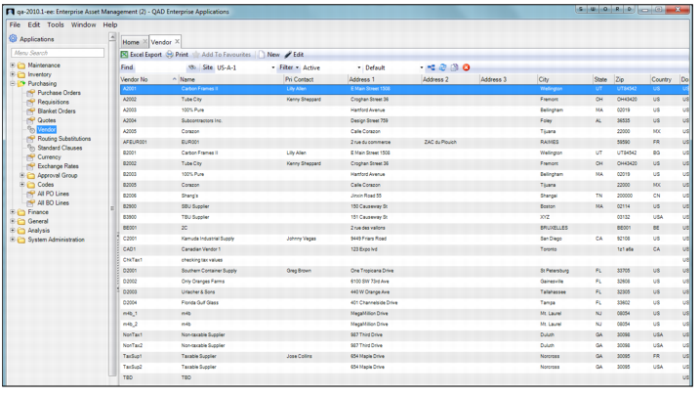
To edit a vendor record, open the record from the Vendor browse, located in Purchasing|Vendor. Make the necessary changes to the Address, Detail, Codes, Remit, and User Defined tabs. See
Vendor Record Tabs. When you finish, click Save.
Vendor Browse
Vendor Record Tabs
A vendor record consists of the Address, Detail, Codes, Remit, and User Defined tabs.
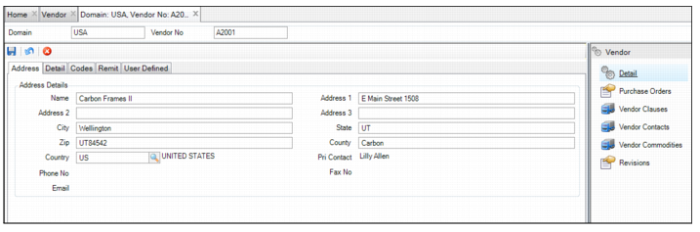
Vendor: Address Tab
Vendor: Address Tab
Address Details
Name
The vendor’s name that appears on purchase orders and quotations.
Address 1, Address 2, Address 3, City, State, Zip, County, and Country Address2
The vendor’s address.
Pri Contact
The primary contact name for the vendor.
Note: The primary contact cannot be updated directly from this field. The contact information can only be added or updated from the Vendor Contacts submenu. See
Add/View Vendor Contacts.
Fax No, Phone No, and E-Mail
The vendor’s contact information.
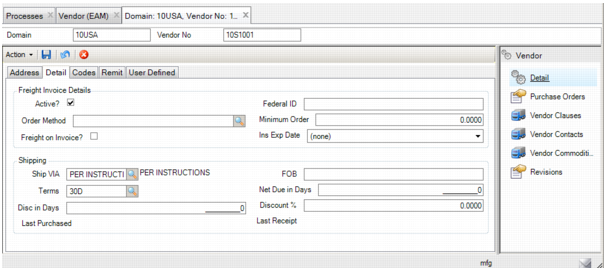
Vendor: Detail Tab
Vendor: Detail Tab
Freight Invoice Details
Active
Select this check box to use this vendor. If this check box is not selected, the vendor lookup excludes the vendor. Validation for the vendor number on Purchase Order, Requisition, and Vendor Part Maintenance screens prevents users from entering an inactive vendor. EAM notifies you about any open records that use a vendor that could cause problems when you change vendor status to inactive.
Federal ID
The vendor’s federal tax ID.
Minimum Order
A minimum total cost to meet or exceed on a purchase order for this vendor. The value is in terms of the vendor’s currency. If the total cost of the PO is not greater than or equal to the vendor’s minimum order, EAM stops the order when you select the PO Order action.
Order Method
The preferred method to order goods from a vendor such as fax, telephone, or e-mail.
Freight on Invoice
Select the check box to include freight on the invoice. Otherwise, the system does not include freight on the invoice. There is no receiver for freight for any parts received from this vendor. Typically, you still pay for freight, but the shipper charges separately from the supplier.
Ins Exp Date
The date the vendor’s insurance expires.
Shipping
Ship Via
The preferred method to ship goods to this vendor.
FOB
Free on Board (FOB) denotes whether freight charges are part of the PO price or are billed separately after the invoice, and who pays for freight (buyer or vendor). For example, if the buyer lives in Des Moines and buys a product FOB New York, the buyer must pay the shipping charges from New York to Des Moines.
Terms
The vendor payment terms.
Net Due in Days
The number of days before you must pay the vendor’s invoice.
Disc in Days
The number of days a vendor allows you to use an invoice discount.
Discount %
If you pay the invoice within the number of days specified, this field displays the percentage of that discount.
Last Purchased
The last date you placed a PO with this vendor.
Last Receipt
The latest date you received an item against a purchase order for this vendor.
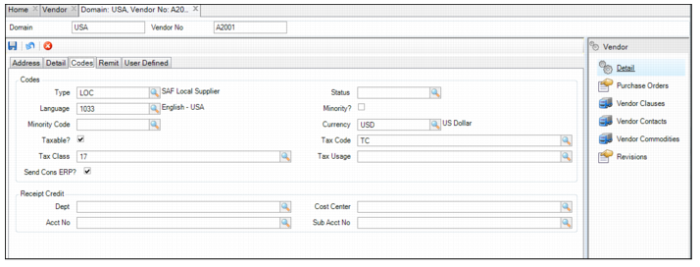
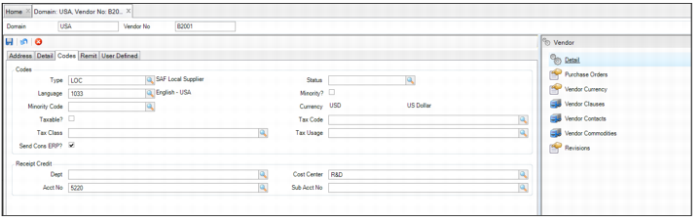
Vendor: Codes Tab
Vendor: Codes Tab
Codes
Type
A user-defined field that groups common types of vendors for filtering and sorting.
Status
The vendor’s status. It is for information only.
Language
The supplier’s local language.
Note: When you print the purchase order document, EAM uses this language code. If no language is specified on the vendor record, the language defaults from General|Codes|Language.
Minority?
Select this check box if the vendor is minority owned.
Minority Code
The minority code for government reporting purposes.
Currency
The vendor’s currency type.
Taxable?
Select this check box if the vendor is taxable.
Tax Class
The default tax class for the vendor.
Tax Code
The vendor’s tax code. If an out-of-state vendor does not charge sales tax, you can set a vendor tax code to default to a use tax code. If a part has a tax code or is being purchased for a project that has a tax code, the part or project’s tax code is the default tax code on the requisition.
Tax Usage
The system copies the default tax usage for the vendor to the requisition.
Send Cons ERP
Select the check box to send consignment adjustment GL transactions to the QAD ERP application.
Receipt Credit
Dept
The vendor’s receipt credit department.
Cost Center
The vendor’s receipt credit cost center.
Acct No
The vendor’s receipt credit account number.
Sub Acct No
The vendor’s receipt credit sub-account number.
Note: Receipt credit department, cost center, account, or sub-account fields are used on receipt and return to vendor (including tax and freight). EAM uses vendor fields on the GL, and not the site’s AP credit department, cost center, account, sub-account, or expense items receipt (EIR) from the QAD ERP application.
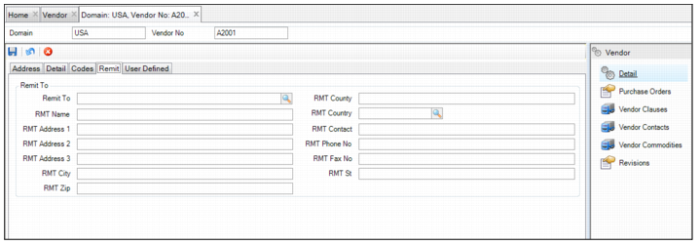
Vendor: Remit Tab
Vendor: Remit Tab
Remit To
Remit To
This field displays a lookup that associates the vendor address to remit payment for invoices.
RMT County
The vendor’s remit-to county.
RMT Country
The vendor’s remit-to country.
RMT Name
The vendor’s remit-to name.
RMT Contact
The vendor’s remit-to contact name.
RMT Address
The vendor’s remit-to address information.
RMT Phone Number
The vendor’s remit-to phone number.
RMT Fax No
The vendor’s remit-to fax number.
RMT City
The vendor’s remit-to city.
RMT St
The vendor’s remit-to state.
RMT Zip
The vendor’s remit-to postal code.
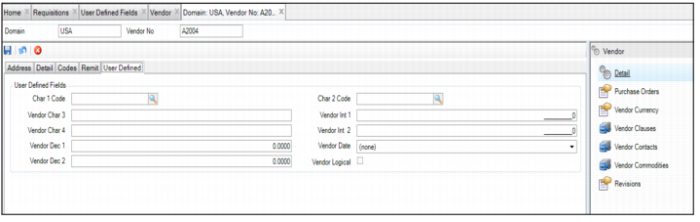
Vendor: User Defined Tab
Vendor: User-Defined Tab
User Defined Fields
Character 1/2
User-defined character fields, validated against tables that you add.
Character 3/4
Free-form user-defined character fields, not validated against tables.
Decimal 1/2
User-defined decimal fields for vendor.
Integer 1/2
User-defined integer fields for vendor.
Enable/Disable Logic
A user-defined check box.
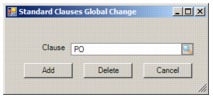
Globally Adding or Deleting Standard Clauses
Use Standard Clauses Global Change to globally add or delete a standard clause for more than one vendor. Select multiple vendors on the Vendors browse and then select Standard Clauses Global Change from the Action menu or right-click menu.
Standard Clauses Global Change
Select the appropriate clause in the lookup and then click Add or Delete.
Multicurrency Purchasing
Multicurrency purchasing is used when vendors require that purchase orders be processed and paid in a currency other than the vendor’s primary currency. This requirement can occur when the vendor sources an item from a third-party supplier who requires payment in the supplier’s local currency.
In general, EAM allows any currency with current exchange rates, downloaded from QAD Financials, to be used for purchasing from vendors. The currency lookup presents the currencies so that they can be selected when creating a purchase requisition, PO, or blanket order.
EAM also supports an option to limit the selection of currencies for use in purchasing to only those currencies that are defined for the supplier banking in QAD EE. The Use Only Vendor Currencies option is available in General|Business Units|Domain|PO/Req tab.
Example: A vendor located in the US receives materials from their own suppliers in Mexico but the Mexican suppliers want to be paid in Mexican Pesos. To avoid currency exchange rate conversions, it is easier to pay the US vendor in the currency that they pay their supplier. In this instance, the option to Use Only Vendor Currencies is in use.
The following steps illustrate EAM’s Multicurrency Purchasing feature:
1 In the vendor record on the Codes tab, the vendor’s primary currency is set to USD.
Vendor’s Primary Currency
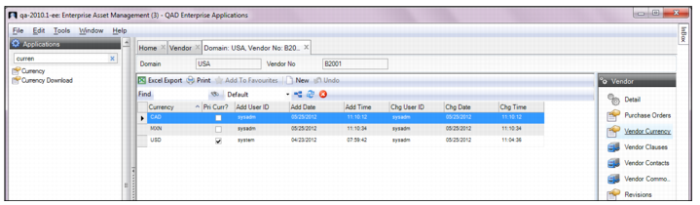
2 The Vendor Currency submenu identifies the valid currencies for this vendor. In
Vendor’s Currency Submenu, USD is the vendor’s primary currency and the MXN and CAD are alternate supplier bank currencies.
Vendor’s Currency Submenu
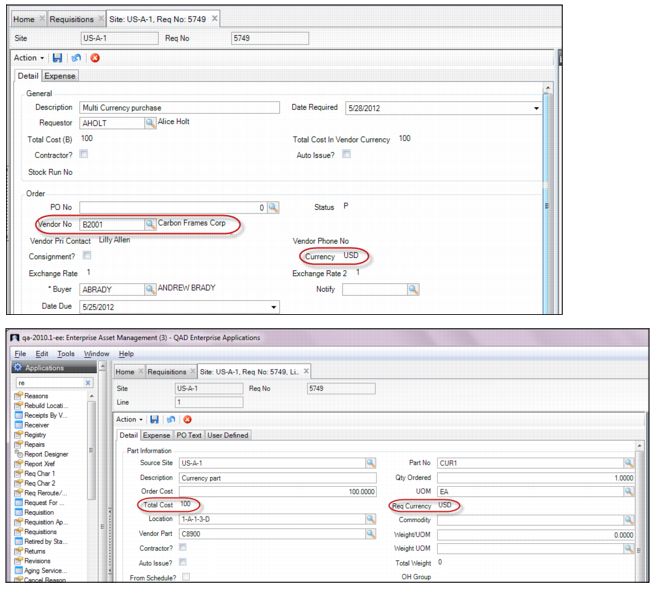
3 When you create a requisition, EAM pulls in the vendor’s primary currency for the requisition header and the item cost in the requisition line.
Requisition Using the Vendor’s Primary Currency
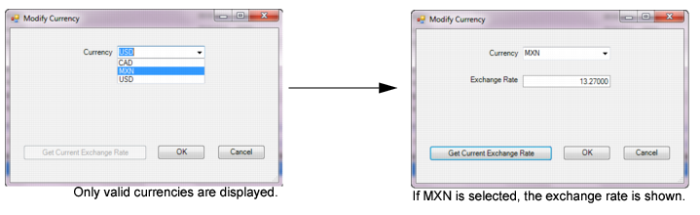
4 To change the currency, select Modify Currency from the Action menu. Use the drop-down menu to select the new currency. The selection in the drop-down is limited to only those currencies from the Vendor Currency submenu. Click Get Current Exchange Rate to view the exchange rate. Click OK.
Vendor’s Currency Submenu
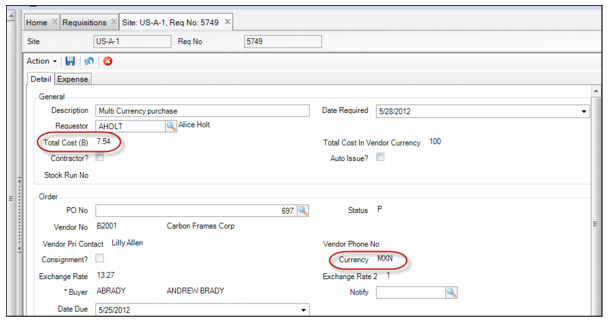
5 If you modify the currency, the requisition reflects the total cost in the new currency. For example, in
New Currency Cost on the Requisition, when you select MXN (Peso), the requisition now displays the total cost in MXN (Peso). The Total Cost in the Vendor Currency does not change, but the Total Cost (B) is recalculated using the current exchange rate for the updated currency.
New Currency Cost on the Requisition
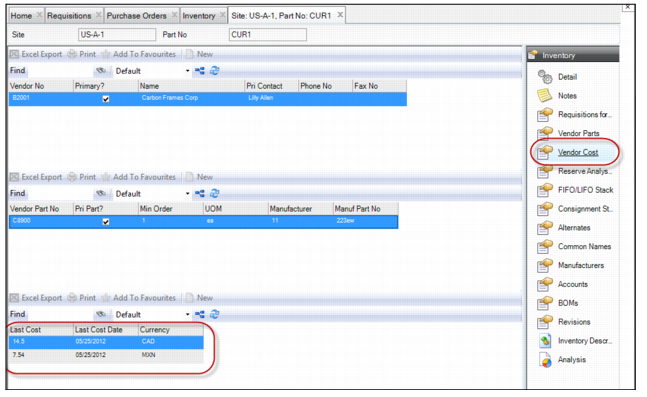
6 As part of the Multicurrency Purchasing feature, EAM provides the Vendor Cost submenu for the part record. Each time items are received from a vendor, EAM creates a record of the last cost, last cost date, and currency, and displays the records in the Vendor Cost submenu.
Vendor Cost Submenu
7 For each part, EAM populates the last cost based on the currency used on the purchase order, by vendor, and the vendor part number. The next time a purchase requisition is used in any one of these currencies, EAM automatically populates the price based on the last received price for that currency.
In
Vendor Cost Submenu, the only two currencies used are Canadian Dollars and Mexican Pesos. If the Use Only Vendor Currencies option is not being used and a user creates a purchase requisition and selects the Euro as the currency, then when the item is received, EAM automatically updates the third browse with the Euro as the third currency. In this scenario, the Euro is the last cost and last cost date for that purchase receipt.
The Last Cost field is automatically populated on new purchase requisitions that equal the currency. If the price is updated on the new purchase requisition, on receipt, EAM updates the last cost here with the newest price for the currency.
View All Purchase Orders Associated with a Vendor
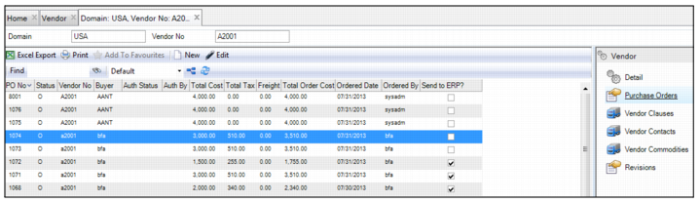
To view all the purchase orders associated with a vendor, open the vendor record and select the Purchase Orders submenu.
Vendor: Purchase Orders Submenu
Add/View Vendor Contacts
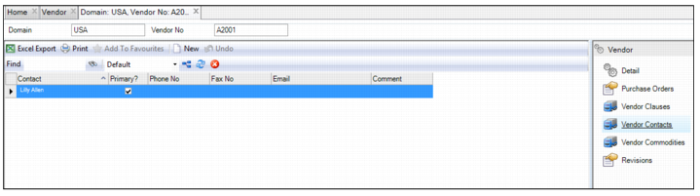
The Vendor Contacts submenu displays a list of vendor contacts. The Primary? check box identifies the vendor’s primary contact.
Follow these steps to add a vendor contact:
1 Open the vendor record and select the Vendor Contacts submenu. Click New.
2 Enter the person’s name in the Contact field and contact information in the Phone No, Fax No, and Email fields. A valid e-mail address is required before the contact can be saved.
3 If this person is the vendor’s primary contact, select the Primary? check box.
Note: Only one person on the vendor contact list can be designated as the primary contact.
4 If there is any additional information regarding this contact, enter that information in the Comment field.
5 Press Enter to save.
Vendor: Contacts Submenu
Add/View Vendor Commodities
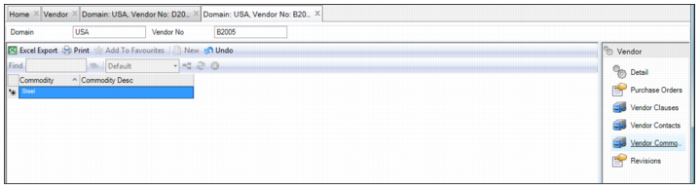
The Vendor Commodities submenu displays a list of commodities associated with a vendor.
To add a commodity, open the vendor record and select the Vendor Commodities submenu. Click New and enter the commodity in the Commodity field and a brief description in the Commodity Description field. Press Enter to save.
Vendor: Commodities Submenu
View the Revision History for a Vendor Record
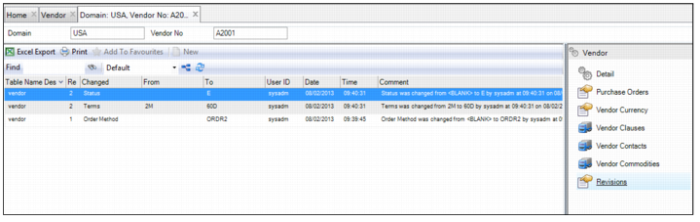
To view the revision history for a vendor record, open the vendor record and select the Revisions submenu.
Vendor Revisions Submenu
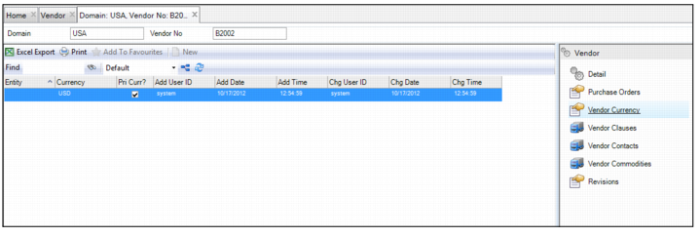
View Vendor Currency
The Vendor Currency submenu shows detailed information about the currency type the vendor accepts.
Note: This submenu may not be enabled for this domain. When the Use Only Vendor Currencies? check box is selected for this domain, this submenu is enabled. The Use Only Vendor Currencies? check box is on the PO/Reqs tab of the domain record. See
Domain: PO/Reqs Tab.
Vendor Currency Submenu