QAD Enterprise Asset Management 2017.1
>
User Guide
>
Purchasing
>
Requisitions
>
Creating a Purchase Order from a Requisition
Creating a Purchase Order from a Requisition
When you create a PO from a requisition, EAM pulls in all the data from the requisition and automatically enters it into the PO. This feature saves you time and ensures data integrity. If a PO is created from a requisition, the PO is directly tied to the requisition and the associated PO numbers appear in the Purchase Order submenu. See
Viewing the POs Associated with a Requisition.
Follow these steps to create a PO from a requisition:
1 Open the Requisition browse and select the requisition.
2 Select Create Purchase Order from the Action menu.
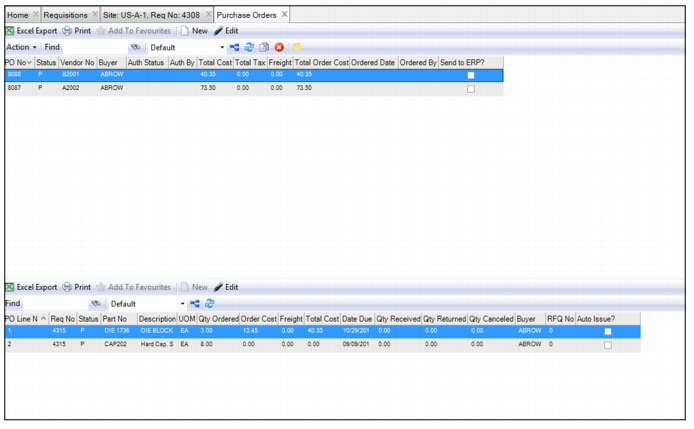
A browse opens displaying the PO record. The system automatically assigns a PO number, which you cannot modify.
Creating a PO from a Requisition
Creating POs from Multiple Requisitions
The Global Create Purchase Order action creates purchase orders from multiple requisitions. If there are multiple vendors on the requisitions, EAM consolidates the requisitions so that each PO has its own vendor.
Follow these steps to create a purchase order from multiple requisitions:
1 Open the requisition browse and select the requisitions.
2 Select Global Create Purchase Orders from the Action menu.
A browse opens displaying the POs. The system automatically assigns PO numbers, which you cannot modify.
Global Create PO Action
3 Open the PO and finish entering all the necessary information. See
Creating a Purchase Order. Repeat this step for any other POs.
Viewing the POs Associated with a Requisition
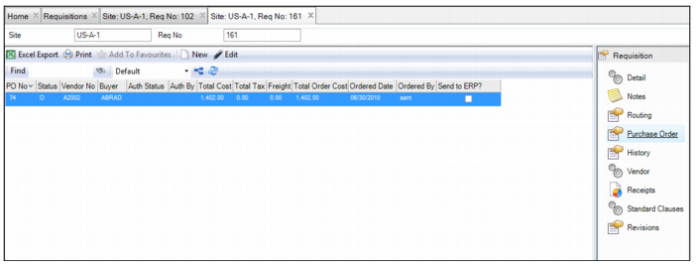
To view the POs associated with a requisition, open the requisition. Then, select the Purchase Order submenu.
Requisition Header: Purchase Order Submenu