Editing a Requisition Line
To edit a requisition line, open the requisition line and make the necessary changes in the requisition line tabs. See
Add Lines to a Requisition.
Editing a Requisition Line After Authorization
Important: If you change a requisition line’s item cost or quantity after it has been authorized, the requisition line must be reauthorized. You can select additional fields that, when modified after authorization, require reauthorization of that requisition line. See
Req Reroute/Notify Fields.
Viewing Requisition Line History
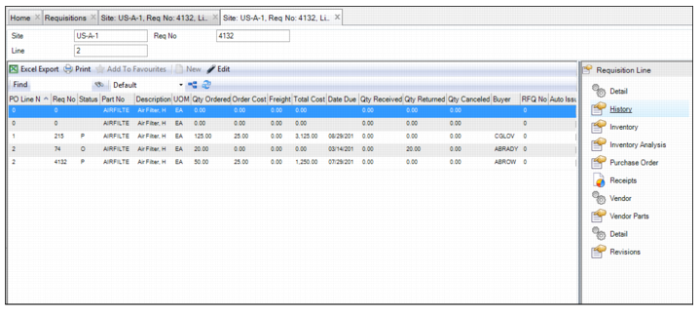
To view the history for an item, open the requisition line and select the History submenu. This submenu shows the historical activity for that part across all requisitions.
Requisition Line History Submenu
Viewing the Inventory for a Requisition Line
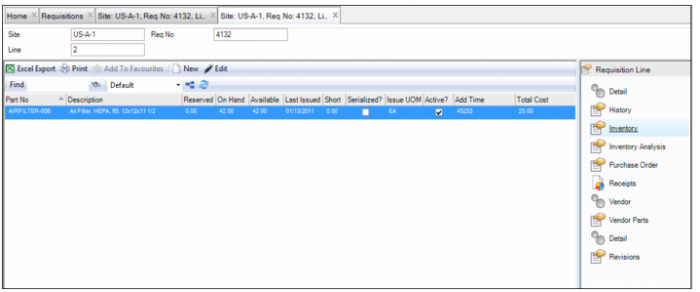
To view the inventory details for a requisition part, open the requisition line and select the Inventories submenu. This submenu displays the reserved, on-hand, and available quantities for the requisition line. If you need more information, double-click and drill into the inventory record.
Requisition Line Inventory Submenu
Viewing Inventory Analysis of a Requisition Line
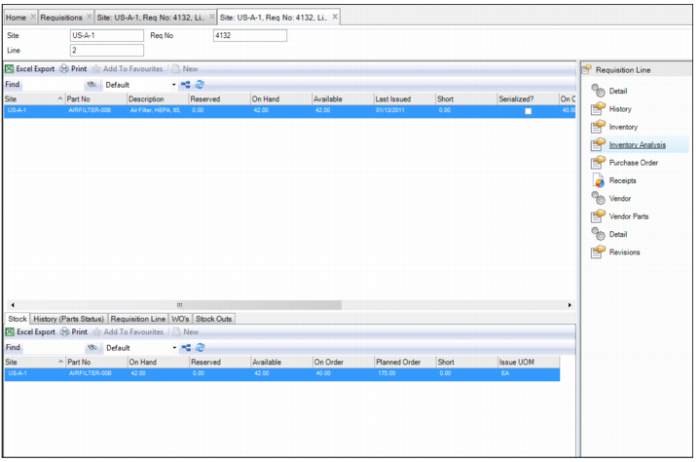
To view EAM’s inventory analysis associated with a requisition line, open the requisition line and select the Inventory Analysis submenu. This submenu displays a consolidated view of all transactions that have been performed against a part.
In the upper browse, inventory details appear such as reserved, on-hand, and available quantities.
In the lower browse, the following information is shown:
• Stock tab. Inventory details, such as reserved, on-hand, and available quantities.
• History (Parts Status) tab. Complete transactional history for a part such as GL description, quantities, and costs.
• Requisition line tab. A list of all requisitions that have been created for this part.
• WO’s tab. All the work orders to which this part has been issued.
• Stock Outs tab. This tab is not used.
Requisition Line Inventory Analysis Submenu
Viewing Purchase Order Details for a Requisition Line
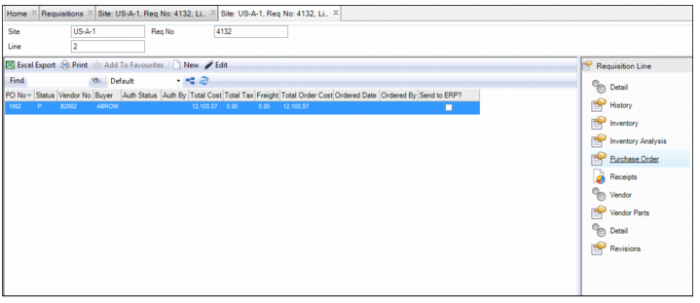
To view if there are any purchase orders for a requisition line, open the requisition line and select the Purchase Order submenu.
Requisition Line Purchase Order Submenu
Viewing Receipts for a Requisition Line
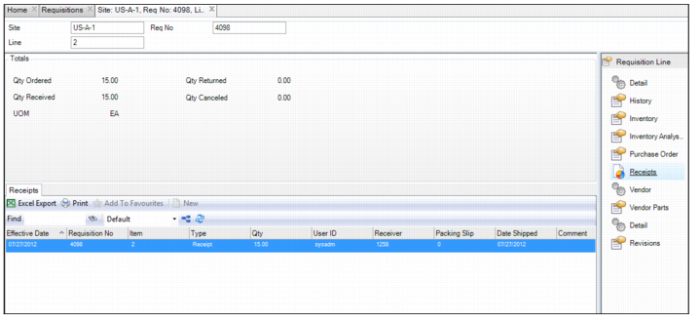
To view the goods and services received against a requisition line, open the requisition line and select the Receipts submenu. The upper browse shows a summary view of the order details. The lower browse shows the line receipt details.
Requisition Line Receipts Submenu
Viewing Vendor Details for a Requisition Line
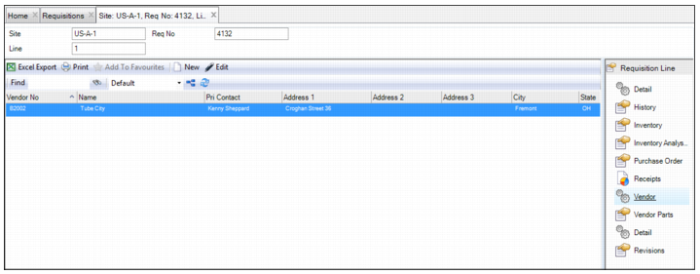
To view vendor details for a requisition line, open the requisition line and select the Vendor submenu.
Requisition Line Vendor Submenu
Viewing Vendor Part Information
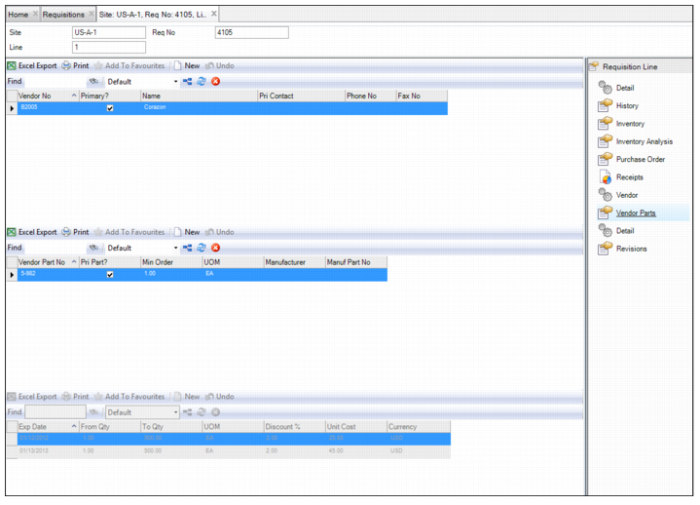
If the requisition line is for a stock part, you can view the vendor’s part information in the Vendor Parts submenu.
The upper browse shows the vendors that supply this part. The middle browse shows the highlighted vendor’s part information. The lower browse shows the price schedules for the part.
Requisition Line Vendor Parts Submenu
Viewing the Revision History for a Requisition Line
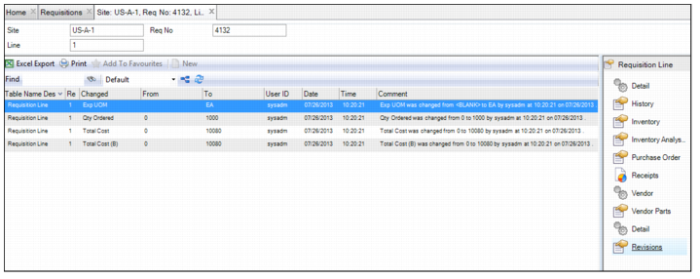
Because many quality systems call for strict record keeping about the revisions made to requisition lines, the Revisions submenu provides an audit trail of all modifications that are made to this record. The revision records, which are stored in the Revisions submenu and in the Revisions module at General|Revisions, are automatically created when a modification is made to the requisition line.
To view the revision history for a requisition line, open the requisition line and select the Revisions submenu.
Note: Revision control is activated in the Purchasing|General|Business Units|Sites menu. See
Enable Revision Control.
Requisition Line Revisions Submenu