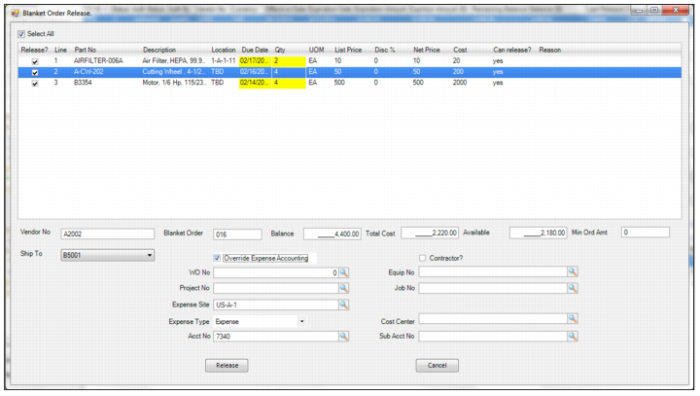
Release a Blanket Order
The blanket order release action creates a purchase order to submit to the vendor for the lines and quantities selected. The cost of the lines released updates the remaining balance available for the next release.
Releasing a Blanket Order
Follow these steps to release a blanket order and create a PO:
1 Select Release from the Blanket Order Action menu.
The Blanket Order Release Form opens.
2 Select the blanket order items to release. To select all the items to release, select the Select All check box.
3 In the Qty field, enter the release quantity of the selected line items.
Note: The cost for the items being released is indicated in the Total Cost field. The total cost of items being released cannot exceed the balance amount.
4 Optionally, select the Override Expense Accounting to enable the expense accounting fields to enter different expense accounting for the PO that is created from the release.
Note: EAM validates that all mandatory fields for requisition lines are populated in the Override Expense Accounting area before it releases the BO. If any information is missing, EAM displays an informational window with a list of the empty fields and does not release the BO.
6 When the information has been entered, click Release.
The system automatically creates a PO for the released items. The expense accounting information that was entered in the release form is automatically entered into the PO.
Note: The status of the Released PO created is determined by the blanket order’s Status on Release setting in the Site record. See
Sites: Purchase Order Tab.
Blanket Order Release Form
The blanket order release form allows you to release multiple lines at one time as well as override the BO default expense account information for the PO that is created.
Blanket Order Release Form
Select All
Select this check box to select all the lines for release.
Release?
Select this check box to release this line for release.
Line, Part No, Description, Location, UOM, List Price, Disc %, Net Price, Cust, Can Release?, Reason
General item information. You cannot edit these fields.
Due Date
The due date for the blanket order line item. If necessary, use the calendar lookup to select a new due date for the line item.
Qty
Enter the item quantity to release and order with the PO. The cost for the items being released is indicated in the Total Cost field. The total cost of items being released cannot exceed the Balance amount.
Vendor No, Blanket Order
Displays the vendor and blanket order numbers associated with the release lines. You cannot edit these fields.
Balance
The amount of money that is authorized for release.
Total Cost
The amount of money that has been chosen to be released. This total is calculated by multiplying the quantity of each item to be released by its net price.
Available
The amount of money that is available for release.
Min Ord Amt
The minimum order amount for released items.
Ship To
Use the drop-down menu to select the ship-to location for the blanket order lines.
Override Expense Accounting
Select this check box to enable the expense accounting fields.
• If Override Expense Accounting is selected and expense accounting information is entered, the system uses that information on the PO for all the BO line items being released.
• If Override Expense Accounting is not selected, when the system releases the BO lines, the accounting information is pulled into the PO from the BO lines.
Contractor?
Select this check box if the blanket order lines are for outside contractor services. If enabled, then the blanket order is an auto issue. A work order or equipment identification number is typically noted on the Expense tab of the blanket order or on this blanket order line. The system uses the contractor’s expense accounting data from the work order or equipment instead of the material accounting data when the part is auto issued upon receipt.
Expense Accounting Fields
Because the blanket order lines can have difference expense accounting information, by default the expense accounting fields are blank. For detailed information about the expense accounting fields, see
Blanket Order Line: Codes Tab.
WO No
Use the lookup to select a work order associated with released items on this blanket order. If there is a piece of equipment, project, or job associated with the work order, that information is pulled in and defaulted into the Equip No, Project No, and Job No fields.
Equip No
Use the lookup to select a piece of equipment associated with released items on this blanket order.
Project No
Use the lookup to select the project associated with released items on this blanket order. If there is a cost center, account, and/or sub-account associated with the project, that information is pulled in and defaulted into the Cost Center, Acct No, and Sub Acct No fields.
Note: If you select a project where Use Allocations is selected and the Spend at this Level? option is not selected, it is mandatory that you select a job in the Job No field that has Spend at this Level selected. The Job lookup only presents Jobs where Spend at this Level is selected.
Job No
Use the lookup to select the job associated with released items on this blanket order. If there is a cost center, account, and/or sub-account associated with the job, that information is pulled in and defaulted into the Cost Center, Acct No, and Sub Acct No fields.
Expense Site
Use the lookup to select the site to which to expense the blanket order lines.
Expense Type
Use the drop-down menu to select the expense type for the blanket order lines.
Cost Center, Acct No, Sub Acct No
Use the lookups to select the cost center, account, and sub-account information for the blanket order lines being released.