Editing a Blanket Order
To edit a blanket order, open the blanket order and make the necessary changes to fields. When you have finished, click Save. See
Filling Out the Blanket Order.
Changes that Require a Reauthorization
If the blanket order is authorized, EAM reroutes the blanket order for reauthorization when the following changes are made:
• Adding a blanket order line
and/or,
• Changing the expiration date
A rerouting confirmation message is displayed when you save a new line. After the message is confirmed, the Auth Status of the BO is changed to Previously Authorized and a notification e‑mail is sent to the first person in the authorization sequence.
Note: If the Use Enforce Buyer Limits for BO? option is selected in the Domain for the BO Site, changes to the expiration amount are validated against the increase/decrease amount and the percentage limits set for the BO Site’s Domain. See
Domain: PO/Reqs Tab.
Lock/Unlock a Blanket Order
For added security, the buyer associated with the blanket order can lock the purchase order. This function enables the buyer to control releases off a blanket order because releases are not allowed off a locked blanket order. Already-ordered releases can continue to be processed after a blanket order is locked. However, released POs that have planned status cannot be placed on order once the blanket order is locked.
To lock or unlock a blanket order, select the blanket order and then select Lock/Unlock from the Blanket Order Action menu.
Blanket order line items that are associated with a project validate the release amount against the project’s remaining balance and update the project’s cost analysis at the time the release is made.
Note: If the Any Buyer? check box is selected in General|Business Units|Domain|PO/Reqs, any user set as a buyer is able to make modifications to another buyer’s blanket order, whether the blanket order is locked or unlocked. See
Domain: PO/Reqs Tab.
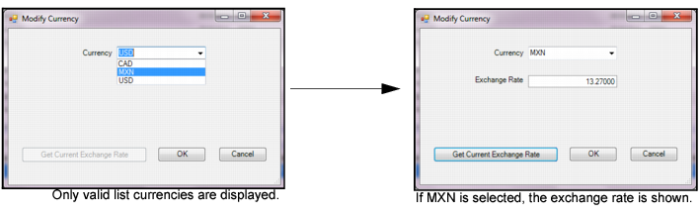
Modify Currency of a Blanket Order
To modify the currency of a blanket order, select Modify Currency from the Blanket Order Action menu.
The Modify Currency option in the Blanket Order Action menu allows you to select a different currency code for the blanket order. The blanket order line items are changed to the new currency and the base currency amount is calculated based on the current exchange rate. Only one currency is allowed per blanket order and, if there are releases against the blanket order, you cannot modify the currency. Only currencies valid for this vendor are available for selection. See
Multicurrency Purchasing.
Blanket Orders: Modify Currency
Change the Status of a Blanket Order
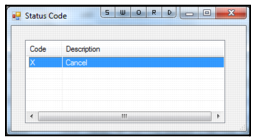
The Change BO Status option in the Blanket Order Action menu allows you to change the status of a blanket order to X-Cancel. The blanket order header and line items’ status change from Open (O) to Cancel (X). Canceling a blanket order has the same effect as closing it. Unlike requisitions and purchase orders, blanket orders can be canceled, even if there are receipts against them.
Canceling a blanket order cancels any planned releases associated with it. When a blanket order is canceled, the remaining balance on the blanket order header increases the value of the planned releases. Any ordered POs that were created from a blanket order remain ordered and receipts are allowed.
Note: The Return to Vendor action is still permitted with canceled blanket orders.
Follow these steps to change the status of the blanket order:
1 Select Change BO Status from the Blanket Order Action menu.
2 Double-click Cancel (X). The status of the blanket order changes to Cancel (X).
Note: If the blanket order has expired, you cannot change the status.
Blanket Orders: Change BO Status
Reopen a Blanket Order
To reopen a blanket order, select the blanket order and then select Reopen from the Blanket Order Action menu.
Note: The reopen option only applies if Reopen PO/Reqs? has been enabled in General|Business Units|Domain on the PO/Reqs tab. Users with the required settings in Roles can reopen blanket orders once they have been closed. See
Domain: PO/Reqs Tab.
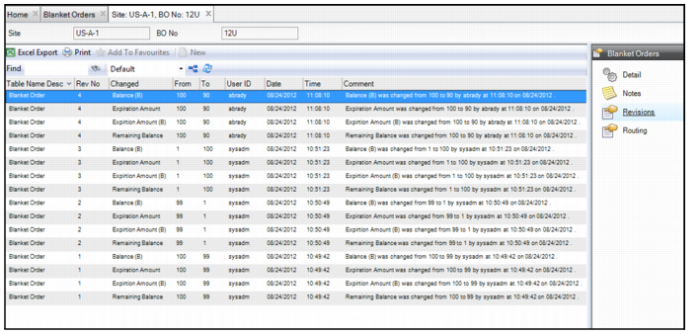
View Revision History of a Blanket Order
To view the revision history of a blanket order, open the blanket order and select Revisions from the Blanket Order submenu.
Blanket Order Revision History