QAD Enterprise Asset Management 2017.1
>
User Guide
>
Projects
>
Projects
>
Project Activities – Capital Projects
Project Activities – Capital Projects
EAM allows you to perform the following activities for capital projects:
Creating New Equipment from a Project
With EAM, you can create an equipment record and attach it to a project. To add a piece of equipment to a project, open the project. Select the Equipment submenu, and click New. A blank equipment record opens. Enter the necessary information in the equipment record. See
Creating an Equipment Record.
Viewing the Equipment Associated with a Project
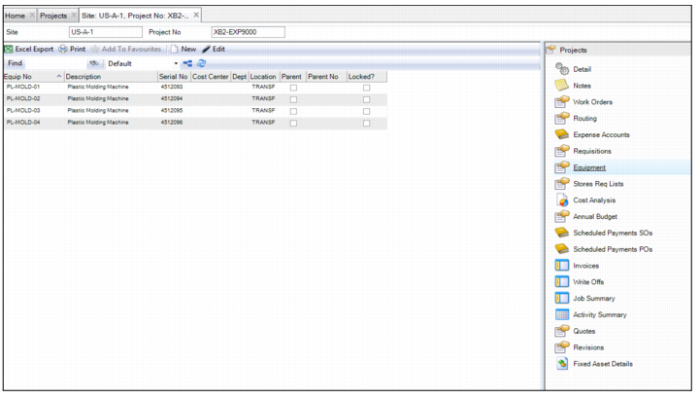
To view the equipment associated with a project, open the project record and select the Equipment submenu.
Project Submenu: Equipment
Fixed Asset Integration
The Fixed Asset integration with Project Accounting gives you the ability to:
• Create an asset from a job
• Include trailing charges
• Enter a fixed asset ID, service dates, asset class, and location
• Easily see the capitalized and uncapitalized amounts associated with a project or job
• Maintain an asset that has multiple books
• Maintain an asset’s cost for multiple books in their respective currencies
EAM Fixed Assets are integrated with the QAD Enterprise Edition Fixed Assets module. When you make changes to book costs in EAM, that information is reflected in the Enterprise Edition Fixed Asset Maintenance browse.
For projects that have jobs that represent the asset that is being created, you can create an asset and capitalize from the job itself.
To ensure data integrity, specific data from the job is automatically populated when you choose this action such as fixed assets class and location codes. Because the cost of the asset is driven to the right job by controlling where the cost can be charged, it ensures that the full value of the asset is contained in that job. If any trailing charges occur after the initial capitalization, you can add cost to the existing fixed asset and send it to the Fixed Assets module in QAD Enterprise Edition. See
Capitalizing a Fixed Asset from a Job.
EAM tracks the capitalized amount, up to and including the total spent against this job. EAM also tracks the uncapitalized amount, which is the amount that is included in the total spent for the job but not yet capitalized.
Capitalize New Asset
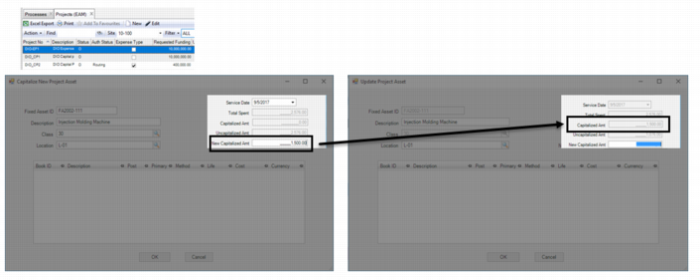
Capitalize New Asset is an example where a user is ready to capitalize out $1,500 of the Total Spent value of $2,576. EAM automatically updates the Capitalized Amount of $1,500, leaving an Uncapitalized Amount balance of $1,076 for the project.
Note: If asset capitalization is done at the project level, jobs cannot be capitalized and all costs are based on the project’s Total Spent. If a project produces multiple assets, then multiple jobs at the same level can be capitalized. These assets are capitalized from the job level.
Capitalizing a Fixed Asset from a Project
EAM allows you to create a fixed asset from a project. The cost captured in projects is used when capitalizing a new fixed asset from EAM to QAD ERP’s Fixed Assets module.
Follow these steps to capitalize a fixed asset from a project:
1 Open the Projects browse and highlight the project record.
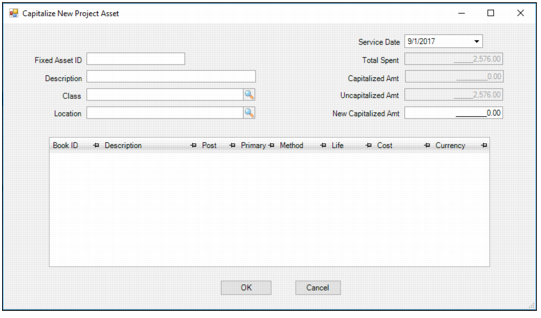
2 Select Capitalize New Asset from the Project Action menu. The Capitalize New Project Asset window opens.
Capitalize New Project Asset
3 Enter the asset information in the following fields.
Service Date
Enter or select the date this asset is placed into service.
Fixed Asset ID
Enter the fixed asset identifier of this asset.
Total Spent
Displays the total spent on this project.
Description
Enter the text description of this asset.
Capitalized Amount
Because this is a new asset, initially this field displays a zero capitalized amount.
Class
Enter or select the asset class of this asset.
Uncapitalized Amount
Initially defaults and displays the uncapitalized amount on this project, which is equal to the total spent for a new asset.
Location
Enter or select the location of this asset.
New Capitalized Amount
Enter the capitalized amount of this asset. This value cannot be greater than the Total Spent amount of the project.
Book ID
A unique ID identifying the fixed-asset book. Defaults from QAD Enterprise Edition.
Description
A brief description describing this fixed-asset book. Defaults from QAD Enterprise Edition.
Post
If this check box is selected, this book posts to the GL. There can be more than one posting book but only one can be a primary book. Fixed Asset Transaction Post (32.13) creates unposted transactions for accumulated depreciation and depreciation expense accounts based on depreciation calculated for this book. Posting books always follow the GL calendar. Defaults from QAD Enterprise Edition.
Primary
If this check box is selected, this book is referred to as the primary posting book. Only one primary posting book is allowed. Defaults from QAD Enterprise Edition.
Method
The predefined depreciation method ID. Methods identify how depreciation is calculated for the asset service years. Defaults from QAD Enterprise Edition.
Life
The number of years for the book’s life. This number is used as a basis for depreciation calculations. Defaults from QAD Enterprise Edition.
Cost
The amount entered in New Capitalized Amount and defaults into all the books, regardless of the book’s currency. This cost can be manually updated.
Currency
The book’s currency.
4 Once you have entered all the information, click OK. The fixed asset has been capitalized for this project.
Capitalizing Additional Costs to an Existing Asset
You can capitalize additional costs to an existing asset with EAM. Once a fixed asset is created and additional costs are incurred, the Modify Capital Asset action updates the capitalized amount in EAM Project|Job and sends it back to the asset in QAD’s Fixed Assets module.
Follow these steps to capitalize additional costs to an existing asset:
1 Open the Projects browse and highlight the project record.
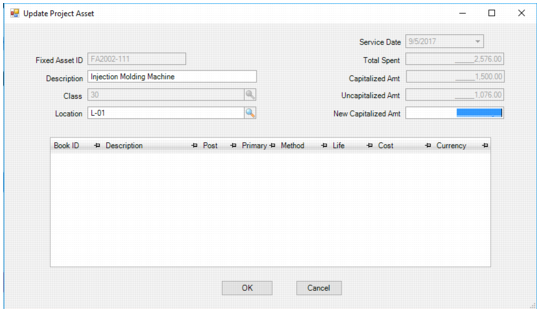
2 Select Modify Capital Asset from the Project Action menu. The Update Project Asset window opens.
Modify Capital Asset
3 You can edit the information regarding the asset in the following fields:
Description
Enter the text description of this asset.
Location
The location of this asset.
New Capitalized Amount
Enter the new capitalized amount of this asset. This value will overwrite the total cost of the asset. This value cannot be greater than the Total Spent amount of the project.
Cost
The amount entered in New Capitalized Amount does not update the Book’s cost. This cost can be manually updated.
4 Click OK. The fixed asset costs have been updated.
Viewing Capitalized Asset Data for a Project
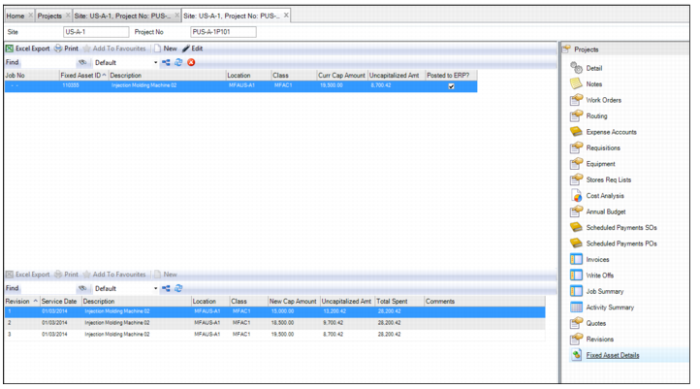
The Fixed Asset Details submenu, which is only available for capital projects, allows you to pre-enter fixed asset data to be capitalized or view current capitalized asset data and capitalization changes associated with this project.
To view the capitalized asset data for a project, open the project and select the Fixed Asset Detail submenu. The upper browse displays information about the fixed asset. The lower browse displays the revision history for the fixed asset.
Modify Capital Asset