QAD Enterprise Asset Management 2017.1
>
User Guide
>
Projects
>
Projects
>
Editing a Project
Editing a Project
You can perform the following actions on a project:
Refreshing a Single Project or Multiple Projects
You can update all the changes made to a project and a project’s jobs with the Refresh action. You can refresh a single project or multiple projects at the same time.
To refresh a single project, highlight the project and select Refresh from the Projects Action menu.
To refresh multiple projects, highlight the projects and select Global Refresh from the Projects Action menu. The Global Refresh action is only active when multiple projects are selected.
Changing the Status of a Project
Project status codes are established in Finance|Codes|Projects|Project Status. To change the project status, highlight the project and select Change Status from the Projects Action menu.
Note: You cannot cancel a project with posted expenses.
Reopening a Project
Projects that have been closed or canceled can be reopened to make additional changes or charges. To reopen a project, highlight the project and select Reopen from the Projects Action menu.
Note: The reopen option is only available if the Reopen Projects? check box is selected in General|Business Units|Domain on the Maint tab. Users with the required settings in Roles can reopen projects once they have been closed.
Locking/Unlocking a Project
For added security, EAM allows you to lock a project to prevent additional charges against that project. To resume charges against a project, you can unlock the project. If the project has a designated owner or owner group, only the owner or a member of the owner group can lock or unlock the project. If the project does not have an owner, any user can lock/unlock the project.
Locking a Project
Follow these steps to lock a project:
1 Open the Projects browse, highlight the project, and select Lock/Unlock from the Projects Action menu.
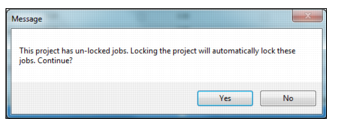
2 If any of the project jobs are unlocked, a window appears indicating that locking the project causes any unlocked jobs to be locked as well. Click Yes to continue.
Locking a Project
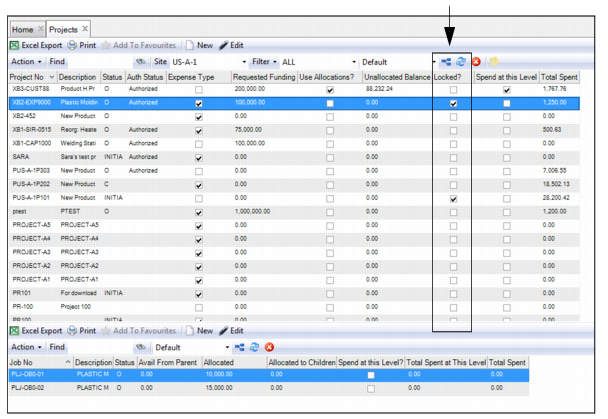
3 The project is locked. When a project is locked, the check box in the Locked? field is selected.
Locking a Project
Unlocking a Project
Follow these steps to unlock a project:
1 Highlight the project and select Lock/Unlock from the Projects Action menu.
2 If the project has jobs, a window opens asking if you want to unlock the jobs. The project is unlocked whether you click Yes or No.
• Yes. Click Yes to unlock the jobs and the project.
• No. Click No to keep the project jobs locked and unlock the project.
Viewing Annual Budget Details of a Project
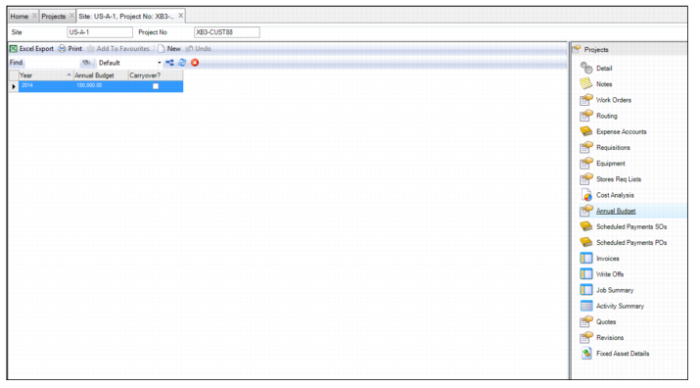
To view the annual budget details of a project, open the project and select the Annual Budget submenu.
Project Submenu: Annual Budget
Viewing the Revision History of a Project
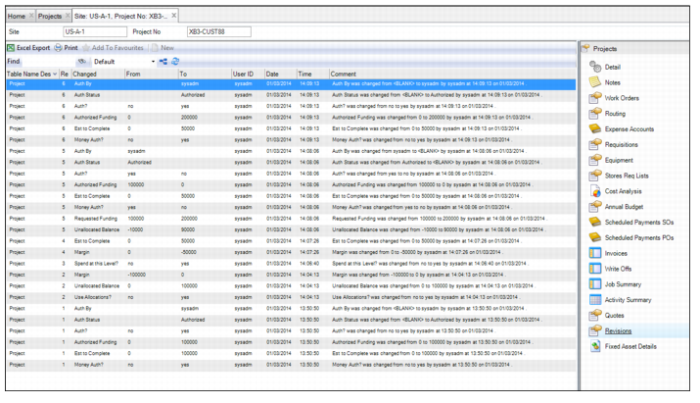
Because many quality systems call for strict record keeping about the revisions made to projects, the Revisions submenu provides an audit trail of all modifications that are made to this record. The revision records, which are stored in the Revisions submenu and in the Revisions module at General|Revisions, are automatically created when a modification is made to the project.
Note: Revision control is activated in the Purchasing|General|Business Units|Sites menu. See
Enable Revision Control.
To view a project’s revision history, open the project and select the Revisions submenu.
Project Submenu: Revisions