Order Line Item Data Frame
There are two Order Line Item Data frames that display.
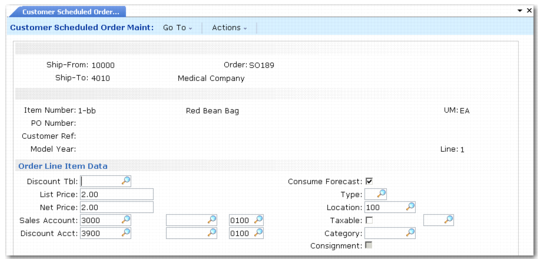
Customer Scheduled Order Maintenance, Order Line Item Data, First Frame shows the first frame;
Customer Scheduled Order Maintenance, Order Line Item Data, Second Frame shows the second frame. Values in the first header frame specify pricing, forecast, taxing, and item location. Other critical fields are described after the
Customer Scheduled Order Maintenance, Order Line Item Data, First Frame.
Customer Scheduled Order Maintenance, Order Line Item Data, First Frame
Type
Indicate whether shipments of this item are to affect inventory balances. Type defaults from Memo Order Type in Item-Site Inventory Data Maintenance (1.4.16), if defined for the order line site; otherwise, it defaults from Item Master Maintenance (1.4.1). If the item is not defined, type defaults to M (memo). If Trade Sales is Yes, the system sets this field to blank.
Blank: This line item ships from inventory. When the shipment is processed, inventory balances are decreased, a general ledger (GL) transaction credits the Inventory account, and forecast is consumed.
Non-blank: This shipment does not affect inventory, does not create a GL Inventory transaction, and does not consume forecast.
While a non-blank ship type prevents the update of the Inventory account, Accounts Receivable (AR) balances are updated regardless of the ship type.
This field is validated against codes defined in Generalized Codes Maintenance (36.2.13) for field sod_type.
You cannot modify this field after a quantity has been shipped or invoiced.
Category
Optionally specify a category associated with the order line.
Category is a generalized code that can be specified when order lines are created. Categories can group order lines based on shipping characteristics; for example rush order, special order, or replacement. Category is one of the order attributes reported by the optional Shipment Performance module.
This field is validated against values defined in Generalized Codes Maintenance (36.2.13) for field name line_category.
Consignment
Enter Yes if the item on this sales order line is consigned; otherwise, enter No. If Yes, you can update consignment data in a separate frame.
This value defaults from Ship-To/Item Controls Maintenance (7.18.1), if a specific control record has been defined for the combination of order ship-to and line item. Otherwise, it defaults from the order header.
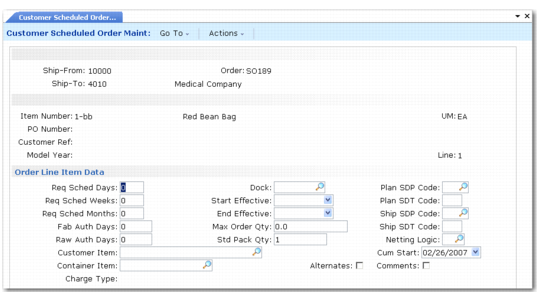
Customer Scheduled Order Maintenance, Order Line Item Data, Second Frame shows the second Order Line Item Data frame. Critical fields are described after the figure.
Customer Scheduled Order Maintenance, Order Line Item Data, Second Frame
Req Sched Days, Req Sched Weeks, Req Sched Months
These fields rebucket customer requirements into a sequential horizon of days, then weeks, then months.
Entering values in these fields has an impact on MRP. The weekly and monthly quantities are seen by MRP as requirements on the first day of the period, and MRP plans accordingly. This can result in excessive and unnecessary action messages.
Set these fields to zero to maintain the customer’s date and quantity requirements. Also leave these fields set to zero if you are using noncumulative accounting procedures and pegging requirements through authorization numbers.
Fab Auth Days, Raw Auth Days
Raw and fabrication authorization commitments are made to give suppliers some protection against sudden and unforeseen reductions in demand.
• Raw quantity is the quantity of product the customer commits to covering component costs.
• Fab quantity is the quantity of product the customer commits to covering manufacturing costs.
These fields are used by Customer Plan Schedule Maint (7.5.1) to calculate the authorization quantities, in the event customer authorizations are for a number of days into the future.
The Schedule Report (7.5.10) shows all authorizations by release, then prints the highest of each type authorization, referencing the release ID of each. The highest of each type is determined by the highest quantity or the latest end date.
Customer Item
Enter the item number used by the customer. This number appears on ASNs and invoices in place of your internal item number. The value that displays in this field defaults from the Item field or Customer Ref field. See
Customer Ref.
Container Item
Specify an optional container item number, used for shipping the scheduled order item. Required Ship Schedule Detail Report (7.5.14) displays this number, if defined.
You can specify Yes or No in the Alternates field to add, edit, or delete alternate containers for the container item you specify. If Yes, the Alternate Containers frame displays for input and you can add up to seven additional container items.
Charge Type
Enter the charge type to use when applying charges to this container. Define charge types in Charge Type Maintenance (7.22.1). This field defaults first from Ship-To/Container Charge Maintenance (7.22.5) if a record has been defined for the ship-to address and container item combination. Otherwise, it defaults from Container Item Maintenance (7.22.10).
Dock
Optionally, enter a valid dock address for this customer ship-to address. Items are delivered to this dock.
Start and End Effective
Optional dates controlling the introduction and duration of this line item on the order. Warning messages display for orders released before or after the effective dates.
Max Order Qty
Enter the maximum, cumulative quantity for the life of this order. When this quantity has been exceeded, the system displays warning messages at order updates, maintenance functions, inquiries, and reports.
Std Pack Qty
Enter the value used for shipping orders for this item. This field is similar to Order Multiple in the item master, but appears here because the standard shipment multiple may be different for different customers. The schedule update rounds order quantities up to this multiple. In order to preserve the scheduled order packing multiple, you must remove any order multiple specified in Item Master Maintenance (1.4.1).
Plan SDP, Ship SDP
Enter a code specifying the default ship/delivery pattern. These codes indicate the days of the week or month that shipments or deliveries are required.
SDP codes can differ for shipping and planning schedules. For instance, if planning schedules are not used, leave these fields blank to avoid any rescheduling of the planning dates while the ship schedule is rescheduled based on your shipping days.
The system uses SDP codes to calculate actual required ship dates when it updates the RSS. It preserves the planning SDP code when it adds excess planning quantities to the RSS. For example, the system places the excess quantity on Friday when you select netting logic 5 and:
• The planning SDP code stipulates Monday, Wednesday, and Friday.
• Shipping requirements exist for Monday, Tuesday, and Wednesday.
• The calendar depicts Thursday and Friday as open days.
Friday is selected for the excess even though Thursday is open because Thursday does not conform to the SDP code.
SDP codes support both the ODETTE and Automotive Industry Action Group (AIAG) ship/delivery patterns. They are translated to the appropriate industry-standard code during EDI conversion and transmission.
Plan SDT, Ship SDT
Enter a code specifying the default ship/delivery time
Netting Logic
Enter one of the following codes that specify how the system uses planning and shipping schedules when it creates the RSS in Required Ship Schedule Update (7.5.5) or Selective Required Ship Schedule Update (7.5.6):
1: Use the shipping schedule only.
2: Use the planning schedule only.
3: Replace beginning of the planning schedule with the shipping schedule (replace logic).
4: Replace beginning of the planning schedule with the shipping schedule, then adjust the last quantity in each week of the shipping schedule data upward so the cumulative of the shipping schedule requirements is not less than the cumulative of the planning schedule requirements (consume logic).
For an example, see
here.
5: Replace the beginning of the planning schedule with the shipping schedule. Determine the excess planning quantity in the last overlap week (the last week with both planning and shipping schedules) and spread the excess planning quantity over the open work days in the last overlap week.
Cum Start
This date indicates when shipped quantities on this schedule began to accumulate. In Cumulative Shipped Maintenance, this field also displays with the label Prior Day Cum Shipped Date.