Processing Subcontract Shipments
If you are processing WLT-controlled items for subcontract shipping, additional processing occurs. This includes additional WLT frames that display when you process a subcontract order.
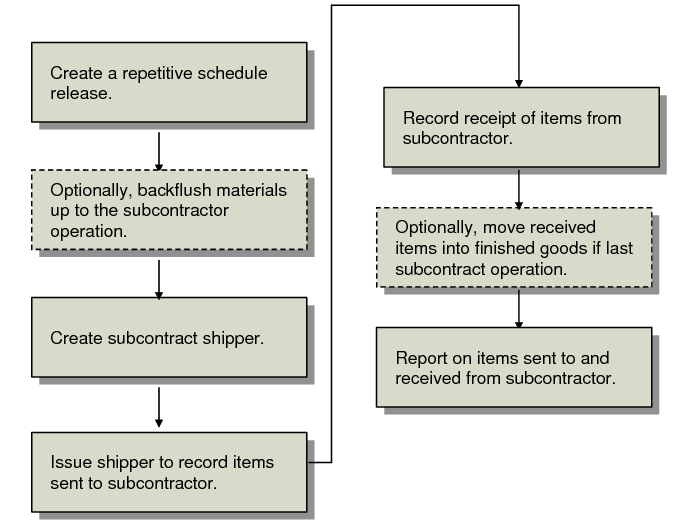
Subcontract Shipping Process depicts the tasks involved when processing a subcontract shipment that is not WLT-controlled.
Subcontract Shipping Process
Creating Repetitive Schedule Releases
Use Schedule Explosion (18.22.2.4) to explode the subcontract schedule. When you explode a repetitive schedule, the system creates the scheduled work orders, generating component demands for each item and day.
Note: The generated work orders are identified as a type S. The S indicates a scheduled work order, not a subcontract work order.
Next, create the subcontract schedule release by running Schedule Update from MRP (5.5.3.1). Schedule Update from MRP uses the percentages you defined to allocate MRP planned orders for the item among subcontractors.
Transmit the schedules to subcontractors using Schedule Print (5.5.3.8), Schedule Print in Fax Format (5.5.3.9), or Supplier Shipping Schedule (35.4.8) if you are using EDI eCommerce to export schedules in electronic data interchange (EDI) format.
See User Guide: QAD EDI eCommerce.
Backflushing Subcontract Materials
You can use Backflush Transaction (18.22.13) to optionally backflush components up to the subcontractor operation and create a cumulative work order and its ID to track subcontractor activity.
When the system creates the cumulative work order, it assigns a work order ID. The system automatically updates blank work order ID fields on subcontract order lines with the new ID if you connected a subcontract:
• Discrete purchase order to the subcontract routing and operation through Subcontract Routing/Op PO Maint (5.11).
• Scheduled order to the subcontract routing and operation in Subcontract Order MRP % Maint (5.5.1.21).
Also, the system automatically populates the subcontract operation on subcontract purchase order lines. Therefore, you do not have to return to purchase order maintenance programs to enter the work order ID and subcontract operation.
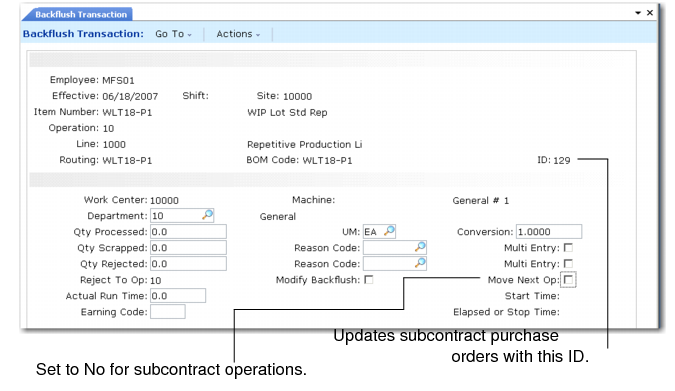
In Backflush Transaction, set Move Next Op to No for subcontractor operations. Since the backflush operation is prior to the subcontract operation, you set Move Next Op to No because subcontract shipping functionality moves WIP material from the prior operation to the subcontract operation.
Backflush Transaction (18.22.13)
Creating Subcontract Shippers
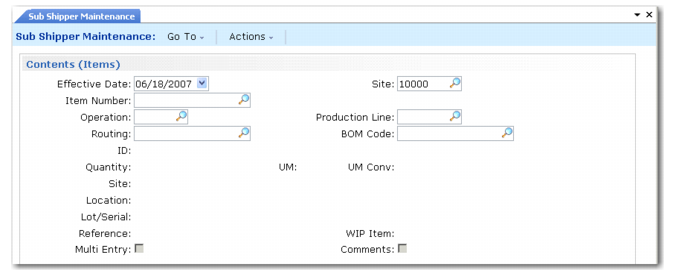
Use Sub Shipper Maintenance (18.22.5.5) to create shippers for shipment of items to subcontractors. The subcontract shipper can consist of container items, WIP items, and the components used at this operation that are also being shipped to the subcontractor.
You specify only one subcontractor per subcontract shipper. Identify the subcontractor in the Ship-To/Dock field in the header frame. You indicate the correct work order or cumulative ID, routing, operation, item, production line, and other data pertinent to this subcontractor shipment in the Contents (Items) frame.
You can use the subcontractor data in the Contents (Items) frame for a subcontractor other than the subcontractor defined for the item’s routing and operation by setting Unassigned Suppliers to Yes in Subcontract Shipping Control (18.22.5.24).
Note: Use Subcontract Routing/Op PO Maint (5.11) to specify subcontract suppliers for a specific routing operation or use Subcontract MRP % Maint (5.5.1.21) to specify scheduled orders for a specific routing operation.
When you enter an open cumulative work order ID in the Contents (Items) frame, the system automatically updates the following fields in the Contents (Items) frame with data from the cumulative work order:
• Effective Date | • Site |
• Item Number | • Production Line |
• Routing | • BOM Code |
Conversely, when you enter data in the fields listed above, the system automatically updates the ID field with the correct cumulative work order ID.
Sub Shipper Maintenance, Contents (Items) Frame (18.22.5.5)
Effective Date
Enter the effective date of the transaction. The system searches open cumulative orders that pertain to the effective date.
Site
Enter the site from which the subcontract material will be shipped.
Item Number
Enter the item to be shipped to the subcontractor.
Operation
Enter the number of the subcontract operation on the routing for this item.
Production Line
Enter the production line on which the item is manufactured.
Routing
Enter the routing code for the items being shipped.
BOM Code
Enter the BOM code for the items being shipped.
ID
Enter the ID of the work order associated with the items being shipped.
Quantity
Enter the quantity of the items being shipped to the subcontractor.
UM Conv
Enter the unit of measure conversion for the item.
Location
Enter the location of the items to be shipped.
Lot/Serial
Optional. Enter the lot/serial number for the items shipped on this subcontract shipper if items are tracked by lot or serial number.
Reference
Enter the optional lot reference number for the items shipped on this subcontract shipper.
WIP Item
The system displays the WIP item number indicated in the routing operation.
Multi Entry
Indicate whether this transaction references multiple sites, locations, lot number, serial numbers, or lot reference numbers.
No: This transaction is processed using values you enter on this screen.
Yes: Another entry screen displays letting you enter multiple lines for this transaction. The system creates an individual transaction history record for each transaction line. The total of all lines is used to update the inventory balance.
Comments
Enter comments about the shipment.
Issuing Subcontract Shippers
Confirm the subcontract shipper using Sub Shipper Issue (18.22.5.11). For the quantities identified on the subcontract shipper, the equivalent of a move transaction is performed from the output queue of the operation preceding the subcontract operation. If the preceding operation is a non‑milestone, then non‑milestone backflushing takes place for that operation and any other preceding non‑milestone until the quantity requirement is either satisfied or another milestone operation is encountered.
For component material requirements of the subcontract operation, the system performs the equivalent of an inventory location transfer. Inventory is transferred from the site and location entered on the subcontract shipper to the cumulative order site and operation work center location, if there is a corresponding record in the location master. Otherwise, the inventory is transferred to the item default location.
Receiving Completed Subcontract Items
You receive shipments from the subcontractor using Purchase Order Receipts (5.13.1) or PO Shipper Maintenance (5.5.5.5 and 5.13.14).
If you use Purchase Order Receipts, the receipt of subcontract items:
• Moves goods out of subcontract operations
• Creates GL transactions
• Backflushes components used in the subcontract items
If you use PO Shipper Maintenance, you can record the subcontract receipt and take time to compare the actual received items against the receipt quantity.
Use PO Shipper Receipt (5.5.5.11 and 5.13.20) to update inventory and the GL after you manually verify received subcontract items and quantities with PO Shipper Maintenance.
Note: PO Fiscal Receiving (5.13.16) functions similarly to PO Shipper Maintenance; however, fiscal receipts are typically for inventory as opposed to receipts for subcontracted services. Therefore, subcontract shipping receipt functionality as described in this section does not apply to PO Fiscal Receiving.
Connecting Shippers to Received Items
When receiving subcontracted items, you can connect subcontract shippers to the receipt for more subcontract visibility.
For more information on connecting shippers, see
here.
When you connect a subcontract shipper ID to purchase order lines you are receiving against, you can also:
Note: If WIP item components are lot/serial controlled, you must use the Advanced Repetitive Move Transaction (18.22.19) to record the WIP item placement into inventory. If only the WIP item is lot/serial controlled, then the placement into inventory occurs during receipt.
• Optionally scrap unreturned subcontracted items.
• Optionally close the subcontract shipper.
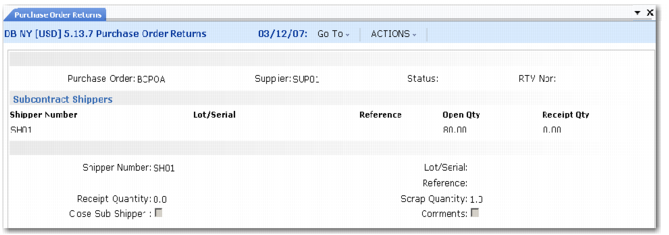
To receive against a subcontract shipper, set Manual Shipper Update to Yes in Subcontract Shipping Control (18.22.5.24). When you set this field to Yes, the Subcontract Shippers frame displays in Purchase Order Receipts (5.13.1), PO Shipper Maintenance (5.5.5.5 or 5.13.14), and Purchase Order Returns (5.13.7). After you select a shipper, the system displays shipper data in the lower portion of the screen.
Subcontract Shippers Frame (5.13.1)
Shipper Number
Accept the ID that displays or enter another ID of the subcontract shipper you want to track. Entering the number here lets you track subcontract shippers sent to and received from subcontractors. Use Subcontract Item Status Report (18.22.5.16) to display the status and history of items sent to and received from subcontractors.
Lot/Serial
If the item is lot- or serial-controlled, enter the lot/serial number for the items received on this purchase order line if items are tracked by lot or serial number.
Reference
Enter the optional lot reference number for the items received on this purchase order line.
Receipt Quantity
Enter the quantity of items you received from the subcontractor. The system tracks the receipt quantity for the subcontract shipper you specified. This information displays as received quantities in the subcontract shipping programs.
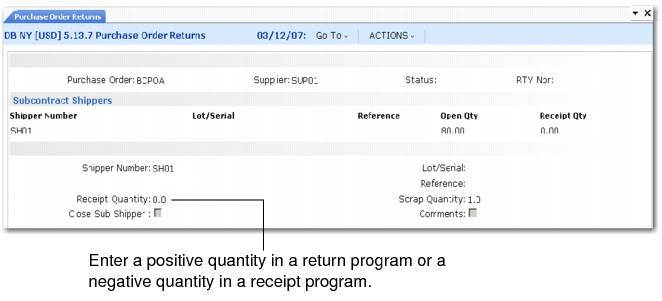
If you enter a positive quantity, the system considers this a received quantity if you are in a receipt program or a returned quantity if you are in a return program. The system updates the shipper you selected with the quantity. If you select a subcontract shipper that has an expired cumulative order associated with it, the system uses the current cumulative ID on the scheduled order.
If you enter a negative quantity, the system considers this as a return quantity if you are in a receipt program. The system updates the shipper you selected with the quantity.
When entering a quantity, note the following:
• The quantity you receive cannot exceed the quantity on the subcontract shipper.
• The total quantity for all specified subcontract shippers cannot exceed the total purchase order receipt quantity
Scrap Qty
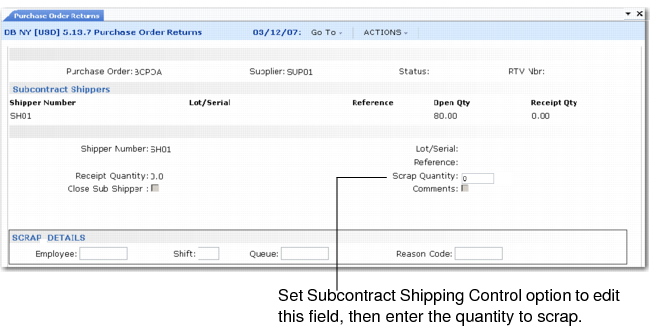
Enter the quantity you want to scrap. To enter a quantity, you must set Scrap Unreturned Material to Yes in Subcontract Shipping Control (18.22.5.24). If you enter a scrap quantity that equals the open quantity, the system closes the subcontract shipper. See
Scrapping Subcontract Items.
Note: You cannot enter a scrap quantity in PO Shipper Maintenance (5.5.5.5 and 5.13.14).
Close Sub Shipper
This field lets you indicate whether the entire subcontract shipper is complete or not. You can specify the subcontract shipper as fully received even when the quantity received does not match the original quantity shipped.
If you reopen a previously closed subcontract shipper and the cumulative ID has expired, the system uses the ID from the scheduled order.
No: The subcontract shipper is not complete and remains open.
Yes: The entire subcontract shipper is complete. If there are several lines for the same subcontract shipper, setting this field to Yes on just one line updates all lines for that subcontract shipper as closed.
For example, for a subcontract shipper that includes four lines, if you set this field to Yes because you received the entire shipment of line 1, then the system sets the Close Sub Shipper field to Yes for the remaining three lines, too.
Comments
Enter comments about the receipt.
Use Subcontract Item Status Inquiry (18.22.5.17) to view the shipment status of subcontract items. Set Show Shipped Complete to Yes to display the complete status. If Show Shipped Complete is No, the system displays open subcontract shippers only. If Yes, the system displays both open and closed subcontract shippers.
When you receive subcontracted items, you can return items to the subcontractor, scrap items, or move finished items into inventory. The following sections cover these optional receipt-related tasks.
Returning Items to Subcontractors
In some instances, you may have to return items to the subcontractor that you received. You can control whether subcontract shippers are manually updated with return quantities and return items against the same cumulative ID.
To return against a subcontract shipper, set Manual Shipper Update to Yes in Subcontract Shipping Control (18.22.5.24).
When you set this field to Yes, the Subcontract Shippers frame displays in the following programs for each different purchase order line against which you are returning items.
• PO Shipper Maintenance (5.5.5.5 and 5.13.14)
• Purchase Order Receipts (5.13.1)
• Purchase Order Returns (5.13.7)
Use the following procedure to return items against a subcontract shipper:
1 Select a subcontract shipper from a list of all open and closed subcontract shippers in the Subcontract Shippers frame.
2 Choose one of the following:
a Enter a negative number in the Receipt Quantity field to indicate returned quantities if the Subcontract Shippers frame displays in PO Shipper Maintenance or Purchase Order Receipts. The quantity you enter cannot exceed the subcontract shipper quantity.
b Enter a positive number in the Receipt Quantity field to indicate returned quantities if the Subcontract Shippers frame displays in Purchase Order Returns. The quantity you enter cannot exceed the subcontract shipper quantity.
3 To return an item on a purchase order that is linked to a previously closed subcontract shipper, set Close Sub Shipper to No.
The system reopens the subcontract shipper and updates the received quantities to reflect the portion of the item quantity that you return. Once you update the quantity, the system opens the subcontract shipper for that quantity.
4 Add comments about why you are returning items or reopening the subcontract shipper in the Comments field.
Subcontract Shippers Frame
Use Subcontract Item Status Report (18.22.5.16) to display total quantities returned to the subcontractor.
Scrapping Subcontract Items
If the quantity you receive from the subcontractor is less than the quantity indicated on the subcontract shipper, you can optionally scrap the items that you did not receive from the subcontractor.
There are two ways to register scrap items from subcontractors and update the subcontract shipper associated with the order:
• Scrap when receiving or returning items against a purchase order, using the Subcontract Shippers frame.
• Scrap through Subcontract Scrap Maintenance (18.22.5.13).
Both methods let you adjust the scrap quantity on subcontract shippers and register a scrap transaction with Advanced Repetitive.
Note: You can also scrap items not returned from the subcontractor through Scrap Transaction (18.22.18); however, this method does not update subcontract shippers.
Scraping Items Using the Subcontract Shippers Frame
When you scrap items using purchase order receipts or returns, you can:
• Complete the receipt as short and scrap the short.
• Do not complete the receipt as short and manually adjust WIP quantities using the scrap transaction of your choice.
Follow these steps to scrap the quantity at the subcontract shipper level:
1 In Subcontract Shipping Control (18.22.5.24), set Manual Shipper Update to Yes.
This causes the Subcontract Shippers frame to display in Purchase Order Receipt (5.13.1) or Purchase Order Returns (5.13.7).
2 In Subcontract Shipping Control, set Scrap Unreturned Material to Yes.
This lets you enter a scrap quantity in the Subcontract Shippers frame when you receive or return items and update a subcontract shipper with the scrap quantity.
Note: The Subcontract Shippers frame also displays in PO Shipper Maintenance (5.5.5.5 or 5.13.14); however, you cannot enter scrap quantities in the frame and the Scrap Details frame does not display.
3 In the Subcontract Shippers frame, enter the quantity you are short in the Scrap Qty field.
Subcontract Shippers Frame, Scrap Quantity Field
The system informs you that unreceived quantities for subcontract shipper items will be scrapped and prompts you to continue.
Note: If you enter a quantity that equals the open quantity, the system closes the subcontract shipper.
4 Specify Yes when prompted to continue.
Continue processing the receipt or return. When you are ready to complete the transaction, the Scrap Details frame displays.
.
5 Enter the employee code of the person reporting this labor in the Employee field.
6 Enter a code identifying the work shift associated with this operation in the Shift field.
7 Enter Input or Output in the Queue field to indicate the subcontract operation queue from which the items are scrapped.
Note: If the subcontract operation is the first operation and WIP Lot Trace is enabled, you cannot update the queue and reason code.
Input: Enter Input if you want the system to adjust the scrapped material at the input queue of the subcontract operation. The system does not include subcontract labor and materials for the scrapped items when calculating the value of the scrapped material.
Output: Enter Output if you want the system to adjust scrapped material at the output queue of the subcontract operation. The system includes subcontract-consumed labor and materials for the scrapped items.
Note: To scrap at the subcontract output queue, you must set Move Next Op to No in Purchase Order Receipts.
8 Enter a code for the reason items are scrapped.
Note: You must create reason codes with a reason type of Scrap in Reason Codes Maintenance (36.2.17).
To scrap the quantity manually, set:
• Scrap Unreturned Material in Subcontract Shipping Control (18.22.5.24) to No.
• Close Sub Shipper in the Subcontract Shippers frame to Yes.
• Scrap the short amount using the scrap program of your choice.
Scrapping Items through Subcontract Scrap Maintenance
Use Subcontract Scrap Maintenance (18.22.5.13) to register a scrap transaction for subcontracted material against one or more subcontract shippers. This program:
• Registers a scrap transaction in Advanced Repetitive records
• Adjusts the scrap quantity on the subcontract shipper
• Removes quantities from the input and output queues of a subcontract operation
To register scrap through Subcontract Scrap Maintenance, use the following procedure:
1 Enter selection criteria in the header, including the item, supplier, site, ship date, subcontract shipper ID, and cumulative ID.
Note: If the cumulative ID you entered expired but the subcontract shipper is not complete, the system may have replaced the cumulative ID on the purchase order. When this happens, the system finds the subcontract PO lines for the supplier you entered, then matches the item number on the new cumulative ID to the item number on the expired cumulative ID to determine which shipper to display.
2 Select a subcontract shipper from the display in the Subcontract Shippers frame.
Information about the subcontract shipper displays in the Shipper Details frame. The fields are display only, except for Employee, Shift, and Scrap Qty.
3 Enter the scrap quantity.
4 When prompted, enter the employee and shift ID.
Note: The fields are identical to those that appear when scrapping in the Subcontract Shippers frame when receiving or returning subcontract items.
Use Subcontract Item Status Report (18.22.5.16) to view scrapped items.
Moving Finished Subcontract Items to Inventory
If the last operation is a subcontract operation and the items are lot or serial controlled, you can move items automatically into inventory during the receipt.
Note: If WIP item components are lot/serial controlled, you must use the Advanced Repetitive Move Transaction (18.22.19) to record the WIP item placement into inventory.
Use Purchase Order Receipts (5.13.1) or PO Shipper Receipt (5.5.5.5 and 5.13.14) to place items received from subcontractors into finished goods automatically. You must Set Move to Next Operation to Yes in Purchase Order Receipts. The system displays the Receipt Data Input frame where you can edit received item information before an inventory record is created.
The system updates the quantity completed and reduces the quantity open on the repetitive schedule.