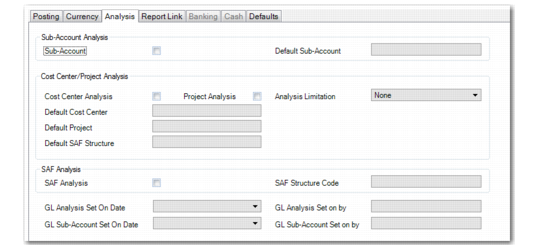
Analysis Tab
Use the Analysis tab to define how entries to the account must be analyzed. You can specify:
• Whether a sub-account is required and the default sub-account to use
• Whether a cost center, a project, or both are required, and the default cost center or project to use
• Whether Supplementary Analysis Fields (SAFs) are required
If cost center analysis and project analysis are enabled, you can apply rules (limitations) in relation to the recording of cost centers and projects.
If you have enabled COA masks, the sub-accounts, cost centers, and projects you use in the account analysis must be valid according to the COA masks. See
COA Masks.
Important: After you have saved account setup data and used the account in postings, you can change the account setup to add additional analysis (project or cost center), but you cannot remove analysis. You can change the analysis limitation setting at any time.
GL Account, Analysis Tab
Field Descriptions
Sub-Account Analysis
Sub-Account
Select to indicate that this account uses sub-account analysis. Specify the default sub-account profile in the next field.
Default Sub-Account
This field is enabled when you select the Sub-Account field. Specify a default sub-account profile. When you enable sub-account analysis for bank accounts, tax accounts, and accounts with automatic posting, you must specify a default sub-account profile.
Cost Center/Project Analysis
Cost Center Analysis
Select to indicate that this account uses cost center analysis. This option enables the Default Cost Center and Default SAF Structure fields.
If you enable cost center or project analysis, you cannot also activate SAF analysis.
If you enable both cost center analysis and project analysis for the same account, you must specify an analysis limitation.
You cannot enable cost center analysis for tax, closing, and bank accounts.
Project Analysis
Select to indicate that this account uses project analysis. This option enables the Default Project and Default SAF Structure fields.
If you enable cost center or project analysis, you cannot also activate SAF analysis.
If you enable both cost center analysis and project analysis for the same account, you must specify an analysis limitation.
You cannot enable project analysis for tax, closing, and bank accounts.
GL accounts to be used in operational functions such as Purchase Orders cannot be set up with project analysis only. You must enable project and cost center analysis. When you enable cost and project analysis for a GL account, the analysis limitation must be set to none, one required, or cost center required.
Analysis Limitation
When you enable both cost center and project analysis, you must specify a condition for the analysis.
Choose from the following options:
• None: There is no limitation on how you use cost centers and projects on a transaction. If you only enable one analysis type from cost center and project analysis, the Analysis Limitation field is not updatable and is always set to None.
• One Required: You must specify at least one project or one cost center on the transaction. This setting is supported in the Financials, Operational, and Fixed Assets modules.
• Both Required: You must specify both a project and a cost center on the transaction. This setting is supported in the Financials module only.
• Cost Center Required: You must specify a cost center. Specifying a project is optional. You can apply this analysis limitation to cash, fixed assets, inventory control, open items, standard, and WIP control accounts, and PO Receipt system accounts. This setting is supported in the Financials, Operational, and Fixed Assets modules.
• Excluding each Other: You must specify either a project or a cost center on the transaction. You cannot specify both types of analysis. This setting is supported in the Financials module only.
• Project Required: You must specify a project. Specifying a cost center is optional. This setting is supported in the Financials module only.
Note: You can change the analysis limitation setting at any stage even after Financials transactions have been posted using the account.
Default Cost Center
When you enable cost center analysis, select a default cost center profile for transactions on this account. When you enable cost center analysis for an account that is set to post automatically, you must specify a default cost center profile.
You can leave the Default Cost Center field blank for accounts with manual posting.
Default Project
When you enable project analysis, select a default project profile for transactions on this account. When you enable project analysis on an account that is set to post automatically, you must specify a default project profile.
You can leave the Default Project field blank for accounts with manual posting.
Default SAF Structure
When you enable cost center or project analysis, select a default SAF structure code for transactions on this account. This field is optional.
When the analysis type is cost center or project, you must specify a default SAF structure if the Retrieve Structure from GL Account setting is selected for the cost center or project.
SAF Analysis
SAF Analysis
Select to indicate that this account uses SAF analysis. This option enables the SAF Structure Code field.
If you enable SAF analysis, you cannot activate cost center or project analysis.
You cannot enable SAF analysis for tax, closing, and bank accounts.
SAF Structure Code
Specify a default SAF structure code for transactions on this account.
This field is required when the analysis type is SAF.
General Fields
GL Analysis Set On Date
This field displays the date on which analysis was activated for the account. This field is unavailable if analysis is not activated for the account.
GL Analysis Set On By
This field displays the user who activated analysis for the account. This field is unavailable if analysis is not activated for the account.
GL Sub-Account Set On Date
This field displays the date on which sub-account analysis was activated for the account. This field is unavailable if sub-account analysis is not activated for the account.
GL Sub-Account Set On By
This field displays the user who activated sub-account analysis for the account. This field is unavailable if sub-account analysis is not activated for the account.
Changing the Analysis Limitation
New analysis limitation values (Cost Center Required and Project Required) were introduced in QAD 2012 EE and retrofitted to earlier releases. For accounts used in Financials transactions, you can change the analysis limitation setting to use the new values without restriction. However, you may encounter issues if you have changed the analysis limitation settings for GL accounts used in unposted operational transactions.
Important: It is recommended that you post all operational GL transactions prior to changing the GL account analysis limitation.
For unposted operational GL transactions that met the analysis limitation when the transaction was created and where the analysis limitation has since been changed to a more restrictive limitation (for example, from None to Cost Center Required), the system displays an error when you run Operational Transaction Post.
When posting operational transactions for accounts with updated analysis limitation settings, if a small number of errors are raised, use Unposted GL Transaction Correction to update the analysis limitation value for the accounts and then rerun Operational Transaction Post. If a large number of posting errors are raised, undo the analysis limitation change, post the transactions, and then restore the analysis limitation change.
Similarly, the Pending Invoice Register does not display unposted sales invoices if the analysis limitation settings for the sales accounts were updated after the invoice was created, and where the invoice is likely to cause errors during Invoice Post and Print.