Creating GL Accounts
Use the GL Account activities (25.3.13) to create, view, modify, and delete GL accounts. You can also use Excel integration (25.3.13.5) to import account information from an Excel spreadsheet. For details on setting up Excel integration, see
Introduction to QAD Enterprise Applications User Guide.
The following table lists the attributes of an existing GL account that you can change.
Note: With the exception of the Category attribute, you can only modify these attributes when they have not been used in posting.
|
Tab
|
Field
|
|
Posting
|
GL Description
|
|
|
Budget Group
|
|
|
Balance/PL
|
|
|
Automatic/Manual
|
|
|
Category
|
|
Currency
|
TC Revaluation in BC
|
|
|
TC Revaluation in SC
|
|
|
TC Revaluation Rate
|
|
|
SC Revaluation Rate
|
|
|
Exchange Method
|
|
|
Exchange Rate Type
|
|
Analysis
|
Analysis Type
|
|
Report Link, Banking, and Defaults
|
All fields
|
If the account is not a standard account, you cannot modify the Balance/PL field, with the exception of tax accounts. In addition, restrictions exist regarding the Analysis Type. See
Analysis Tab.
You cannot delete a GL account if it is referred to by another system element.
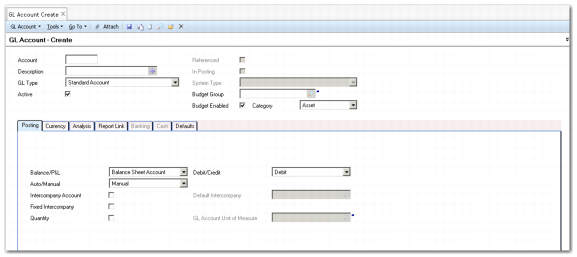
GL Account Create
Field Descriptions
Account
Enter a code (maximum eight characters) identifying the account.
Description
Enter a brief description (maximum 24 characters) of the GL account. You can optionally enter descriptions in more than one language. For more information on the Translation Option, see
Introduction to QAD Enterprise Applications User Guide.
GL Type
Select the type of account. See
GL Account Types for a description of the available account types.
Active
Indicate if this is an active account.
Inactive accounts cannot be used to record new transactions. An inactive account is still available, however, for historical transactions in overviews and reports.
Referenced
This read-only field indicates that the account is already referenced within the system. For example, when the account is used in a payment instrument process, this field is automatically selected.
In Posting
This read-only field indicates that the account has been used in postings.
System Type
This drop-down menu is enabled when you select a system account as the account type. Select a value from the list. See
System Accounts.
Budget Group
If this account is to be included in a budgeting group, enter a code for the group, or click to look up and select an existing code. Setting up a budget can be done with this group code or by specifying ranges or lists of GL accounts. See
Budgeting.
Budget Enabled
Select the field to enable budget checking. This field is effective if budget checking is enabled in System Maintain (36.24.3.1). For details on this function, see
QAD System Administration User Guide.
Category
Select a code for classifying the account based on its function on financial statements. Choices are:
Asset: These represent economic resources owned by an entity, both tangible and intangible, such as bank balances, amounts owed by customers, inventories, land, buildings and machinery, investments, and goodwill. Asset accounts appear on the balance sheet.
Liability: Liabilities are amounts owed to other parties for goods and services supplied and loans. This category also includes capital—sometimes termed equity or net worth—which represents the economic resources supplied to an organization such as share capital, reserves, and loan capital. Liability and capital accounts appear on the balance sheet.
Expense: Any account to appear in the income statement and not defined exceptionally as an income account is defined as an expense. Typically, materials, labor, and expense accounts are all expense accounts. Some revenue accounts may also be defined in the expense category; for example, scrap sales and recovery accounts.
Income. This category identifies any account to appear as a sales account in the income statement. The system assumes, in some reports, that the income account values provide the denominator when the system calculates percentages of sales. For example, Labor account (expense category) is 50% of the sum of the sales accounts (income category).