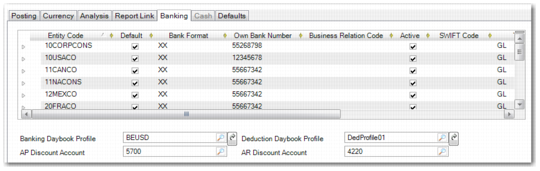
Banking Tab
The Banking tab is enabled when you create an account with the GL type Bank Account or Cash Account. Use this tab to enter bank account details. You can assign multiple bank accounts for each GL account, to support each entity where the GL account is used.
The bank information you specify here identifies your company banks. You associate these banks with customer and supplier banks in the customer and supplier functions. The Customer Banking tab is described in
Banking Tab.
Banking activities are described in
Banking and Cash Management.
Right-click the empty grid and insert a new row for each bank account.
Important: When completing the Banking tab for a Cash type account, specify the discount accounts only. Do not complete any of the other fields in the tab
GL Account, Banking Tab
Field Descriptions
Entity Code
You must select at least one entity to link to this bank account, usually your own entity. When you select the Default field, you effectively designate this account as the default bank account for your entity.
You must also enter at least one bank account number. The bank account format is validated using the validation drop-down list (see
Define Bank Account Formats). The bank number you enter here is displayed in all outgoing payments; for example, in customer or supplier invoices or as header information in payment files to other banks.
In cases where a parent company and its subsidiaries use different account numbers within the same company account, you can enter a default bank account number for each entity in the domain. You can assign bank account numbers only to entities within the same domain.
When you switch entities within a domain, and create transactions that update the company account, the bank account number used and displayed in subsequent reports is the one you assigned to this entity in the account grid.
However, you can define only one bank account number for each linked entity. If you link multiple account numbers to a single entity, the system cannot identify the correct account number when you use the account in a payment selection.
You can, however, define two bank account numbers for the same entity when you have selected in-bound and foreign validations for the account. In this case, the system identifies which of the accounts to use from the account information contained in the Payment Format Link.
Note: When you click to save the account details, the system displays a warning to say that you have not defined bank accounts for all the other entities using this account shared set. You need only define bank accounts for the entities in which you are working, and this message does not prevent you from saving the account.
Default.
Select this field to make this account the default for the entity. See
Define Own Bank Number.
Bank Format
If the bank account number must be validated, choose the validation method from the drop-down list. When you select a bank number format, the system creates a child row in which you enter the number to be validated. See
Define Bank Account Formats.
Own Bank Number
Specify your own bank account number, which is the account number for the entity in which you are currently working. The account number is validated by the bank format you selected.
Currency
This field displays the currency defined for the payment format associated with your bank account.
Business Relation Code
Specify a business relation for the bank if necessary.
For example, if the company bank account for the parent organization is with Bank of America, create a business relation that contains the bank address.
This links the account details you define to your bank address and tax details, and provides address, tax, and contact information for payment processing. For example, bank address details are required for certain formats and are retrieved from the business relation linked to the account.
This field is mandatory when the Bank Charge field is selected.
Extension
Specify the bank extension number, if required. If your company needs several bank accounts in different currencies, you can configure one default bank account number with an extension for each currency.
Active
Indicate if this is an active record.
SWIFT Code
If the bank supports SWIFT (the Society for Worldwide Interbank Financial Telecommunication), specify the SWIFT code.
SWIFT is a network banks use to perform world-wide AP payments between banks. SWIFT payments require additional data.
Branch
The branch code for the bank. Many banking systems use branch codes as identification codes in transactions. This field is mandatory when the Bank Charge field is selected.
Bank Charge
Select this field if payments posted to the bank account represented by this GL account can incur bank charges. If you select this field, the Business Relation Code and Branch fields become mandatory fields. For more information on AP bank charges, see
AP Bank Charges.
Bank Charge Acct
The bank account that bank charges on payments are posted to. For more information on AP bank charges, see
AP Bank Charges.
Bank Account Type
Enter a code that represents the bank account type. This bank account type code appears in the payment file that is sent to the bank during the AP payment process.
Last Modified Date/Time and User
These read-only fields are maintained by the system and display the ID of the user who last updated this record and the date and time of update.
Banking Daybook Profile
Specify the daybook profile to be used for registering bank transactions.
Deduction Daybook Profile
Specify a deduction daybook profile to associate it with the entity bank account used for deductions.
AP Discount Account
Specify a discount account to be updated when an AP discount is applied to a payment.
AR Discount Account
Specify a discount account when an AR discount is applied to a payment; for example, for credit terms payment amounts.