Creating Projects
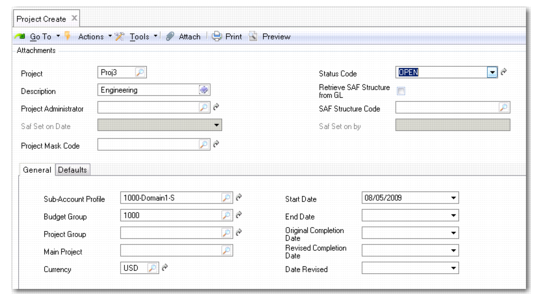
Use Project Create (25.3.11.1.1) to create project codes.
Project Create
Field Descriptions
Project
Enter a code (maximum eight characters) that identifies the project.
Description
Enter a brief description (maximum 24 characters) for the project. You can optionally enter descriptions in more than one language. For more information on the Translation Option, see
Introduction to QAD Enterprise Applications User Guide.
Project Administrator
Select a system user to associate with the project; for example, the department (project) manager.
Status Code
Select the project status code from the drop-down list, which shows codes defined using Project Status Create. The system status assigned to the project status controls how the projects can be used. See
Project Statuses.
Retrieve SAF Structure from GL
Select the field to use the SAF structure found in the Analysis Tab of the GL account for posting purposes. To enable this setting, an SAF structure must be specified for all accounts that have analysis type Project or Both. In addition, an SAF Structure Code cannot be specified for the project.
SAF Structure Code
Select an SAF structure code to link to the project. The SAF structure cannot be removed from a project if it has been used in posting.
If an SAF structure code is specified, Retrieve SAF Structure from GL cannot be selected.
SAF Set On Date and By
These read-only fields displays the date on which SAF analysis was activated for the project and the ID of the user who activated it.
Project Mask Code
Specify the COA mask that applies to the project. Click the lookup to list all project masks for the assigned project COA mask shared set.
A project GL mask defines the lists of GL accounts, sub-accounts, and cost centers that the project can be combined with during posting.
You can also create a new project mask as required by clicking the GoTo button to the right of the Project Mask Code field. The GoTo opens Project Mask Create (25.3.9.3.1). If you have already assigned a COA mask to the project, the GoTo button displays Project Mask View (25.3.9.3.3) and also lets you access a related view showing all projects linked to that COA mask. See
Project COA Mask.
The COA Element without Mask field in Domain Create controls how the system treats projects that are not assigned a project COA mask. If project COA masks are enabled for the current domain and the COA Element without Mask field is set to Exclude from Posting, the system prevents all projects without a COA mask from being used in postings. If the COA Element without Mask field is set to No Posting Restrictions, you can use the project in combination with any GL account, sub-account, or cost center.
If project COA masks are not enabled for the current domain, this field is read-only.
Project Create General Tab
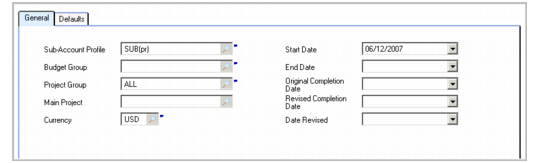
Project Create, General Tab
Field Descriptions
Sub-Account Profile
Select a sub-account profile to indicate which division or business unit is responsible for the project.
Start Date
Enter the start date of the project activities. No transactions can be posted before that date.
Budget Group
Select a budget group to associate with the project. Project budgets track cost and revenue evolution during a project life cycle.
End Date
Enter the date on which the project is expected to end. No transactions can be posted after that date.
Project Group
Use the lookup to specify the project group to which the project belongs, if any. Define the project group first; see
Project Groups.
Original Completion Date
Enter the initial planned completion date of the project.
Main Project
Enter the code of the main project. This can be used when the current project is a subproject of a larger one. The main project is used for reporting purposes, and the linked projects behave completely independently.
Revised Completion Date
If necessary, enter the date that the completion date was revised to.
Currency
Specify the currency in which project transactions are denoted and recorded.
Date Revised
Enter the date on which the revised project completion date was set.
Project Create Defaults Tab
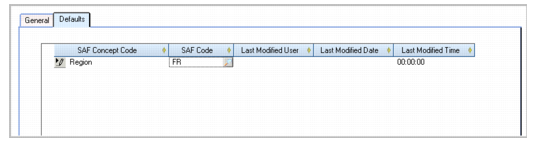
Use the Defaults tab to specify which concepts within a structure to associate with the project and specify default values for the concepts. Only one default can be specified for each concept. The defaults are used when a code value is not supplied in a transaction. These fields are not required. See
SAF Defaulting.
Project Create, Defaults Tab
SAF Concept Code
Select an SAF concept.
SAF Code
Select the default SAF code.
Last Modified Date/Time and User
These read-only fields display the ID of the user who last updated this record and the date and time of update.