Running GL Consistency Checks
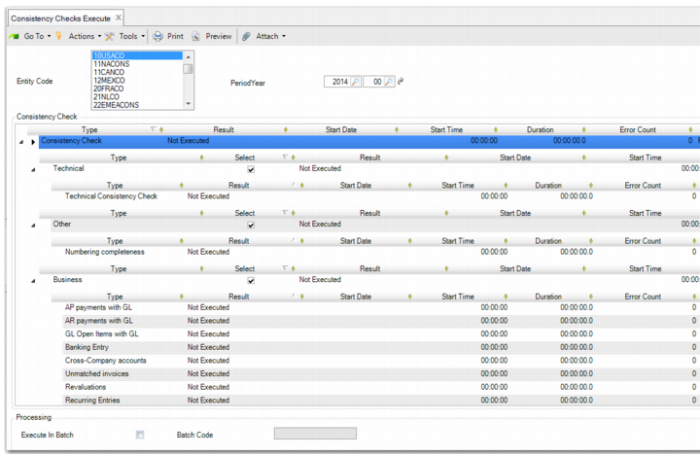
Consistency Checks Execute (25.21.3.1) lets you run a series of validations that verify the integrity of the Financials tables.
You can run three categories of consistency checks:
• Technical
The technical checks focus on the referential integrity of the Financials tables, ensure that mandatory fields are populated, and ensure that redundant fields are populated and consistent.
The list of technical consistency checks is fixed. You cannot select to run certain technical consistency checks and not others.
• Business
The business checks focus on the consistency of the tables from a business point of view, such as general ledger and sub-ledger administration. For example, the checks verify that the balance of a customer control account equals the open customer invoices posted to the account.
The list of business consistency checks is fixed. You cannot select to run certain business consistency checks and not others.
• Other
You can modify the other validations using non-intrusive customization to include any required additional consistency checks. The Numbering Completeness check is included in this section by default, but can be removed using non-intrusive customization.
You can run the consistency checks from the menu or as a GoTo option from the Entity GL Period functions. The Consistency Checks report (25.21.3.2) presents the results of previous checks in report format. See
Consistency Checks Report.
Running the technical and business consistency checks is a prerequisite to closing a GL period. If these consistency checks have not been run for a GL period, the system displays an error if you attempt to set the GL period to reported. When you have run the consistency checks for a GL period, you can set the period to reported, even if the consistency check run found errors. Setting a GL period to reported is a manual process, and you must decide whether to proceed with the closure based on the results of the consistency checks.
You can run consistency checks for entity groups. For more information on this, see
Entity GL Period Lock, and
Entity GL Period Report.
Note: You can run consistency checks for open, locked, frozen, or reported periods.
When you set a period to reported, the system displays a warning if previously run consistency checks for that period are out of date. This facility helps to protect against inconsistencies introduced in the following scenarios:
• You run the consistency checks at the beginning of a period, enter the period transactions (possibly creating inconsistencies), and then lock and report the period.
• You reopen a reported period, enter new data, and then lock and report the period again.
The out-of-date warning reminds you to rerun outdated consistency checks whose results have limited value from an audit perspective.
You can run the consistency checks in interactive mode in real time, or you can schedule the consistency checks to run in batch in the background. When you run in interactive mode, the Consistency Checks Execute screen is automatically updated with the results from the run.
Consistency Checks Execute
Entity Code
Specify the entity or entities for which to run the consistency checks. You must have permission to run Consistency Checks Execute in each entity selected. You can select entities from different domains.
If you want to run the consistency checks for more than one entity simultaneously, you must use batch mode.
Period/Year
Specify the GL period and year for which to run the consistency checks. The default value is the oldest open GL period.
You can run the consistency checks for entities from different domains, even if the GL period definitions for the domains are different.
Type
This column displays the types of consistency checks you can run.
Technical (Select)
Select this field to run the technical consistency checks. The system selects records to check based on their posting dates.
The technical consistency checks are run for the entities and for the GL period specified.
Business (Select)
Select this field to run the business consistency checks.
The business consistency checks are run for the entities and for the GL period specified. For balance type validations, the program checks up to the GL period specified.
For cross-company transactions, the system performs cross-company consistency checks between the entities and any other entities in the same database to which the cross-company transactions link.
The following business consistency checks are performed:
Check | Description |
Daemon Queues | Checks for unprocessed records, failed queue records, and successfully processed records in all daemons. |
Unposted Transactions | Verifies that there are no unposted transactions for the period. |
Trial Balance | Verifies that the trial balance transactions balance for the period. |
AP Sub-Administration with GL | Verifies that the total value of the AP transactions matches the balance of the supplier control account. This process performs identical checks to those in the AP versus Control GL Validation report (25.21.2.6). |
AR Sub-Administration with GL | Verifies that the total value of the AR transactions matches the balance of the customer control account. This process performs identical checks to those in the AR versus Control GL Validation report (25.21.2.5). |
AP Payments with GLs of Type Supplier Payment Account | Reconciles the balances of the supplier payment accounts with the open AP payments. |
AR Payments with GLs of Type Customer Payment Account | Reconciles the balances of the customer payment accounts with the open AR payments. |
GL Open Items with GL | Reconciles the total value of the GL open item transactions with the balance of the accounts of type GL Open Item. |
Banking Entry | Reconciles the amount on each banking entry line with the amount posted to the bank account in the linked posting. |
Cross-Company Accounts | Verifies that the balance of all cross-company transactions is zero. Additionally, the program checks that the cross-company accounting positions of the selected entities mirror each other. For example, the position in entity A toward entity B must be the same as (but the reverse of) the accounting position from entity B toward entity A. |
Unmatched Invoices | Reconciles the value of the unmatched invoices with the balance of the Unmatched Invoices system account. |
Revaluations | Checks for unposted revaluation simulations. |
Recurring Entries | Checks for unposted recurring entries. This process performs identical checks to those in the Pending Recurring Entries report (25.21.2.12). |
Allocations | Checks for transactions that are pending allocation. This process performs identical checks to those in the Pending Allocations report (25.21.2.11). |
Auto-balance GL account clear | Checks to determine if any postings remain on the Auto Balance system account at period end. |
Other (Select)
Select this field to run other validations.
You can modify the other validations list using non-intrusive customization to include any required additional validations. The Numbering Completeness check is included in this section by default.
The other validations are run for the entities and for the GL period specified. For balance type transactions, the validations check up to the GL period specified.
For more information on non-intrusive customization, see
QAD System Administration User Guide.
Result
This column displays the status of the consistency check. The possible values are:
Pass: After you run the consistency checks in interactive mode, checks that pass are assigned this status.
Warning: After you run the consistency checks in interactive mode, checks with warnings are assigned this status.
Failed: After you run the consistency checks in interactive mode, checks that fail are assigned this status.
Not Executed: This value is displayed for all available checks before they are run.
Start Date
This column displays the date on which the validation was run. The column is blank before you run the consistency checks. After you run the consistency checks in interactive mode, this column is updated.
Start Time
This column displays the time at which the validation was started. The column is set to 00:00:00 before you run the consistency checks. After you run the consistency checks in interactive mode, this column is updated with the relevant start time.
Duration
This column displays the duration of each consistency check. The column is set to 00:00:00:0 before you run the consistency checks. After you run the consistency checks in interactive mode, this column is updated with the duration of each check.
Error Count
This column displays the number of errors found during the consistency check. The column is set to 0 before you run the consistency checks. After you run the consistency checks in interactive mode, this column is updated with the error count for each check.
Version
This column displays the service pack and patch version.
Execute in Batch
Select this field if you want to run the validations in batch at a scheduled time. If you leave this field blank, the consistency checks are run in interactive mode.
Batch Code
Specify the batch code. This field is mandatory when you select the Execute in Batch field.
You must first define the batch code in Batch ID Maintenance (36.14.1). Batch IDs are domain specific.
When you click the Execute button, the system creates a new batch request and the consistency check records are stored in the database with the status Not Executed. You can then use Process Batch Request (36.14.13) to run the consistency checks batch according to the schedule defined for the batch. For further information on batch processing, see
QAD System Administration User Guide.