Daybook Masks
Daybook masks allow you to specify a selection of daybooks and daybook groups that you want to lock at GL period closing. This functionality prevents postings to these daybooks for the current entity and GL period. You can also lock daybooks for groups of entities using Entity GL Period Lock by Daybook (25.21.5.6). For more information on how to create entity groups, see
Setting Up Multi-Entity Processing. To lock one or more daybooks for a GL period, you must:
1 Decide the order in which to apply the daybook masks, and draw up a suitable timetable.
2 Create the daybook mask or masks.
3 Apply the mask or masks to the GL period.
Daybook masks introduce a greater level of granularity to the closing process by enabling you to build separate daybook masks for each stage of your closing process. You can also use daybook masks to prevent postings to particular accounting layers such as the US GAAP layer and local GAAP layers.
Example:
You create three daybook masks for accounts receivable: AR‑001, AR‑002, and AR‑003. Mask AR-001 contains a list of all the daybooks of type customer invoice, customer credit note, customer invoice correction, customer credit note correction—all with a daybook control of operational. Mask-AR002 contains a list of all the daybooks in AR-001, all daybooks of type customer invoices, customer credit notes, customer invoice corrections, customer credit note corrections with a daybook control of financial, and all daybooks of type customer adjustments with a daybook control of operational and financial. Mask AR-003 contains a list of all daybooks of type customer payments, banking entry, and cash entries. You use Entity GL Period Lock by Daybook to lock the daybooks as follows:
• On the last day of the GL period, apply mask code AR-001.
• On the first day of the new GL period, apply mask code AR-002.
• On the second day of the new GL period, apply mask code AR-003.
Finally, you close the Sales application in Entity GL Period Modify (25.4.2.1) to complete the period close of AR.
To create, modify, view, and delete daybook masks, use Daybook Mask Create (25.21.5.1.1), Daybook Mask Modify (25.21.5.1.2), Daybook Mask View (25.21.5.1.3), and Daybook Mask Delete (25.21.5.1.4) respectively. It is not possible to delete a daybook mask if it is currently applied to a GL period.
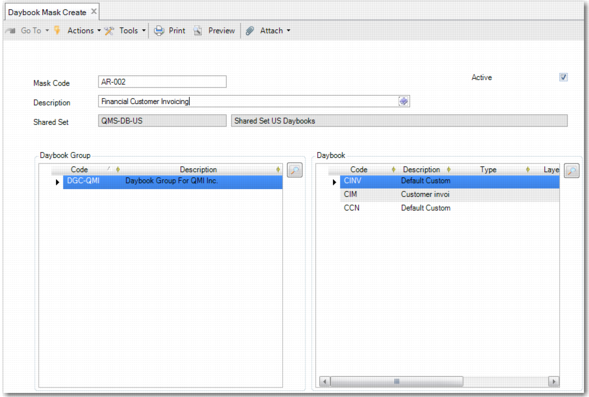
Daybook Mask Create
Field Descriptions
Mask Code
Specify a code (maximum 20 characters) that identifies the daybook mask. This code must be unique within the current shared set. This field is mandatory.
Active
Specify if the mask is active or inactive. You can only assign a daybook mask to entity GL periods in Entity GL Period Lock by Daybook if the mask is active.
Description
Enter a brief description (maximum 40 characters) of the daybook mask. You can optionally enter descriptions in more than one language. For more information on the Translation Option, see
Introduction to QAD Enterprise Applications User Guide. This field is mandatory.
Shared Set
This field displays the daybook shared set for the current domain.
Daybook Group
Use the lookup icon to select daybook groups to include in the mask.
Daybook
Use the lookup icon to select daybooks to include in the mask.
The contents of both the Daybook Group and Daybook grids are included in the mask. You must include at least one daybook or daybook group in the daybook mask to save an active daybook mask. You can only select daybooks or daybook groups that belong to the shared set displayed in the Shared Set field. Daybook masks cannot include periodic costing daybooks. If you select a daybook or daybook group that is inactive, a warning displays.
Applying a Daybook Mask to a GL Period
To apply a daybook mask to a GL period for the current entity or a group of entities, open Entity GL Period Lock by Daybook (25.21.5.6) and select the relevant GL period. In the resulting screen, specify the daybook mask to apply to the GL period.
There are some restrictions on applying daybook masks to GL periods. You cannot apply a daybook mask to a GL period if:
• The GL period is a year-end closing period.
• The daybook mask contains customer invoice daybooks with operational control, and Invoice Post and Print is running.
• The daybook mask contains daybooks of type journal entry with operational control, and there are operational transactions outstanding.
Note: To overcome this restriction, run Operational Transaction Post and then apply the mask.
• The daybook mask contains revaluation daybooks, and there are unposted revaluations for the GL period.
• The daybook mask contains daybooks of type AP matching, and AP matching postings for the GL period exist in the transient layer.
Note: Locking a GL period that has a daybook mask applied to it removes the daybook mask automatically; removing the lock from the GL period does not reapply the daybook mask.
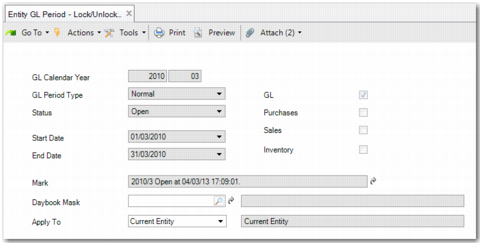
Entity GL Period Lock by Daybook
Field Descriptions
GL Calendar Year
This defaults to the selected GL period.
GL Period Type
This defaults to the selected GL period type.
GL, Purchases, Sales, Inventory
The GL, Purchases, Sales, and Inventory fields are read only in Entity GL Period Lock by Daybook. If a module is open to transactions, the associated field is selected. If the module is closed to transactions, the associated field is not selected.
Status
The status of the selected GL period.
Start Date, End Date
The start date and end date of the selected GL period.
Mark
This field displays a system-defined period mark for the period, if one has been defined.
Daybook Mask
Specify the daybook mask code for the mask that you want to apply to the GL period. You can only apply active daybook masks to GL periods, and only one mask can be associated with a GL period at any time. When you have specified the mask, a description of the daybook mask appears in the field to the right of the Daybook Mask field.
Apply To
Use this drop-down menu to specify if you want to apply the daybook mask to the current entity or to a group of entities. Only entity groups that contain the current entity appear in this list. For information on how to create groups of entities, see
Setting Up Multi-Entity Processing. If the start date or end date for the selected GL period is not the same for all entities in the group, a warning displays. If the daybook shared set is not the same for all of the entities in the entity group, an error occurs.
Important: If you add the current entity to an entity group for the first time, you must log out and log in again before the Apply To field displays.
Note: When a daybook mask is applied to a GL period, the overall status of the GL period remains Open, even if certain postings are blocked depending on the daybooks defined in the mask.
Removing a Daybook Mask from a GL Period
To remove a daybook mask from a GL period, open Entity GL Period Lock by Daybook (25.21.5.6), select the relevant GL period, clear the contents of the Daybook Mask field, and click Save.
Copying Daybook Masks
Daybook Mask Copy (25.21.5.1.5) enables you to copy an existing mask and make changes to the copy. This activity is useful when creating masks that build on existing masks to create more comprehensive masks, as in the example in
Daybook Masks. To copy an existing mask, right-click the relevant daybook mask in the list of daybook masks that appears when you open Daybook Mask Copy, and then select Copy.
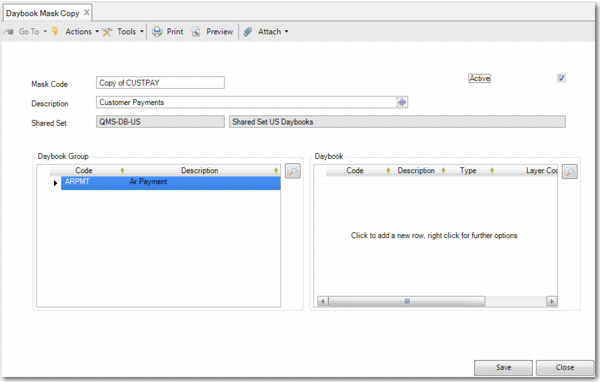
Daybook Mask Copy
The fields on this screen are the same as the fields in Daybook Mask Create (25.21.5.1.1). The Mask Code field defaults to the name of the original mask preceded by the words Copy of. You can rename the mask. Apart from the Mask Code field, Daybook Mask Copy copies the source mask exactly. If the source mask is inactive, the copied mask will also be inactive and you must activate it in order to assign the daybook mask to an entity GL period.
Entity GL Period Lock
You can use the Entity GL Period Lock (25.4.2.3) activity to lock a GL period to all posting activity for a single entity or an entity group.
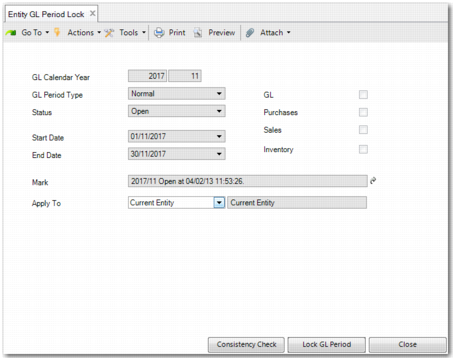
Entity GL Period Lock
The fields in Entity GL Period Lock are the same as the fields in Entity GL Period Modify, apart from the Apply To field. This field allows you to apply the lock to a single entity or to a group of entities. The Apply To field contains the current entity, along with entity groups that contain the current entity, provided you have access to all of the entities within the entity group.
Important: If you add the current entity to an entity group for the first time, you must log out and log in again before the Apply To field displays.
The following behavior occurs when running activities on entity groups:
• If the activity fails for one entity within the entity group, you are informed of the entities that the activity failed for. The activity completes for all remaining entities. For example, if you do not have role permission for a specific activity for an entity in the group, an error displays for that entity; the activity completes for the other entities.
• If the start date or end date for the selected GL period is not the same for all entities in the group, a warning displays.
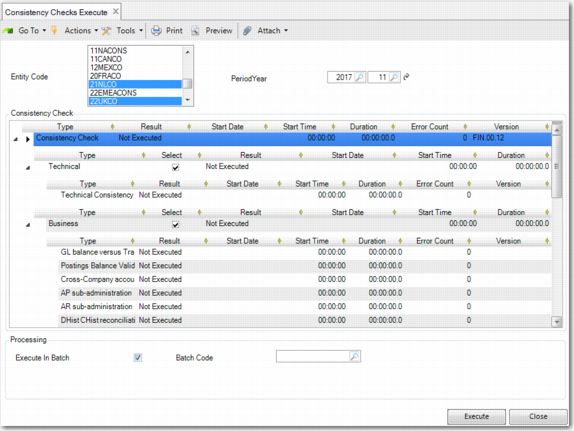
• For activities that involve running a consistency check, by default all entities included in the group are selected for the check; these entities display in the Entity Code field. Clicking within this field removes the selection of all entities apart from the entity that you click on. For more information on consistency checks, see
Running GL Consistency Checks.
Consistency Check
If additional changes are needed to a GL period, Entity GL Period Unlock (25.4.2.4) allows you to undo the lock for that period before making the changes. While you can use Entity GL Period Lock on groups of entities, you can only use Entity GL Period Unlock on one entity at a time.
For more information on setting up entity groups, see
Setting Up Multi-Entity Processing.
Entity GL Period Report
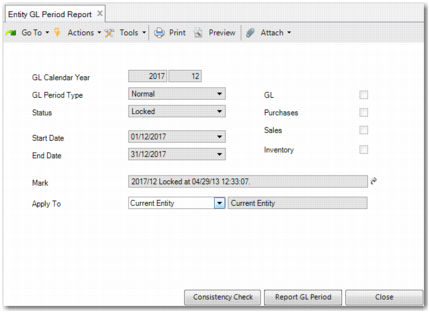
You can use the Entity GL Period Report (25.4.2.5) activity to report the period in the current entity or a group of entities, closing it to further updates.
Entity GL Period Report
The Entity GL Period Report fields are the same as those in Entity GL Period Lock. For information on these fields and how Entity GL Period Report behaves for entity groups, see
Entity GL Period Lock. For more information on setting up entity groups, see
Setting Up Multi-Entity Processing.
Important: The Apply To field applies only when you are working with entity groups. If you add the current entity to an entity group for the first time, you must log out and log in again before the Apply To field displays. For more information on entity groups, see
Setting Up Multi-Entity Processing.
Note: Running the technical and business consistency checks is a prerequisite to reporting a GL period. If these consistency checks have not been run for a GL period, the system displays an error if you attempt to set the GL period to reported. For more information on consistency checks, see
Running GL Consistency Checks.
If additional changes are needed to a GL period, Entity GL Period Report Undo (25.4.2.6) allows you to undo the reporting for that period before making the changes. While you can use Entity GL Period Report on groups of entities, you can only use Entity GL Report Undo on one entity at a time.
Multi-Entity Closing View
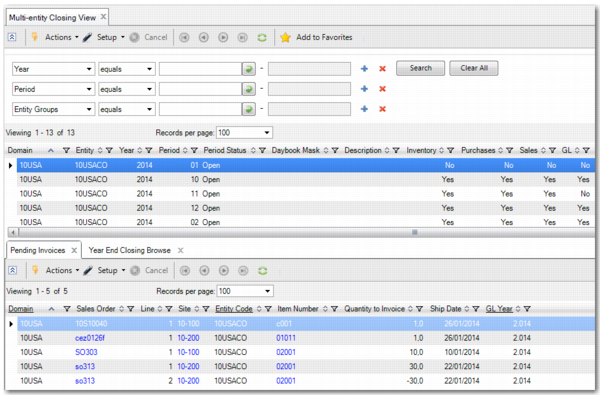
The Multi-Entity Closing View browse collection lets you determine the closing status of periods across all domains and entities in the database.
Multi-Entity Closing View
You can view:
• The status of the period: open, closed, frozen, or reported.
• Whether or not there is a daybook mask code assigned to a period.
• Which of the application areas are open or closed for a period; available ledgers are Inventory, Purchases, Sales, and GL.
• Whether or not there are unposted operational transactions in a period.
• Whether or not there are posted revaluations in a period.
• Supplier invoices with an allocation status of Transient Allocation.
• Details of accounting layers (official or management) that have been closed for a year and entity.
The data displayed in the browse is sorted by year, then period, then domain, and finally by entity.
The Pending Invoices tab contains a browse related to the GL period selected in the main browse; this browse displays any sales orders that were shipped in the selected period and are ready for invoicing.
The Year End Closing Browse tab enables you to view details of official or management layers that have been closed. The displayed layers relate to the year and entity selected in the top half of the browse.