Adjust Open Items
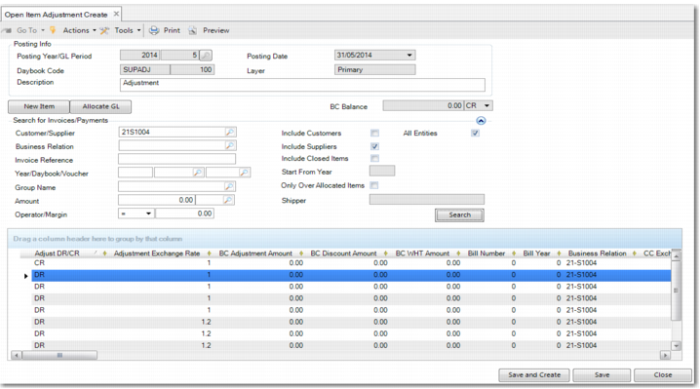
Use Open Item Adjustment Create (25.13.5) to adjust open items.
You can link invoices to credit notes using:
• Customer Invoice Create (27.1.1.1) and Supplier Invoice Create (28.1.1.1)
• Customer Payment Selection Create (27.6.4.6) and Supplier Payment Selection Create (28.9.4.1)
Use open item adjustment if you have not linked and reduced or netted invoices and credit notes using the above options.
Open item adjustment also lets you adjust supplier or customer balances without linking an outstanding payment; for example, to resolve unallocated cash payments. You can make customer and supplier adjustments in the same adjustment transaction. When the invoice or credit note is paid or when a prepayment is allocated, the open item is closed. If the Customer/Supplier Compensation Allowed field is selected for the entity and for the business relation, customer and supplier open items belonging to the same business relation can be adjusted directly against each other. See
Setting Up Open Item Adjustment.
Often, organizations are billed for services they have not yet benefitted from; for example, rent is often paid in advance. You can use Open Item Adjustment to record prepayments for revenue received or expenses paid in advance. You can also create adjustments for prepayment open items created in the Banking Entry or in Supplier Payment Selection.
The Open Item Adjustment screen is composed of three parts:
• The header, which contains posting parameters: GL calendar year, GL period, daybook, voucher, and layer
• The search criteria for locating open items
• The Open Items grid listing open item transactions, for which you can specify new balances
Initially, the Open Item grid is empty and you must locate open items using the search criteria. After entering selection criteria, click Apply and the grid displays all open items that match the criteria.
You can make multiple adjustments for a single customer or supplier, or for multiple business relations. Each adjustment is displayed in the open item grid in sequence. The transaction is posted when you save the adjustments.
The sum of all debit and credit adjustments results in a balance. When that balance is zero, the adjustments can be saved. When the balance is less than or greater than zero, you must clear the balance using a new open item or by allocating it to a GL account.
The New Item option lets you reopen invoices that were incorrectly matched and allocate the differences to other invoices. In addition, if you cannot find an item to adjust, you can create a new open item for the customer or supplier. See
New Item.
The Allocate GL option lets you create a journal entry in which completed adjustments are represented as read-only posting lines in control accounts. See
Allocate GL.
You can use Open Item Adjustment Create to adjust open items subject to withholding tax. See
QAD Global Tax Management User Guide for details.
Open Item Adjustment Create
Field Descriptions
Posting Year/Period/Posting Date
Specify a GL calendar year, GL period, and posting date for the adjustment posting.
Daybook/Voucher
Specify a daybook. You must specify a type of either SA (Supplier Adjustment) or CA (Customer Adjustment).
The Voucher field is a read-only display of the system-generated voucher number.
Layer
This read-only field indicates that the adjustment is to be posted to the official layer.
Description
Enter a maximum of 256 characters to describe the reason for the open item adjustment. For customer adjustments, the description displays in the Activity, Invoices, and Payment tabs of the Customer Activity Dashboard (27.18.1). For supplier adjustments, the description displays in the Activity, Invoices, and Payment tabs of the Supplier Activity Dashboard (28.18.1).
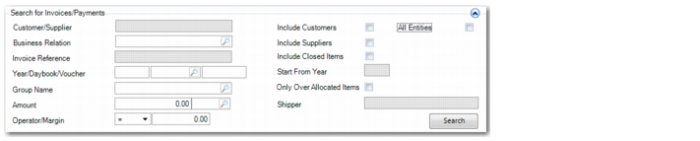
Search Criteria for Invoices
Use the search criteria to locate outstanding open items.
Search Criteria for Invoices
Field Descriptions
Search for Invoices
Business Relation
Specify a business relation. Select one or both of the Include Customers and Include Suppliers fields to refine the search criteria.
Customer/Supplier
Specify a customer or supplier. Depending on whether you selected the Include Customers field or Include Suppliers field, the lookup results display customers or suppliers.
Invoice Reference
Specify an invoice reference. This applies to supplier invoices only.
Year/Daybook/Voucher
Specify a year, daybook, or voucher number for the open item to adjust.
Group Name
Specify a corporate group code to display the open items for all customers and suppliers belonging to that group.
Include Customers
Select to display open items of customers linked to the selected business relation. To display all open items for all customers, select this field without specifying a business relation.
When you specify a customer adjustment (CA) daybook type, this field is selected by default.
Include Suppliers
Select to display open items of suppliers linked to the selected business relation. To display all open items for all suppliers, select this field without specifying a business relation.
When you specify a supplier adjustment (SA) daybook type, this field is selected by default.
Include Closed Items
Select to include open items that have previously been closed. Use this field in combination with the Start from Year field to limit the number of results.
If you have closed an item in error or if the item you want to adjust is not listed with the open items, use the Include Closed Items field to expand the search criteria.
Start from Year
Specify a GL calendar year from which to search for closed open items.
All Entities
Select to display open items from all entities in the database. This field is controlled by the Open Item Cross Entity field in the entity record.
When the Open Item Cross Entity field is enabled for the entity, you can use Open Item Adjustment to display and net items from other entities.
If the Open Item Cross Entity field is disabled for the entity, the All Entities field in Open Item Adjustment is disabled for editing, and you cannot display and net items from other entities.
When an open item adjustment includes cross-entity transactions, the entities involved must have compatible netting control settings. If the entities have different control settings, the most restrictive setting is applied. See
Setting Up Open Item Adjustment for more information on netting control settings and on the Open Item Cross Entity field.
When you adjust an open item from another entity, you create a cross-company posting. See
Intercompany and Cross-Company Transactions for more information.
Only Over Allocated Items.
Select this field to display only open items that have been over-allocated in the results grid. The sign (positive or negative) on the invoice amount should be the inverse of the sign on the balance amount. An item is over-allocated if the invoice debit TC amount and balance TC amount are both less than zero, or if the invoice credit TC amount and balance TC amount are both greater than zero.
Amount
Specify an amount and a currency for the open item.
Operator/Margin
Specify a calculation operator and a margin for the amount. The amount and margin must be positive. The search returns both debit and credit matches.
When the operator is set to = and the margin is set to zero, the search returns open balances that equal the value in the Amount field.
When the operator is set to = and the margin is set to, for example, 10, the search returns open balances within a range of +10 or –10 of the value in the Amount field.
When the operator is set to <= or >=, the margin field is unavailable and the search returns amounts less than or greater than the value in the Amount field.
Customer Shipper
Specify a shipper.
Bill Year/Number
Enter the year and number of the bill that this amount belongs to. This field is added using Design Mode.
Click Search to display the results.