General Tab
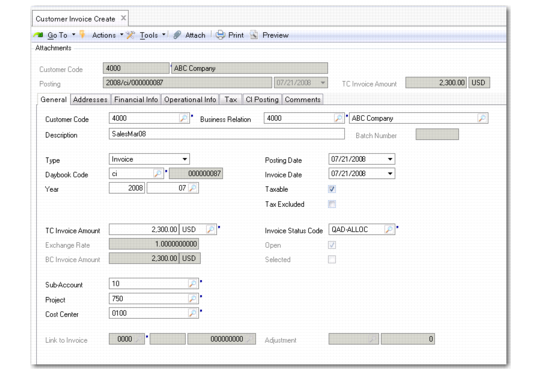
Use the General tab to complete the customer details, invoice or credit note amount and exchange rate, posting date, year and period, and analytical details.
Customer Invoice Create, General Tab
The top frame displays summary information for the invoice, in read-only format.
All fields in this tab display read-only information for sales-related invoices, except for Description, Tax Excluded, Invoice Status Code, and Contact, which can be modified.
Field Descriptions, General Tab
Customer Code
Specify the code that identifies the customer address that pays the invoice. The business relation code associated with the bill-to automatically displays next to it.
When you create a new invoice, you can specify a business relation before selecting the customer. In this case, the customer code is loaded. When more than one customer is linked to the business relation, you must select from the available customer codes.
The bill-to address can represent a corporate parent or simply a different location for billing. Credit information defaults from the bill-to address, including credit limit, terms, and currency.
For sales-related invoices, the customer code displays the customer bill-to address specified on the associated order.
You can retrieve customers by selecting their business relation codes or business relation names.
Business Relation
The system displays the business relation code linked to the customer.
Business Relation Name
This field displays the business relation name, when one has been defined. You can select customers by their business relation name. When the name is selected, the system automatically retrieves the business relation and customer codes.
Description
Enter a brief description (maximum 40 characters) of the invoice. This field is mandatory.
Batch Number
If this is a sales-related invoice, the batch number specified during invoice post displays. For manually created invoices, you cannot enter a value in this field.
Type
This field displays the invoice type. When creating an invoice, choose the invoice type from the drop-down list:
• Invoice
• Credit Note
• Finance Charge
• Invoice Correction
• Credit Note Correction
Invoice Correction and Credit Note Correction display as choices only when the appropriate daybook types have already been defined.
Daybook Code
This field displays the daybook specified on the associated order of a sales-related invoice. The system selects the appropriate daybook based on the invoice type: invoice, invoice correction, credit note, credit note correction, or finance charge. The system-generated invoice number is based on the daybook. When creating an invoice, you must specify an internal daybook with a type that matches the invoice type.
Year/Period
This field displays the GL calendar year and GL period for sales-related invoices. When creating an invoice manually, you must specify a valid GL calendar year and GL period.
Posting Date
This field displays the date the sales-related invoice was generated by Invoice Post and Print.
When creating an invoice, specify a date on which the invoice is to be posted. This date defaults from the invoice creation date, if that belongs to an open GL period. If you select another GL calendar year or GL period, the end date of that GL period is used as the default value for the posting date. The date must be within the start date and end date limits for that GL period.
Important: When chronological invoice numbering is active, the system displays an error or warning when you run Invoice Post and Print for a GL effective date that is earlier than a posting date on an existing invoice for the same entity and daybook. See
Chronological and Consecutive Invoice Numbering for more information on invoice numbering.
Invoice Date
Specify an invoice creation date; the default is the system date. A warning displays if this date is not prior to the posting date.
The system uses the invoice date with the credit terms to calculate due date and discount date.
Invoice Number
You cannot edit this field. It contains the invoice number, which is automatically generated on invoice creation.
Taxable
Select if this invoice is subject to taxes. For a new invoice, this defaults from the customer. For sales-related invoices, this field is based on the taxable status of the associated order.
Tax Excluded
When selected, this field indicates that the amount specified for Invoice Amount excludes tax. This means that the system uses the total amount as the basis for tax calculation. When tax is included (that is, the Tax Excluded field is cleared), it is assumed that the value you specify in the Invoice Amount field includes the tax.
This field defaults from the Customer Invoice Total Excludes Tax field in Global Tax Management Control (29.24).
TC Invoice Amount
Enter the total invoice amount and specify a transaction currency. For a new invoice, currency defaults from the customer bill-to.
For sales-related invoices, this field displays the total invoice amount, including tax, in the transaction currency.
For manually created invoices, the value of Tax Excluded determines whether this amount includes tax.
You can save zero-value invoices, which have no TC invoice amount. However, the system displays a warning to prevent you from doing so by mistake.
Exchange Rate
If the transaction currency is not the same as the domain base currency, the applicable accounting exchange rate displays and can be edited; otherwise, the system displays 1 and the field cannot be changed. The BC Invoice Amount is calculated based on the exchange rate.
If you modify the BC Invoice Amount, the exchange rate is automatically adjusted.
Example: The base currency is Euro, the transaction currency is GBP, and the default exchange rate for these currencies is 0.5 (2 euro to 1 GBP). The transaction amount is 1000 euro, and the base currency amount is 500 GBP. By increasing the base currency amount to 750 GBP, you change the exchange rate for this transaction from 0.5 to 0.75.
BC Invoice Amount
When the transaction and base currencies are the same, this field is read-only and displays the same amount as TC Invoice Amount. Otherwise, it is TC amount adjusted based on the exchange rate.
If you modify the base currency amount when creating an invoice, the system automatically recalculates the exchange rate to ensure that the transaction currency amount remains the same.
Invoice Status Code
This field displays the default invoice status code associated with the customer. Invoice status codes can be used on customer invoices to indicate whether the invoice is contested and—if so—why it is contested. See
Invoice Status Codes.
Note: Invoice status codes have a different usage for supplier invoices where they are used to control the invoice approval process.
Open
When selected, this read-only field indicates the invoice has not been completely paid. It is updated automatically when complete payment is registered.
Sub-Account
Specify a sub-account if the customer control account is defined with sub-account analysis. Otherwise, the field cannot be updated. The system also uses the specified sub-account for all invoice posting GL transactions to GL accounts with sub-account analysis.
For customer invoices, the system refers to the sub-account profile and uses the default sub-account specified in that profile for the sub-account shared set of the current domain.
Project
The system uses the specified project for all invoice posting GL transactions to GL accounts with project analysis.
Cost Center
The system uses the specified cost center for all invoice posting GL transactions to GL accounts with cost center analysis.
Link to Invoice
Specify an invoice or credit note to which you want to link the current document. A credit note can have a one-to-one link to an invoice. You can select invoices for this customer that have opening balances greater than or equal to the amount of the credit note. When you create the link, the system creates an automatic open item adjustment (customer adjustment) of linked documents with a posting date equal to that of the credit note, using a Customer Adjustment daybook.
The following links are possible.
Current Document | Link To |
Credit Note | Invoice |
Correction Invoice | Invoice |
Correction Credit Note | Credit Note |
Adjustment
If an invoice is linked to a credit note, specify a daybook for the credit note and invoice adjustment. The internal daybook must be of type Customer Adjustment (CA), and the voucher number is system-generated.
Chronological and Consecutive Invoice Numbering
The system includes three options for numbering customer invoices, invoice corrections, credit notes, credit note corrections, and finance charges.
• Standard invoice numbering without numbering checks. This option is the default, and applies if consecutive and chronological numbering are not enabled.
• Consecutive invoice numbering
If consecutive invoice numbering is enabled, the system ensures that invoice, credit note, correction, and finance charge numbers are consecutive without gaps.
• Chronological invoice numbering—an extension of consecutive invoice numbering.
If chronological invoice numbering is enabled, the system ensures that invoice, credit note, correction, and finance charge numbers are sequential, in the correct date order, and without gaps. Chronological invoice numbering can only be enabled if consecutive invoice numbering is also enabled.
You can configure whether the system displays a warning or an error when users attempt to save transactions with past or future posting dates, thereby disrupting the chronological numbering sequences.
For standard, consecutive, and chronological invoice numbering; invoices, credit notes, invoice and credit note corrections, and finance charges are numbered by entity, year, GL period, and daybook.
You enable consecutive and chronological invoice numbering, and select a warning or error option at domain level. See
Invoice Numbering Tab.
When consecutive and chronological numbering is enabled, the numbering restrictions described in this section apply in Customer Invoice Create and Invoice Post and Print, and in all supplier invoice functions, Customer Opening Balance Create, and Supplier Opening Balance Create.
Important: If Golden Tax is enabled, the system does not apply consecutive and chronological numbering to invoices posted from the operational sales module. In this situation, you can still use consecutive and chronological numbering for AR invoices, credit notes, corrections, and finance charges created in Financials, as well as for all AP invoices, credit notes, and invoice and credit note corrections. See
QAD Global Tax Management User Guide for more information on Golden Tax.
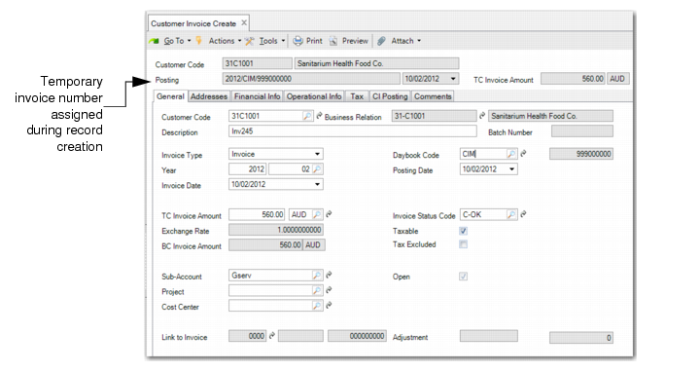
When consecutive and chronological invoice numbering is enabled, the system displays a temporary invoice number in the Posting field until you save the invoice, credit note, invoice or credit note correction, or finance charge record.
Customer Invoice Create, Temporary Invoice Number
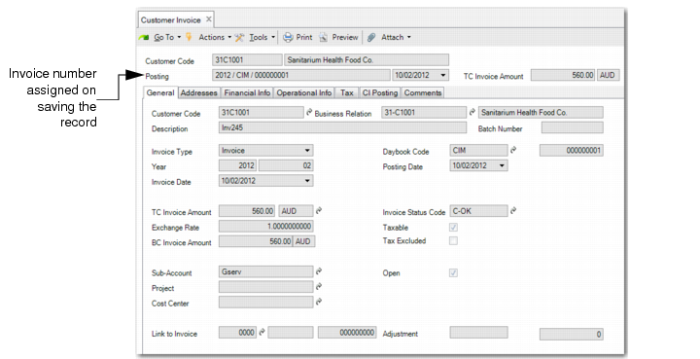
When you save the posting, the system assigns the invoice number.
Customer Invoice Create, Invoice Number Assigned
When chronological invoice numbering is enabled, the numbering controls described in this section apply in Customer Invoice Create:
• If you attempt to save an invoice document with a posting date that is earlier than the posting date of a saved invoice document with the same entity and daybook combination, the system displays an error or warning message, depending on the option selected in the domain Invoice Numbering tab.
Past Invoice Date Warning
• If you attempt to save an invoice document with a future posting date, the system displays an error or a warning, depending on the option selected in the domain Invoice Numbering tab.
Future Posting Date Warning
• When you attempt to save the first invoice document in a new GL period for a daybook and entity combination, the system displays a warning.
Note: This message is always a warning.
First Invoice in GL Period Warning
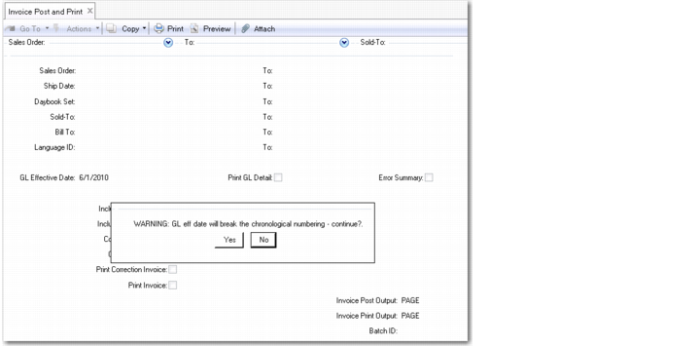
When chronological invoice numbering is enabled, the system displays an error or warning when you run Invoice Post and Print for a GL effective date that is earlier than a posting date on an existing invoice document for the same entity and daybook.
Note: Consecutive and chronological invoice numbering also applies where Invoice Post and Print is accessed from the Customer Consignment and SSM modules.
Invoice Post Warning