Setting Up the Report Chart
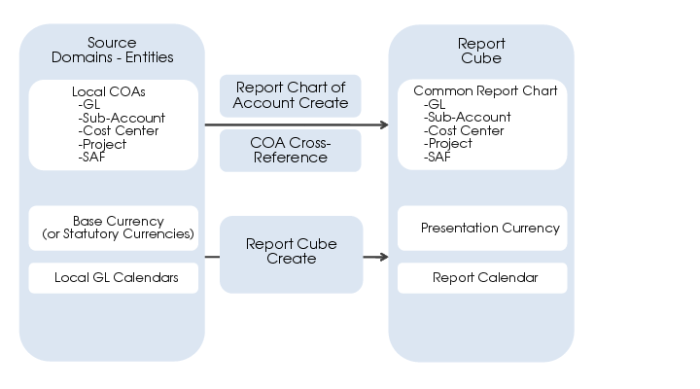
The Financial Report Writer collects financial data from several source domains in a reporting COA. Therefore, specify which common report COA to use.
You set up a report chart by selecting a GL shared set, a sub-account shared set, a cost center shared set, a project shared set, and up to ten SAF concepts. The report COA setup also includes the COA cross-references that translate the COA of the source domains to the report COA. When required, you can create multiple report COAs in the system.
Report Chart Mapping
Report Chart of Accounts Create
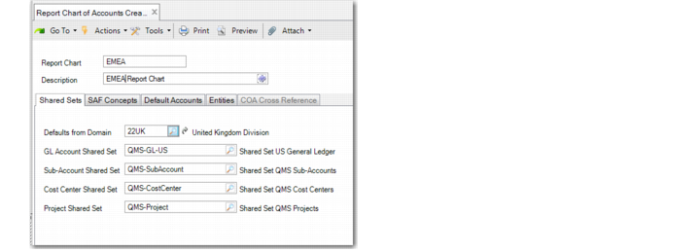
Use Report Chart of Accounts Create (25.16.15.1) to maintain a common reporting chart of accounts. When you create a new report chart in Report Chart of Accounts Create, all tabs except COA Cross Reference are enabled.
Report Chart of Accounts Create
Report Chart
Specify the code for the report chart.
Description
Enter a maximum of 40 characters for a description of the report chart.
Shared Sets Tab
Defaults From Domain
Specify the domain from which you want to use most or all of the shared sets. By default, the system uses the shared sets used in that domain. However, you can update the defaulted values.
GL Account Shared Set, Sub-Account Shared Set, Cost Center Shared Set, and Project Shared Set
Specify a GL shared set, a sub-account shared set, a cost center shared set, and a project shared set for the report chart. You can also leave a shared set field blank. This indicates that you are not planning to use that dimension in any of your reports. It is only mandatory to specify the GL account shared set.
If you replace a shared set and COA cross-references already exist for that shared set in the COA Cross Reference tab, the system displays a warning to remind you to update the cross-references.
SAF Concepts
Report Chart of Accounts Create, SAF Concepts Tab
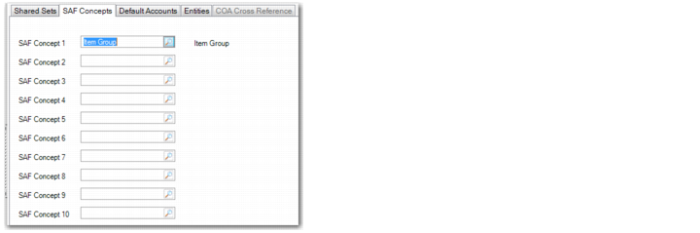
SAF Concept 1-10
Financial Report Writer can include SAF dimensions and bring SAFs from various structures and concepts together to create a central reporting SAF structure. Specify a maximum of ten SAF concepts to use in reporting.
Default Accounts Tab
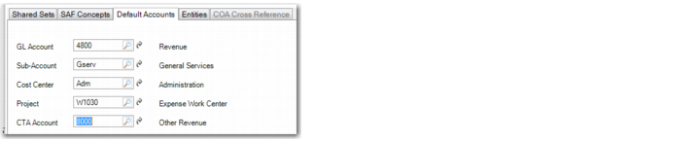
In the Default Accounts tab, enter the special accounts created in steps
2-
6 of
Setting Up Financial Report Writer.
The system uses the default GL account, sub-account, cost center, and project to fill in any gaps caused by missing mapping elements in the COA cross-reference used to translate from the source entity COA to the report chart COA. You can also leave these default codes blank to ensure that a missing translation is raised as an error during the generation of report cubes. In general, it is recommended that you leave these codes blank, unless you want to avoid errors generated by gaps in the COA translation.
The CTA account is mandatory when you create report cubes that have a presentation currency other than the source entities’ base currencies.
Report Chart of Accounts Create, Default Accounts Tab
GL Account
Specify the special catch-all GL account you created in step
3.
Sub-Account
Specify the special catch-all sub-account you created in step
4.
Cost Center
Specify the special catch-all cost center you created in step
5.
Project
Specify the special catch-all project you created in step
6.
Note: This value is only required if you plan to use projects in the reporting COA.
CTA Account
Specify the CTA account you created in step
2. If you specify a CTA account, the system verifies that there are no transactions posted to the account.
Entities Tab
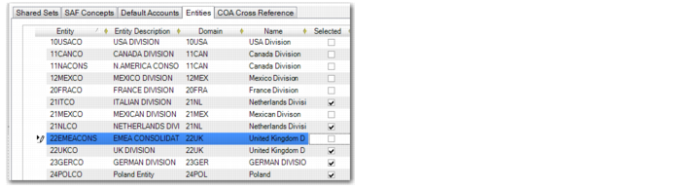
In the Entities tab, specify the entities you want to include in Financial Report Writer.
Report Chart of Accounts Create, Entities Tab
Selected
Select an entity code to create a list of source entities from which to retrieve balances. You can specify entities from any domain in the system.
You must associate at least one entity with a report chart.
If you delete or add entities for which COA cross-references are defined, the system displays a reminder that you must regenerate the COA cross-references.
COA Cross Reference Tab
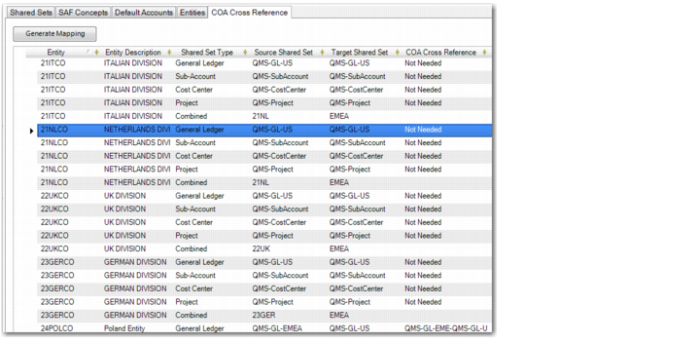
In the COA Cross Reference tab, specify COA cross-reference codes to map shared sets that are different in the source and target COAs. The COA Cross Reference tab is enabled when a GL shared set is specified in the Shared Sets tab and if at least one entity is specified in the Entities tab.
In the COA Cross Reference tab, you can enter COA cross-references manually or have the system automatically generate a list of COA cross-references by clicking the Generate Mapping button. The system verifies if an existing COA cross-reference matches the combination of shared sets and retrieves that cross-reference. If there is no matching COA cross-reference, the system creates a COA cross-reference code that combines the source and target shared set names. The system-generated COA cross-references are of type Separate. For more information on cross-references of types Separate and Combined, see
COA Cross-References and
Setting Up COA Cross-References.
When the source and target shared sets are the same for a dimension, the system displays a Not Needed message and skips that shared set. You can manually specify COA cross-references of type Combined, which you can use for exceptions.
Note: If you modify a shared set and COA cross-references already exist for that shared set in the COA Cross Reference tab, the system displays a warning to remind you to update the cross-references.
If you have saved a COA cross-reference mapping for a report chart and subsequently modify the target shared sets or entities, you must re-click Generate Mapping. Generate Mapping does not re-generate the mappings for existing entities if the target shared sets have not changed. Therefore, the system does not overwrite any valid prior mappings.
Report Chart of Accounts Create, COA Cross Reference Tab
COA Cross Reference
Click in the grid field and specify a COA cross-reference. You can use an existing code or specify a new one.
If you click the Generate Mappings button, cross-references are automatically assigned by the system.
Deleting Report Chart of Accounts
Use Report Chart of Account Delete (25.16.15.4) to delete report chart of accounts. You cannot delete a report chart if it is used in a report cube, budget, report analysis code, report master, or report column group.