Creating Supplier Payments
Use the Supplier Payment Creation activities (28.9.3) to create, modify, view, and delete supplier payments.
You cannot modify supplier payments with a status of For Collection, except to change the payment status. You cannot modify payments with a status of Void or Paid. You can delete only Initial supplier payments. To delete a supplier payment with a status other than Initial, you must first change the status to Initial. You can revert to the Initial status from the For Collection and Allocated status, before you have sent payment to the bank.
The Create Up to Status and Modify Up to Status activities let you control user access to the payment cycle.
For example, when you assign the Create Status To Allocated activity to a particular role, users assigned to that role can create payments with a status of Initial or Allocated only. The Status drop-down list is restricted to display the To Status and previous statuses in the flow. Subsequent statuses, such as For Collection, are not available.
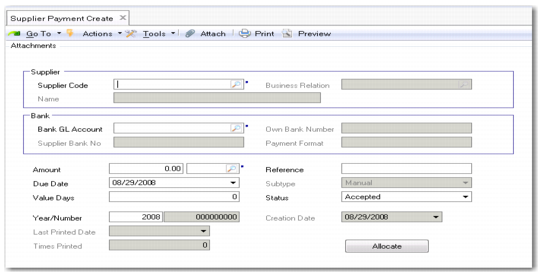
The Create To Status screen looks just like Supplier Payment Create, but displays only those statuses for which your role has permission.
Supplier Payment Create
Field Descriptions
Supplier Code
Specify the code that identifies the supplier to be paid. The system loads the supplier’s default bank information defined in the Banking tab of Supplier Create. Most bank details default from the bank and cannot be modified.
Business Relation, Name
The business relation and name associated with the customer displays.
Bank GL Account
Specify the GL account of type bank updated by the payment. If you specify a supplier first, the banking details default from the supplier. If you leave Supplier blank, the lookup retrieves all the bank account numbers and formats defined for all suppliers on the Supplier Banking tab. Selecting a bank account fills in all of the other relevant fields, most in read-only mode.
Own Bank Number
This field displays the number of your own bank account, which is defined on the Banking tab of the supplier record.
Supplier Bank No
The system displays the supplier bank associated with the specified bank BL account.
Payment Format
This field displays the payment format associated with the selected supplier bank account number.
Subtype
This read-only field indicates whether the payment is manual or automatic. You create manual supplier payments through the Supplier Payment activities, and automatic payments through the Supplier Payment Selection activities.
Year/Number
This field displays the accounting year and payment sequence number, which is automatically generated by the accounting year.
Status
Choose a payment status from the drop-down list.
Supplier Payment Statuses and Account Activity lists payment statuses.
Reference
Enter reference text (maximum 40 characters) for the payment.
Amount/Currency
Specify the value of the payment in the transaction currency. The amount must be positive and can be entered manually or automatically by linking the payment to an open item.
Note: The payment currency must be the same as that of the open item against which you allocate the payment. If an invoice for this customer is in US dollars, your customer payment must be in the same currency. Currency information is contained in the payment format linked to your bank account, and you ensure that the currencies match by selecting the correct bank account.
Due Date
Enter a due date for this payment.
Note: The supplier payment date cannot be earlier than the posting date of the invoice the payment pays.
Creation Date/Last Printed Date/Times Printed
These read-only fields indicate the payment creation date, most recent printing date, and number of times the payment has been printed.
Value Days
Enter a value for the number of days required by the bank to process the transaction. The default is based on the payment status entered.
Click Allocate to allocate this payment to an open item for this supplier. The allocation process is almost identical to that used for customers. See
Allocating a Customer Payment for details of the screens and fields.