Electronic Signature Reports
The Enhanced Controls Menu includes three reports that let you:
• Display signature events based on information related to the signature itself, such as the user, date, and meaning.
• Select database records based on ranges of values for fields in category top tables, and generate a report on related electronic signature history.
• Monitor login history records for failed electronic signature attempts.
Viewing Signature Events
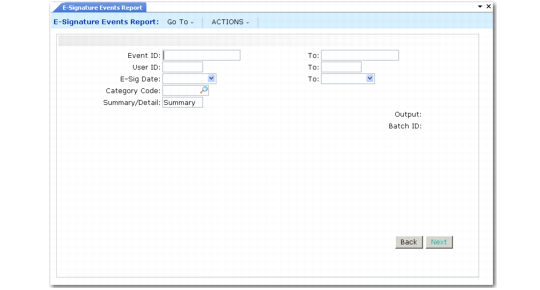
Use E-Signature Events Report (36.12.4) to view data based on ranges of signature event IDs, user IDs, and dates when the signature was created. Optionally, you can limit the report to signatures related to a single specified category code.
The Summary/Detail field controls whether the report includes just basic information such as the user’s name, date, and signature meaning, or also includes details of the signed data.
E-Signature Events Report (36.12.4)
Viewing Signature History
Use E-Signature History Report (36.12.5) to select database records and view historical electronic signature data associated with them. For example, you can report on the two latest signature events associated with a specified work order.
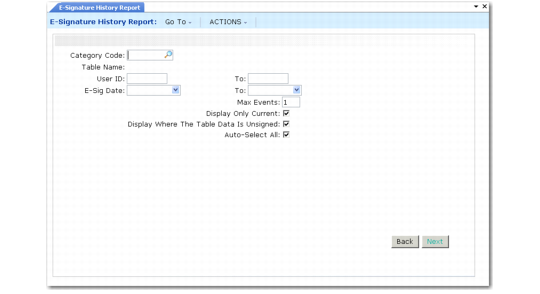
E-Signature History Report (36.12.5), Initial Frame
This report includes multiple frames. First, specify the category, user ID range, and signature date range. Category is a required field. Use the following fields to control other characteristics of the report:
Max Events
Specify the maximum number of electronic signature events to be included in the report for each selected record. The default is 1, which displays the latest signature event for each record that matches the data ranges in the E-Record Selection Criteria frame. If you enter a larger number, the system displays the latest first, then works backward through the number of events specified.
Display Only Current
Indicate whether the system should limit the selection to records in which no data has been updated since the latest electronic signature was recorded.
Display Where the Table Data Is Unsigned
Indicate whether the system should include records matching the criteria data ranges even if they are not covered by an electronic signature instance. When this is Yes, the output identifies records that do not have associated signatures.
Auto-Select All
Indicate if you want all the fields in the top table to be included in the report by default. You can modify the setting for individual fields as needed in the Report Display Fields frame. The default is Yes.
Press Next to display the E-Record Selection Criteria frame where you can identify the records for which you are interested in seeing signature histories. Specify ranges of values for one or more fields in the top table for the category.
Note: Large reports may result if you do not specify field-level selection criteria.
This frame displays the name, label, and type for each field in the top table of the selected category. Field types are Primary (P), Indexed (I), or non-indexed (F). Any selection criteria entered in the Data Range frame display next to the corresponding field on the E-Record Selection Criteria frame. These selection criteria are used to narrow the search results. See
Top Tables.
To minimize the report output, enter criteria for as many table fields as needed. For example, if you are reporting signature records for the Quality Results category (0002), you can limit the report to signatures for a specific work order. Scroll to the Work Order (wr_nbr) field and press Next. Enter the work order number in both the From Value and To Value fields. After entering the field-specific selection criteria for your report, choose End to continue.
Use the Report Display Fields frame to select or deselect the top-table fields to include or exclude on the resulting output.
All fields are preselected if Auto-Select All is Yes in the first frame. Select or deselect fields as needed. Then press Next to specify the output device for the report.
The report output includes the values for all the top-table fields selected in the Report Display Fields frame, as well the following signature data for each event:
• Event ID
• User ID and name of the person signing
• Name of the menu program that generated the signature
• Signature meaning—the reason code entered when the record was signed
• Signature date and time
• Remark entered with the signature
• Current indicator, specifying whether signature values and database values are still identical
• Signed data—the value when signed of each field included in the active profile in effect when the signature was created
Note: If signature events are not available that match the selection criteria, the output includes the following message:
Data archived or never signed
The latest signature should always be available. It is not deleted during an archive/delete.
Monitoring Failed Signature Attempts
As part of an overall security program, you can generate a report showing unsuccessful signature attempts, based on user login history records.
Use E-Signature Failure Report (36.12.7) to select history records by a combination of user ID, signature attempt date, and status code. The resulting report displays the user ID and name, time data, and the status code, which identifies the reason for failure; for example, ID disabled because of excessive failed signature attempts.
When failed login history records are no longer needed online, you can remove them using E-Sig Failure Archive/Delete (36.12.14.21). This standard archive/delete program deletes records from the system and optionally saves them to a file named esig_fail_YYYYMMDD.hst where YYYYMMDD is the date you run E-Sig Failure Archive/Delete. If this function runs multiple times a day, the data will be appended to the same file for the given day.