Defining Transformation Maps
The system uses a transformation map in combination with an exchange file definition and an implementation file definition to exchange data between your system and an external EC subsystem. The resulting output meets the specific data structure and format requirements of both systems.
Note: You can use this program to modify a transformation definition you have created yourself or one based on a copy of a QAD-developed definition. However, the system does not allow you to modify a QAD-developed definition. If you attempt to do so, the program acts as an inquiry and shows the data in display-only mode. Use Transformation Definition Copy (35.17.1) to copy a definition before modifying it. See
Copying Transformation Definitions.
Use Transformation Definition Maint (35.15.17) to define a transformation map.
This program consists of several frames. Use the first frame to:
• Name the transformation definition.
• Identify the combination of an existing exchange file definition, application document definition, and specific implementation that uses this transformation map.
• Set up two fields for testing the transformation map. The Can Run and Debug Level options can be especially valuable when you are testing a new implementation for a new trading partner or document.
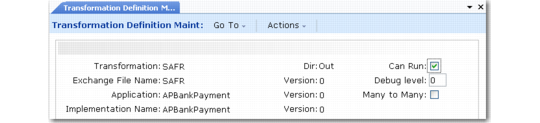
Transformation Definition Maint (35.15.17), First Frame
Transformation
Enter a name for this transformation definition.
Direction
Specify the direction—inbound or outbound—of the documents that are transformed using this definition. Documents imported into your system are inbound, while documents exported from your system are outbound.
Two transformation definitions can have the same name and be distinguished only by direction.
Exchange File Name, Version
Enter the name and version of the exchange file definition used in this transformation.
Note: Multiple exchange file, application document, and implementation definitions can use the same name. Make sure to specify the correct version numbers.
Application, Version
Enter the name and version of the document definition used in this transformation. The definition can be a QAD‑supplied definition or one you created.
Implementation Name, Version
Enter the name and version of the implementation definition used in this transformation.
Can Run
Set to Yes to make this transformation map operational.
During testing, you can set this field to No. The system then runs the entire transformation process, but backs the data out of the repository instead of storing it. You can identify transformation mapping problems and correct them before changing the field to Yes, letting the data be saved in the data repository.
Debug Level
Specify a value from 0 through 9 to indicate the level of detail that is reported in the activity file created when this transformation is run. Lower levels provide less detail. For example, you can set the field to 9 during testing to get a complete record of what happens during transformation processing.
Warning Leaving this field set to a high value can produce large files and can lead to disk space problems.
The system names these activity files using the convention MMDDYYYY.DBG, where MMDDYYYY is the date the transformation map is used. A new file is created when the first session is run each day. A record of each transformation operation that occurs during that day is appended to this file.
Many to Many
Set to Yes to combine multiple input documents and treat them as one document. This setting lets the system back out multiple files or create a single output from several inputs.
If No, the system always maps one input document to one or many output documents, depending on how many times the transformation definition indicates that a new header should be written.
Before displaying the second frame, the system creates variables from the exchange file and the implementation associated with this transformation definition. Only these and user-defined variables can be used during transformation, along with the following automatically assigned variables.
• tp-id | • map-name |
• tp-document-id | • map-exf-vers |
• tp-message-nbr | • map-imp-name |
• tp-func-grp-nbr | • map-imp-vers |
• tp-interchange-nbr | • map-mfg-name |
• tp-document-nbr | • map-mfg-vers |
• tp-doc-dir | • map-exf-name |
• tp-site | • map-many-to-many |
• tp-address | • map-debug-level |
• tp-token-val-list | • map-can-run |
• mfg/pro-site | • current-exf-seq |
• mfg/pro-address | • current-mfg-seq |
| • conditional-rec-flushed |
The trading partner variables correspond to tokens. The system uses MFG/PRO-SITE and MFG/PRO-ADDRESS to determine the customer address and the site code automatically, based on the cross-reference defined in Trading Partner Maintenance (35.13.7). You can also assign these values as an event that takes place during transformation. Other variables contain information associated with the transformation definition.
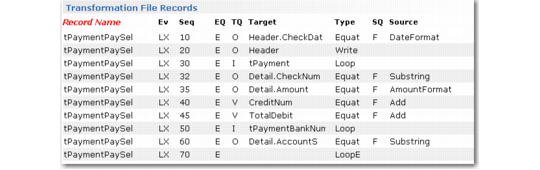
The second frame displays the events and actions associated with the current transformation definition records. The records are always related to the direction of the document. For example, an inbound document always displays exchange file record names.
Choose Insert to define a new event. To delete the current selection, choose Delete, then confirm the deletion when prompted.
Note: The system provides a set of editing tools that let you modify existing records without deleting them.
Transformation Definition Maint, Transformation File Records Frame
In the Event Qualifiers frame, begin identifying a new event by specifying a combination of event qualifier, event, record name, and action sequence.
Transformation Definition Maint, Event Qualifiers Frame
Ev Qual
Enter an event qualifier or use Next/Previous to scroll through the list and choose Go to select a value.
Note: The current version of eCommerce uses only the Each option.
Event
Enter the type of event or use Next/Previous to scroll through the list and choose Go to select a value. Valid values are:
• Loop-Entry
• Record-Entry
• Field-Entry
• Loop-Exit
• Record-Exit
• Field-Exit
Record Name
Enter the name of the record that is acted upon during this event.
You can also use Next/Previous to scroll through the list and choose Go to select a value. Because the record name is associated with the direction of the document, Next/Previous displays only the records that can be used as input to the transformation. For example, on an outbound document, only implementation record names are available.
Action Seq
Enter a number to represent the sequence in which this event occurs.
Note: When setting up event qualifiers, consider using increments of 10 so you can later insert intermediate sequence numbers. If necessary, you can use editing options to resequence events, as described in
Editing Transformation Events. Alternatively, use the Transformation Renumber Utility (35.17.3) to update all the event sequence numbers automatically and to leave space between numbers in which to insert new events. See
Renumbering Transformation Actions.
After you enter a value in Action Sequence and choose Go, a final frame displays for you to enter the type of action associated with this event. For example, the system can equate two values or read a record into memory. You also specify a qualifier for the source, the target, or both, depending on the type of action.
Note: The target is always the element being acted upon. For example, if you are equating two values, you are instructing the system to make the target equal to the source.
Transformation Definition Maint, Event Actions Frame
Type
Specify the type of action that the system performs or use Next/Previous to scroll through the list of action types and choose Go to select one. Valid action types are:
• Equate: Set the target equal to the source.
• Read: Read the target record fields into memory. This type can be used only with an input record.
• Clear: Remove the target record fields from memory.
• Write: Write the target record to the database. You can only write an output record. You must write a header record before another record can be written. Write can be used optionally with the QAD-provided check-hash function, which determines the header for which the system writes the detail.
• New: Logical placeholder documenting the initialization of new outbound records.
• Loop: Loop through the records already read into memory.
• EndLoop: End a loop. Does not require a source or target.
• If: Conditional logic based on the source and source qualifier. The If statement must return a value of True or Yes. It allows the use of Else and Endif and does not require a source or target.
• Endif: End of an If statement. Endif does not require a source or target.
• Else: Logical branch between If and Endif statements. Else does not require a source or target.
• Repeat: Repeats a section of transformation event actions a specified number of times.
• EndRepeat: Ends the section of transformation event actions that the previous Repeat action repeats.
Qual Target
Select the form of data to be specified as the target for this event. This setting determines valid values for the Target field.
Enter the qualifier for the target or use Next/Previous to scroll through the list of qualifiers and choose Go to select one. Valid values are:
• I: Input data
• O: Output data
• V: Variable
Target
Enter the inbound record or field, outbound record or field, or variable that is the target of the action specified in Type.
Enter the name of the target or use Next/Previous to scroll through the list of available targets and choose Go to select one.
Qual Source
Select the form of data to be specified as the source for this event. This setting determines valid values for the Source field.
• I: Input data
• O: Output data
• V: Variable
• C: Constant
• F: Function
• S: Sort (only allowed for Loop event type)
If you specify a function and enter its name in Source, another frame lets you modify it as needed for this specific instance. Some functions are provided with eCommerce. However, you can also define your own functions with eCommerce Function Maintenance (35.15.21). Use eCommerce Function Copy (35.17.2) to copy an existing function before modifying it as required.
Source
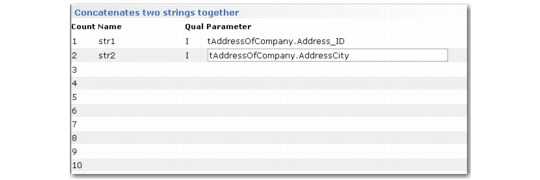
Enter the inbound record or field, outbound record or field, variable, constant, or function that is the source of the action specified in Type. If you enter the name of a function, another frame displays. Use it to modify the qualifiers and parameters as needed for this specific instance.
Transformation Definition Maint, Function Frame
Qual
Enter a code indicating the structure of the data passed in this parameter. This setting determines valid values for the Parameter field.
Enter the qualifier for the parameter or use Next/Previous to scroll through a list of qualifiers and choose Go to select one. Valid values include:
• I: Input data
• O: Output data
• V: Variable
• C: Constant
Parameter
Enter the name of the input, output, or variable. You can use Next/Previous to scroll through a list of available parameters and choose Go to select one. The Qual value determines the contents of the list.
If Qual is C, you must enter a constant. If you enter a value not already defined, the system prompts you to define the data type as one of the following:
• AN: Alphanumeric
• D: Date
• I: Integer
• L: Logical
• R: Real number
Editing Transformation Events
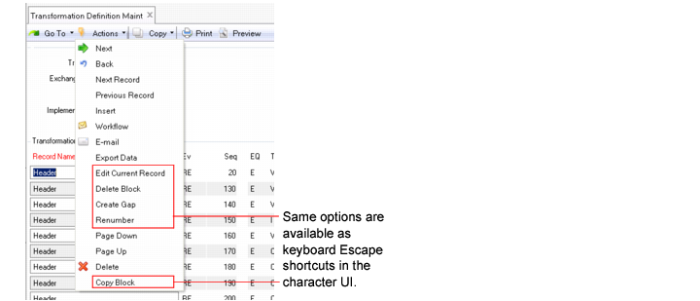
Transformation Definition Maintenance includes editing options that let you—among other actions—modify current event records without deleting and re-entering them. These options are available in both QAD .NET UI and character user interface when focus is on a record in the Transformation File Records frame.
• In QAD .NET UI, choose an option from the Actions menu.
• In the character UI, use the appropriate keyboard shortcut:
• Edit Current Record: Esc-e
• Delete Block: Esc-d
• Create Gap: Esc-g
• Renumber: Esc-r
• Copy Block: Esc-c
Transformation Definition Maintenance Editing Options in .NET UI
Edit Current Record
Use this option to update a transformation map event. You can change the event type, qualifier, target, source, and sequence. If the event action calls a function, you can reset the parameter values or change to a different function.
Delete Block
The system displays a selection range for the current record. The defaults cover all the action event sequence numbers for the record. Leave the fields as-is to delete all the events for the record, or modify them to delete just the range of events you want to remove.
Create Gap
The system prompts you to specify the length of the gap in sequence numbers that the system creates after the selected event. For example, if focus is on event action sequence 60 and you set the Create Gap Of field to 100, the system adds 100 to all the subsequent events. So, if the next sequence numbers were 70, 80, 90, the system would set the sequence numbers for the record to 60, 170, 180, 190, and so on.
Renumber
The system prompts you for an Interval—the new starting sequence number for each record in the transformation map, as well as the increment between event sequences. The system disregards the current sequences and begins each record with the specified value. For example, if you set Interval to 5, the system renumbers the events in each record as 5, 10, 15, 25, 35, and so on. You can perform this same function using Transformation Number Utility (35.17.3).
Copy Block
Use this function to copy a specified range of event actions to the current transformation map or any other map in the system.
The system prompts you for the range of sequence numbers you want to copy. The default range is from the current event through the last one in the record. You then specify the destination of the copied events. The defaults represent the current record and transformation map. Use the arrow keys to scroll through valid destinations.
The new events start with the specified Destination Sequence; the system maintains the increments between the source events when assigning new sequence numbers. For example, if you copy sequence numbers 10, 15, 20 and specify a Destination Sequence of 21, the new events would be numbered 21, 26, 31. The new sequence maintains the original increment of 5 between events.