Setting Up Trading Partners
Use Trading Partner Maintenance (35.13.7) to identify the document types that are exchanged with each trading partner and to set up cross-references between trading partner documents and your system. You can also cross-reference the trading partner’s site and address codes to the codes used in your database.
This program consists of multiple frames. In the first frame, specify the ID the trading partner uses to identify itself in the control record portion of the SNF files exchanged between the EC subsystem and your system.
Trading Partner Maintenance (35.13.7), First Frame
TP ID
Enter an alphanumeric identification code for this trading partner. This ID must be the same as the code used in the SNF file control record for the tp-id token. See
Token.
Name
Enter an identifier for this trading partner. This value is for reference only.
In the second frame, enter control information used during document processing for this trading partner. Several of the fields serve as defaults for trading partner documents defined in the subsequent frame, such as the sequence IDs used to generate document sequence numbers in the repositories.
Trading Partner Maintenance, Control Information Frame
Group
Optionally, enter the name of a trading partner group. You can use this group name to associate multiple trading partners for reporting purposes.
Counters: Inbound Exchange, Outbound Exchange, Inbound Application, Outbound Application
Specify the sequence IDs that are used to assign numbers to repository documents during processing for this trading partner.
These fields are optional. If you enter a value, it must be a valid sequence ID defined in EC Number Range Maintenance. See
Using Sequence IDs.
Use Primary Reference ID
Enter Yes to have the system use a reference ID number provided in the document being processed, rather than using a sequence ID defined in EC Number Range Maintenance to generate an ID number. This field defaults to the Trading Partner Document Records frame for new records.
When you use this feature, assign the token PRIMARY-REF-ID to a field in the exchange file, application, and implementation definitions to represent the reference ID.
Note: If this field is Yes and the token is not assigned in a required definition, the system uses the appropriate sequence ID specified in the eCommerce Transaction Control frame of eCommerce Control to generate a number.
Application
Enter a code representing the application to which this record applies.
The field in the initial frame defaults to EDI. You can change it as required. That value defaults to new records created in the Trading Partner Document Records frame; that value in turn defaults to new TP location cross-reference records.
Suppress Warnings
Enter Yes to prevent the system from generating status messages that result from warning conditions during transformation or gateway processing.
When this field is No, the system always generates warnings in the status message table.
This field defaults from eCommerce Control. It defaults to the Trading Partner Document Records frame for new document records.
Stop on Error
Enter Yes to have the system stop processing a document during transformation when the first error is encountered. The system skips the rest of the document and moves to the next sequence number.
When this field is No, processing continues regardless of the number of errors that occur.
This field defaults from eCommerce Control. It defaults to the Trading Partner Document Records frame when you set up a new document record.
Suppress Session Report
Enter Yes to prevent the system from generating a session report following document load or unload.
When this field is No, the system always generates session reports.
This field defaults from eCommerce Control. It defaults to the Trading Partner Document Records frame when you set up a new document record.
The Trading Partner Document Records frame displays next. Set up a separate record for each document type exchanged with this trading partner.
Trading Partner Maintenance, Trading Partner Document Records Frame
TP Doc ID
Enter the identifier for the document type exchanged with this trading partner. For example, TP Doc ID can be 810 to indicate an invoice exported in the ANSI X12 810 format. This value must be the same as the code used in the SNF file control record for the tp-document-id token. See
Token.
Dir
Specify whether this record applies to inbound or outbound records. This field lets you distinguish between two trading partner records with the same document type by making one inbound and the other outbound.
Document Map
Enter the name of the transformation map that the system uses in converting the data in this record for this combination of trading partner, document type, and direction. You must define this transformation map in Transformation Definition Maint. See
Defining Transformation Maps.
Transmission Group
Enter the name of the transmission group associated with this trading partner for this document type. You must define this group in Transmission Group Maintenance. The field is mandatory for outbound documents. See
Defining Transmission Groups.
Token List
Optionally enter a comma-separated list of valid tokens for the system to use to differentiate between multiple trading partner cross-references to the same combination of site and ship-to address. These values are used to determine the source of imported documents.
When Fields is Yes, you can then associate corresponding comma-separated values for each combination of trading partner site and address.
Enter enough tokens and values to create a unique combination of trading partner site, trading partner address, and tokens for each instance where trading partner site and address are the same. See
Token.
The next frame displays additional fields for the selected record.
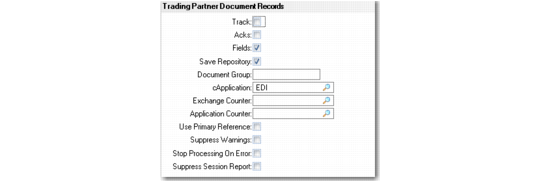
Trading Partner Maintenance, Additional Trading Partner Document Records Frame
Track
Indicate whether the system automatically generates tracking records when exporting documents of this type to this trading partner. The system can then import acknowledgment and status messages from the EC subsystem and update the tracking records as required. See
Tracking Exported Documents.
When this field is No, tracking records are not created and imported acknowledgments are disregarded.
Note: Documents are tracked only when the Primary Reference field in the exchange repository master record contains a value. For example, this reference can be a purchase order, invoice, or ASN number.
Acks
Indicate whether the system typically receives acknowledgment messages from the EC subsystem after the subsystem processes exported documents of this type for this trading partner.
When Track is set to Yes, the system creates a tracking record each time it exports this type of document to this trading partner. When Acks is Yes, the system leaves the Ack Status field in the tracking record blank until importing an acknowledgment message from the EC subsystem. When Acks is No, the system automatically sets Ack Status to None Expected. The system can still update the Ack Status field by importing a status message.
Fields
Enter Yes to display an additional frame that lets you enter or edit trading partner cross-reference information.
Save Repository
Specify whether the system retains data in the document repositories after processing.
Yes (default): Any records created in the repositories when processing this document are saved.
No: The system deletes repository records related to this document after processing is completed.
Document Group
Optionally, enter the name of a trading partner document group. You can use this group name to associate multiple trading partners for reporting purposes.
Application
Enter a code representing the application to which this record applies.
This field defaults from the initial trading partner data frame. It defaults to the TP Location Cross-Reference frame when you set up a new cross-reference record.
Exchange, Application Counter
Specify the sequence IDs that are used to assign numbers to repository documents for this trading partner.
These fields are optional. If you enter a value, it must be a valid sequence ID defined in EC Number Range Maintenance.
Use Primary Reference ID
Enter Yes to have the system use a reference ID number provided in the document being processed, rather than using a sequence ID defined in EC Number Range Maintenance to generate an ID number. This field defaults from the initial trading partner setup frame.
When you use this feature, assign the token PRIMARY-REF-ID to a field in the exchange file, application, and implementation definitions to represent the reference ID.
Note: If this field is Yes and the token is not assigned in a required definition, the system uses the appropriate sequence ID specified in the eCommerce Transaction Control frame of eCommerce Control to generate a number.
Suppress Warnings
Enter Yes to prevent the system from generating status messages that result from warning conditions during transformation or gateway processing.
When this field is No, the system always generates warnings in the status message table.
This field defaults from the initial trading partner data frame. It defaults to the TP Location Cross-Reference frame when you set up a new cross-reference record.
Stop on Error
Enter Yes to have the system stop processing a document during transformation when the first error is encountered. The system skips the rest of the document and moves to the next sequence number.
When this field is No, processing continues regardless of the number of errors that occur.
This field defaults from the initial trading partner data frame. It defaults to the TP Location Cross-Reference frame when you set up a new cross-reference record.
Suppress Session Report
Enter Yes to prevent the system from generating a session report following document load or unload.
When this field is No, the system always generates session reports.
This field defaults from the initial trading partner data frame. It defaults to the TP Location Cross-Reference frame when you set up a new cross-reference record.
The next frame lets you set up cross-references between the trading partner’s site and address codes and the codes in your system. The system uses these cross-references during the transformation process to automatically identify such information as the customer’s site and address. Without the cross-references, you must use Transformation Definition Maintenance (35.15.17) to assign the MFG/PRO‑SITE and MFG/PRO-ADDRESS variables before the output header record is written. Otherwise, the system generates a transformation error message.
Note: This frame displays only when you set Fields to Yes.
The frame acts as a selection list for all the needed combinations for this trading partner. Select an existing record and choose Go to update it. Choose Insert to add a record.
Trading Partner Maintenance, TP Location Cross- Reference Frame
TP Site and TP Address Reference
Enter the site and address codes used by the trading partner. Several different site and address combinations can exist at this level. For example, one cross-reference can be for the trading partner (sold-to) and the others for the ship-to addresses.
For inbound documents, the combination of trading partner site and address provides a cross-reference to the site and address. For outbound documents, the transformation process determines the trading partner site and address codes using the following three elements:
• Application document definition name and version
• Implementation name and version
• Site and address codes from your system
Token List Values
Enter a comma-separated list of values associated with the tokens entered in Token List in the previous frame. Be sure that there is one-to-one correspondence between tokens and values.
On imported documents only, the system uses these values to differentiate between multiple trading partner cross-references to the same combination of site and address.
Site and MFG Addr
Enter cross-references from the trading partner site and address to the site and address codes in your system.
Note: Site and Address are not validated against master records defined in your system.
Export
Specify whether the system exports this document type to this combination of site and address for this trading partner.
In an environment with more than one trading partner cross-reference mapped to the same combination of site and address, this field lets you limit the trading partner addresses that are selected to receive exported documents. For example, send an ASN both to a ship-to customer and to the central ordering point that placed the order by having a cross-reference record for each and setting Export to Yes for both.
This field can be updated only when the Direction field for a trading partner document ID is Out.
The next frame includes additional location cross-reference fields.
Trading Partner Maintenance, Additional TP Location Cross- Reference Fields
Transmission Group Override
Set this field to Yes to display an additional frame that lets you override the document-level transmission group value in the Trading Partner Document Records frame for a specific trading partner/site reference.
Use this feature to define different HTTP parameters for posting XML documents for specific trading partner locations—for example, when you are using QXtend to communicate EDI eCommerce documents.
Email
Enter Yes to display an additional frame that lets you enter one or more e-mail addresses of individuals who receive process status notifications regarding documents that use this trading partner location cross-reference.
You can also specify whether the system sends e-mail to the address only when a processing error occurs.
Specify complete email addresses; for example,
[email protected].
Use Email Definition Maintenance (36.4.20) to set up your system to manage automated email messages.
Suppress Warnings
Enter Yes to prevent the system from generating status messages that result from warning conditions during transformation or gateway processing.
When this field is No, the system always generates warnings in the status message table.
This field defaults from the Trading Partner Document Records frame.
Stop on Error
Enter Yes to have the system stop processing a document during transformation when the first error is encountered. The system skips the rest of the document and moves to the next sequence number.
When this field is No, processing continues regardless of the number of errors that occur.
This field defaults from the Trading Partner Document Records frame.
Suppress Session Report
Enter Yes to prevent the system from generating a session report following document load or unload.
When this field is No, the system always generates session reports.
This field defaults from the Trading Partner Document Records frame.