Tracking Exported Documents
For exported documents, the system can automatically create tracking records. These records let you determine the status of the document both within your system and from the viewpoint of the EC subsystem and your trading partner’s application.
When Track is Yes in a document-level record in Trading Partner Maintenance (35.13.7), the system generates a tracking record each time you export a document of that type to that trading partner. After receiving the exported EDI file from your system, the EC subsystem can send an acknowledgment message. When this message is imported, the system updates the related tracking record with the status code from the EC subsystem. If the message also includes an optional status code from the trading partner’s application, it is added to the tracking record.
Example: The EC subsystem returns an acknowledgment status of Received, along with an application status of Accepted. When you import acknowledgment messages using Document Import (35.1), the system updates the tracking record to include both status codes.
The acknowledgment message typically includes an interchange control number from the EC subsystem, which is also added to the tracking record. Your system has no knowledge of this control number when the document is exported, so being able to associate it with the exported document can provide a valuable cross-reference tool.
Note: Documents are tracked only when the Primary Reference field in the exchange repository master record contains a value. For example, the value can be a purchase order, invoice, or ASN number.
When tracking records are no longer needed online, you can delete them from the system and optionally archive them using Document Tracking Archive/Delete (35.9.16.13).
Use of Tracking Data
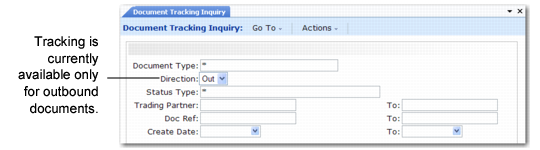
Use Document Tracking Inquiry (35.9.16.3) to view document and status information based on tracking records.
Document Tracking Inquiry (35.9.16.3), First Frame
Enter ranges of selection criteria for displaying documents and click Next. The system displays a list of documents that match the criteria, along with a status summary. To view more information, select a record, then click Next. Subsequent screens let you view exchange file or application document status, as well as the content of the associated repository records, for the original document. The system also displays each acknowledgment or status update document received from the EC subsystem.
Manually Updating Tracking Records
Under some circumstances, you have to make manual changes to a system-maintained document tracking record. For example, a communication error prevents your system from importing an acknowledgment message from the EC subsystem.
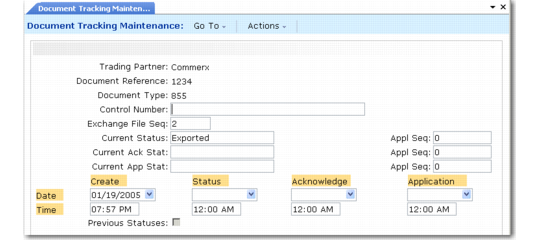
Use Document Tracking Maintenance (35.9.16.1) to make manual updates to system-maintained tracking records associated with exported documents.
Document Tracking Maintenance (35.9.16.1)
Trading Partner
Enter the identifier representing the trading partner that received the exported document tracked with this record.
Entries are validated against IDs defined in Trading Partner Maintenance.
Document Reference
Enter the number of the exported business document tracked with this record. For example, this value could be a purchase order, invoice, or ASN number.
Document Type
Enter the type of the exported document tracked with this record. For example, the type could be ANSI X12 document 856 or EDIFACT document DESADV.
Entries are validated against document types defined for the specified ID in Trading Partner Maintenance (35.13.7).
Control Number
Enter the interchange control number assigned by the EC subsystem to the exported document.
Exchange File Seq
Enter the exchange sequence number of the exported document associated with this tracking record. Entries are validated against exchange repository master records.
Current Status
Enter the processing status code assigned most recently to the exported document.
For example, when a document is successfully exported, the system sets this status to Exported. After all acknowledgments are received from the EC subsystem and the trading partner’s application, it can be changed to Completed.
When this field is updated, the system maintains a history of previous processing status codes. Set Previous Statuses to Yes to view a list.
Current Ack Status
Enter the most recent status code from the EC subsystem.
When Ack is Yes for the document type in Trading Partner Maintenance, the system leaves this field blank until an acknowledgment message is imported from the EC subsystem.
When Ack is No, the tracking record is created with None Expected in this field. If an acknowledgment status is received from the EC subsystem, the new status overwrites the system-assigned value.
Current App Status
Enter the most recent status code from the trading partner’s application.
Application Sequence
Enter the application document repository sequence number associated with the document that reported the status, acknowledgment status, or application status.
Additional fields show the dates and times associated with document creation and status updates.
Set Previous Statuses to Yes to list the processing status codes and associated application repository sequence numbers previously assigned to a document tracking record. The list includes values that previously displayed in the Current Status field.