Fixed Asset Maintenance Header
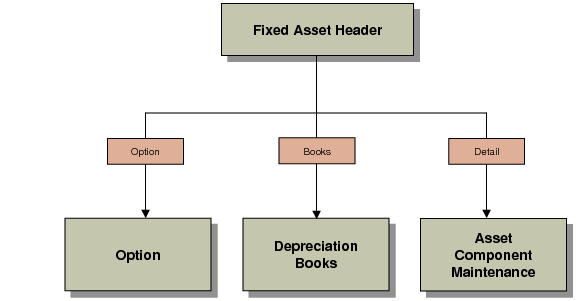
Fixed Asset Header illustrates the different screens you can access with the navigation buttons.
Fixed Asset Header
Use this header to enter your company’s fixed assets. Asset IDs are assigned automatically by the system or manually, based on the value of Auto Generate Asset in Fixed Asset Control. See
Setting Up Fixed Assets.
After you have assigned an asset ID, you set up the following for each asset:
• Class
• Location
• Service date
• Asset cost
• Salvage amount
• Replacement cost
• Number of asset components
• If the acquisition is posted
• If the asset is depreciated
• Authorization number
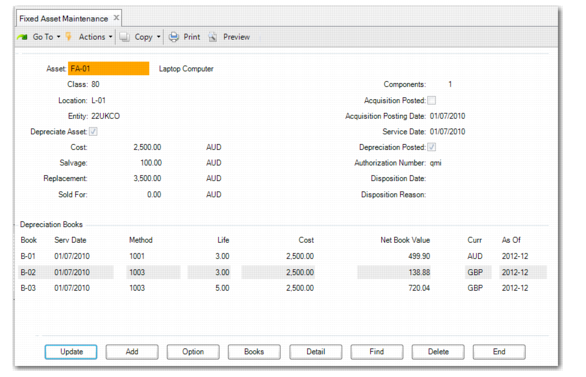
Fixed Asset Maintenance (32.3), Header
Asset
Enter a unique alphanumeric asset ID for the fixed asset if Auto Generate Asset is No in Fixed Asset Control. Duplicate asset IDs are not allowed.
If Auto Generate Asset is Yes in Fixed Asset Control, the system automatically assigns an asset ID using the predefined Number Range Management sequence.
Description
Enter up to 50 characters describing the fixed asset.
Class
Enter a predefined class ID. Define class IDs in Class Maintenance (32.1.17). See
Setting Up Classes.
If you change the class before the asset has been posted, the depreciation schedule is updated with the new values.
Important: If you change the class after the asset is created, the accounts are not automatically updated.
Location
Enter a predefined location ID. Define location IDs in Location Maintenance (32.1.13). You cannot update the location if the asset has been posted to the GL. See
Setting Up Locations.
Important: If you change the location after the asset is created, the sub‑accounts and cost centers are not automatically updated.
Acquisition Posted
This field is read only and is automatically selected when the acquisition transaction for the fixed asset has been posted.
Acquisition Posting Date
The date on which the acquisition transaction for the fixed asset was posted. This field is mandatory. The default value is the system date, but you can modify the default. The date is used to retrieve the exchange rate for calculating base currency and statutory currency amounts. You cannot modify this field when the fixed asset has posted the acquisition.
Service Date
Enter the date that this fixed asset was put into service. This date defaults as the service date for each asset book and is used to calculate depreciation.
The service date must exist in the GL calendar and any fixed‑asset calendar associated with the default books. You cannot update the service date if the asset has been posted to the GL.
Cost
Enter the amount paid to acquire the asset in the currency of the primary book. This cost is not necessarily a basis for a depreciation calculation. This cost defaults as the cost for each asset book.
You cannot update the cost if the asset has been posted to the GL. You must make a basis adjustment on the Depreciation Adjustments screen.
The cost amount for each book in the Depreciation Book grid defaults automatically after you specify the cost here in the Fixed Asset Maintenance header.
Salvage
Optionally enter a salvage value for this asset. Use the currency of the primary book. The salvage value must be less than the asset cost.
Salvage value is the estimated value of property at the end of its useful life. It is the amount reasonably expected in an open market for the asset after it is no longer productive. If a salvage value is defined at the beginning of the depreciation calculation, it is used to reduce the depreciable base.
This amount defaults as the salvage amount for each asset book when the depreciation method uses salvage value.
If the asset has been posted to the GL, you must use the adjusting book by choosing type Salvage to update the salvage amount.
You can define a separate salvage value for each fixed asset book.
Curr
Displays the currency of the primary book for the fixed asset. This value is read only, and defaults from Book Maintenance.
However, the amounts in the Depreciation Books grid are displayed in the corresponding currency for each fixed asset book.
Replacement
Enter the replacement value for the asset in the currency of the primary book. This value is not used for any calculations, but can be used for management purposes. For example, this value can be used to create budgets for assets replaced on a recurring basis.
Components
Enter the number of items that belong to this asset ID.
For example, if an asset is acquired that consists of 200 chairs, the chairs can be grouped as one asset. In this case, set Components to 200.
If you update the number of components in the Asset Component Maintenance screen, this field is automatically updated.
Depreciate Asset
If Yes, this is a depreciable asset and must be assigned to a posting book.
Authorization Number
Optionally enter an authorization number for this fixed asset. This field is for reference only.
Disposition Date
Enter the disposal date for the asset. The disposal date is the date the asset is removed from service and ownership interest is relinquished. If the asset is suspended as of the disposal date, you must reinstate the asset before retiring it.
The date must be a valid date in the GL calendar or any fixed‑asset calendar associated with the book. It must also be in an open GL period and must be after the service date.
Disposition Reason
Enter the reason for the disposal of the asset. The field is validated against codes set up in Generalized Codes Maintenance for field fa_disp_rsn.
Disposition reason is the reason the asset is removed from service and ownership interest relinquished. Examples of disposition reasons are sold, stolen, destroyed, donated, and impaired.
Important: You might enter a cost and salvage amount for a book and the book currency and the statutory currency and base currency are not equal. In this case, the system displays an error when the exchange rate from transaction currency to statutory currency or from transaction currency to base currency is not defined for the acquisition effective date. When the transaction currency to statutory currency exchange rate is missing but Fallback to Accounting is selected for the Statutory exchange rate and an Accounting exchange rate is defined for the effective date, no error message is displayed.